
A Drone Pilot's Guide to the FlightView App for Android in 2026
Imagine having a 'sky scanner' in your pocket, one that shows you exactly where commercial aircraft are flying in real-time. For drone pilots, that's what the FlightView app for Android offers—a straightforward way to get an extra layer of situational awareness for safer, smarter flights.
Why Drone Pilots Need The FlightView App
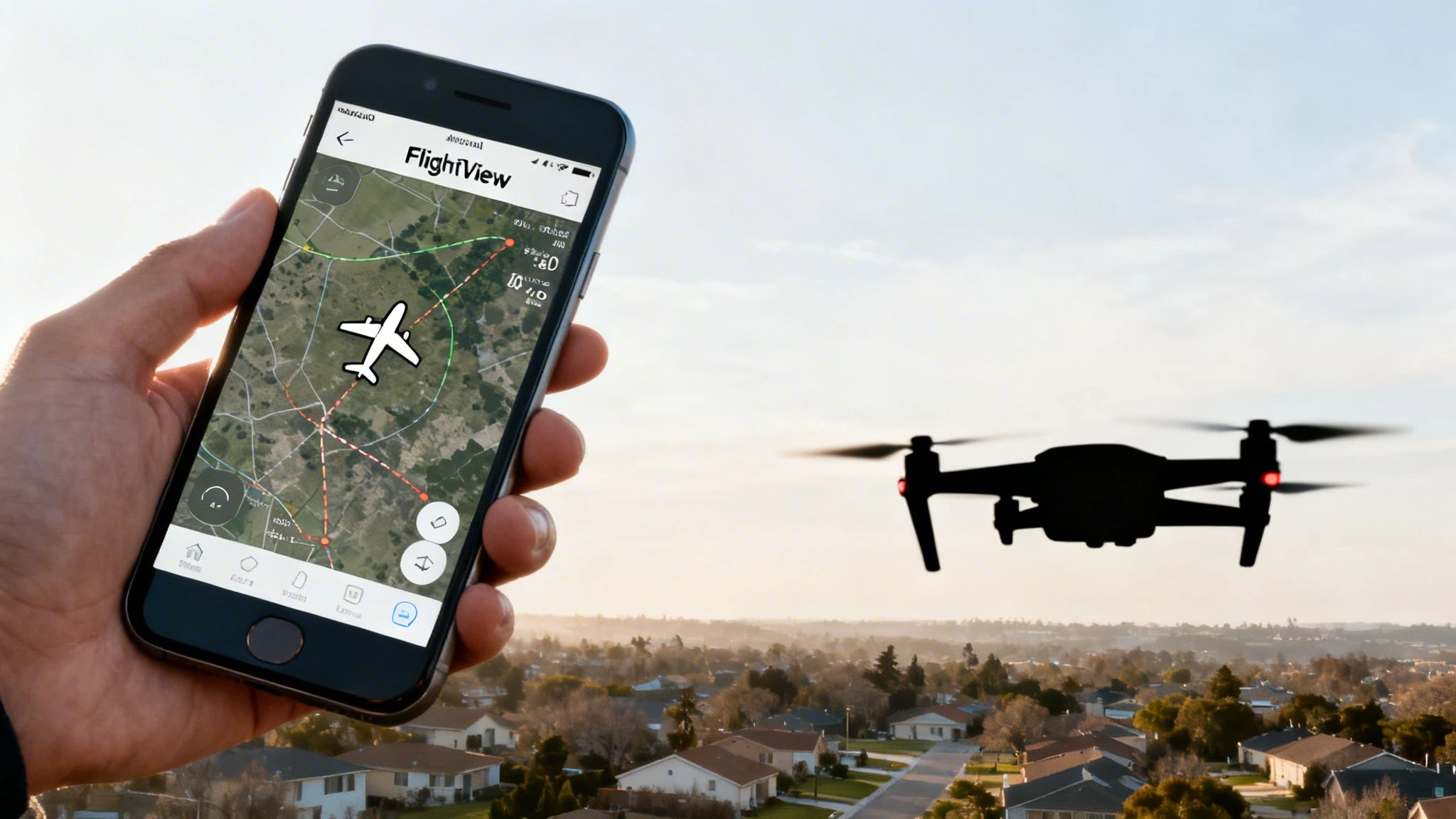
While FlightView was originally built for air travelers to track their flights, savvy drone operators have turned it into an essential field tool. It gives you a tactical view of the airspace that perfectly complements your main planning software.
Think of it like this: your dedicated drone management platform, like Dronedesk, is for strategic mission planning. The FlightView app for Android is your live, in-the-field 'eyes on the sky,' showing you what’s happening in the air right now.
To give you a quick overview, here's how the app's core features stack up for professional drone operations.
FlightView App at a Glance for Drone Professionals
| Feature | Description | Relevance for Drone Pilots |
|---|---|---|
| Live Flight Tracking | Displays real-time positions of commercial flights on a map. | Essential for seeing active flight paths and avoiding potential conflicts with manned aircraft near your operating area. |
| Flight Details | Provides information like aircraft type, altitude, and speed. | Helps you understand the behaviour of nearby air traffic, so you know if it's a high-altitude jet or a low-flying helicopter. |
| Airport Data | Shows arrival and departure schedules for nearby airports. | Allows you to schedule your drone jobs during lulls in air traffic, significantly boosting operational safety. |
This table shows how a simple flight tracking app becomes a powerful safety tool when you look at it through the lens of a drone pilot.
Gain Crucial Situational Awareness
By seeing the live flight paths, altitudes, and schedules of nearby planes and helicopters, you can make much better decisions before you even launch. This kind of visibility lets you:
- Anticipate Air Traffic: Spot incoming and outgoing flights near your job site well in advance.
- Plan Smarter: Time your flights to coincide with periods of low manned aircraft activity.
- Enhance Safety: Massively reduce the risk of close calls by understanding the active airways around you.
This isn't just a "nice-to-have" feature; it's a genuine step-up for any serious drone pilot’s toolkit. It adds a layer of on-the-ground operational intelligence that used to be incredibly difficult to get. For a deeper dive, check out our guide on other great drone apps for Android.
This isn't about replacing your official planning systems. It's about supplementing them with live, tactical data to build a more complete safety picture.
The Power Of The Android Platform
The choice of operating system has a huge impact on what an app can do. When it comes to an app like FlightView, understanding the pros and cons of Android OS for app development shows why it’s a solid platform for this kind of tool.
The app's popularity on Android is no accident. The global Flight Status Mobile App market topped USD 1.24 billion in 2024, and Android apps grabbed the biggest slice of that pie, thanks to the platform's massive 70% global smartphone market share. This wide adoption guarantees the app will see continued support and development, which is great news for professional users who rely on it.
Unlocking Key Features for Airspace Awareness
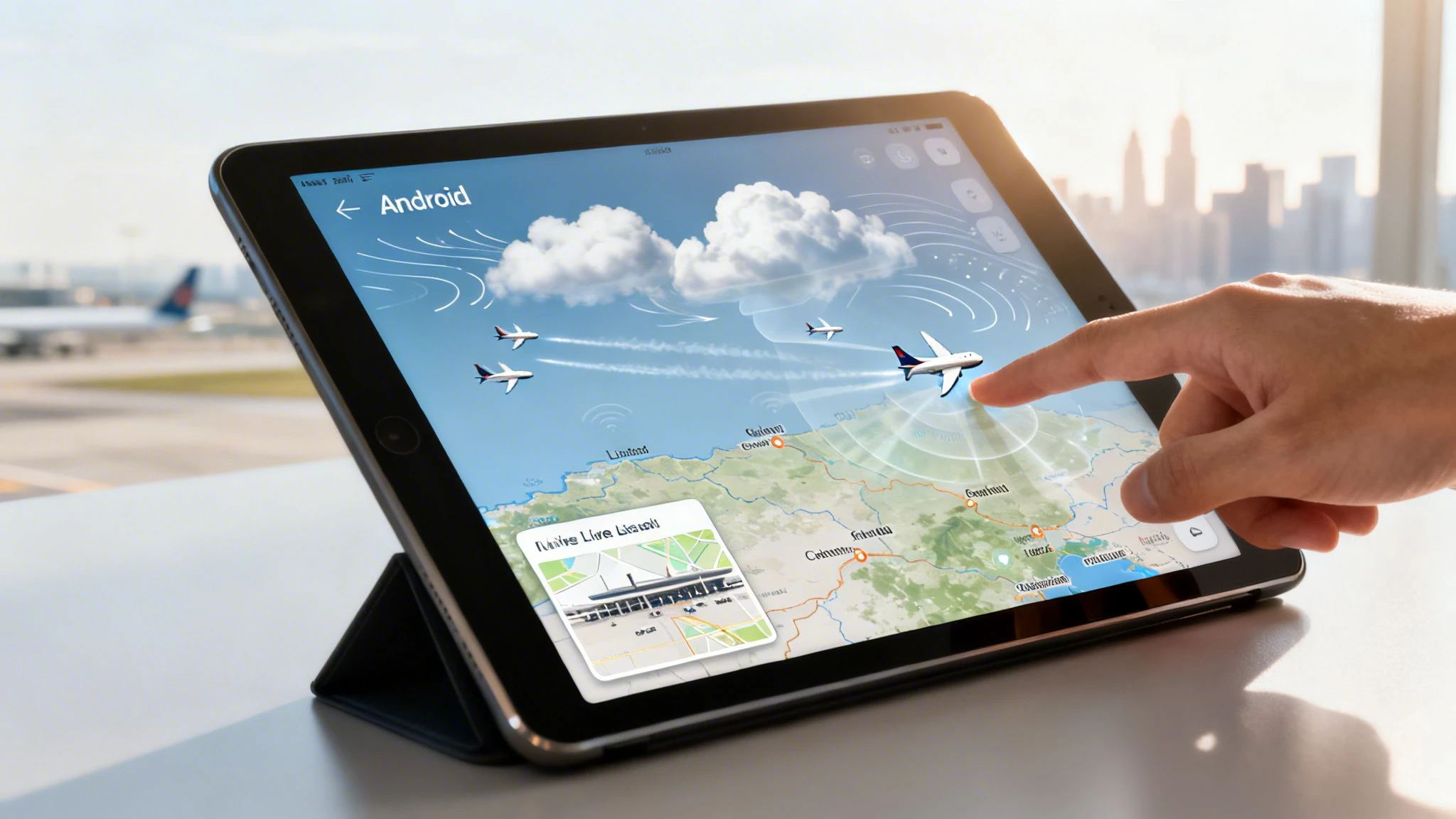
Sure, the FlightView app for Android was built for airline passengers, not drone pilots. But here's the thing: for those of us who know what to look for, it's an absolute goldmine of airspace data. The trick is learning to translate its passenger-friendly features into real-world airspace intelligence.
Let's break down how to do just that.
The most obvious and powerful feature is the live flight tracking map. A traveller sees if their plane is running late. A drone pilot sees a dynamic, real-time picture of potential airspace conflicts.
Think of it as a weather radar, but for air traffic. Instead of tracking storm clouds, you’re watching commercial aircraft move along their routes. This gives you a quick visual confirmation that your planned operating area is clear of major flight corridors before you even think about launching.
From Flight Status to Airspace Intel
Now, let's look at flight status details and notifications. A passenger uses these to find out about a gate change or a delay. But for a drone pilot, that same information can signal a change in local air traffic that you need to know about. A delayed arrival could mean an aircraft is put into a holding pattern nearby, while a diversion could bring unexpected traffic right into your operational area.
Here’s how you can re-interpret these standard features for drone safety:
- Live Flight Map: Don't just see a plane icon. Look at its altitude, speed, and heading. This tells you not just where an aircraft is, but where it's going and how it relates to your drone's position.
- Flight Status Alerts: Set up alerts for flights using local airports. A sudden cascade of delay notifications could be the first sign of a weather system moving in, which will absolutely affect your own mission.
- Weather Overlays: The app shows the weather at departure and arrival airports. This is a brilliant, quick snapshot of the conditions manned aircraft are dealing with, giving you clues about why they might be adjusting their flight paths.
By keeping an eye on this data, you’re not just tracking a single plane. You're building a bigger, more complete picture of what the airspace is doing right now. This kind of proactive awareness is what separates the amateurs from the pros.
Ground-Level Operational Insights
Believe it or not, even features like terminal and gate information can be useful. If you know which runways are active for take-offs or landings at a nearby airport, you can predict the general flow of traffic. For example, if all arrivals are landing on Runway 27, you know the final approach corridor is going to be directly to the east of the airport.
This level of detail is surprisingly similar to the information you’d find on restricted zone maps. If you want more context on how this compares to official systems, our guide on the DJI Fly Safe map gives some great perspective on how geofencing works.
Ultimately, nearly every piece of information in the FlightView app for Android can be repurposed. It all comes down to shifting your mindset from that of a passenger to a pilot. When you do that, a simple flight tracker becomes a vital tool for situational awareness, adding a crucial layer of safety to every flight you undertake.
How to Install and Set Up the FlightView App
Getting the FlightView app for Android on your device is as straightforward as any other app install. The real trick is tweaking a couple of settings during setup so it actually helps your drone operations without becoming a massive battery hog.
First things first, you need to grab the app. Just open the Google Play Store on your Android phone or tablet and pop "FlightView" into the search bar. You'll probably see a couple of results, so just make sure you’re grabbing the one from Flightview Inc. to get the official version.
Here’s what you should be looking for on the Google Play Store.
This page is your sanity check. It confirms you’ve found the right app and gives you a look at recent user ratings and reviews, which are always handy for a heads-up on current performance or bugs.
Navigating Installation and Permissions
Once you hit that "Install" button, the download kicks off. While the install itself is simple, it's a good moment to appreciate the work that goes into it. The process of developing an Android app that runs smoothly across thousands of different devices is no small feat.
After the install finishes, the app will start asking for permissions. This is where you need to pay attention.
For us drone pilots, granting location access is a no-brainer; you need it for the map to centre on your current position. I’d strongly recommend choosing “Allow only while using the app”. This stops it from constantly pinging your location in the background and chewing through your battery.
It’ll also ask about notifications. A frequent flyer might want every single flight update, but for a drone op, that's just noise. You can be much more selective, and it's easy to manage these settings later to only get alerts for specific flights or airports that are actually relevant to your job.
Your First Tour of the Interface
When you open the FlightView app for Android for the first time, you land on the main dashboard. The whole interface is built for speed, letting you get the info you need without a lot of fuss. Take a minute to get a feel for these key features:
- Search Bar: This is your command centre. You can look up flights by flight number, by route (like LHR to JFK), or by airline.
- Live Map: This is where the magic happens for drone pilots. Tapping into the map gives you a live, visual feed of air traffic in the area. It’s invaluable for situational awareness.
- My Trips: This feature is perfect for saving flights you need to keep an eye on. I use it to track aircraft that regularly fly near my common job sites, so I’m never caught off guard.
Spend five minutes just tapping around these sections. Do a quick search for a flight out of your local airport to see how the data pops up. Getting comfortable with the layout now will save you a lot of fumbling when you need to pull up information quickly out in the field.
Putting FlightView Data to Work on Real-World Drone Jobs
Knowing the features of the FlightView app for Android is one thing. But turning that knowledge into a real-world safety tool is where the rubber meets the road. It’s when you start using its live data to make smarter decisions in the field that you see its true value.
Let's get practical and walk through a couple of real-life scenarios. Say you're a professional drone pilot with a job near an active airport. How can FlightView help you pull off the mission safely and without any drama?
Scenario 1: Roof Inspection Near a Regional Airport
You’ve been hired to carry out a detailed roof inspection on a big commercial warehouse. The catch? The property is just three miles from a regional airport. It's outside the immediate no-fly zone, but it sits right under a common approach path. This is a classic high-stakes job where knowing what’s in the air is everything.
Here’s how you could use the app to build your game plan:
- Pre-Flight Recon: The day before the job, you’ll want to get a feel for the airport's rhythm. Use FlightView to watch the traffic patterns. You're looking for the predictable rushes of arrivals and departures, which almost always happen in the early morning and late afternoon.
- Spot the Quiet Windows: As you watch, you notice a big dip in scheduled arrivals between 10:00 AM and 12:00 PM. Bingo. That two-hour window is now your prime time for the operation.
- Eyes-On Monitoring: On the day of the flight, get on-site early. Keep the app’s live map open on your phone or tablet. This isn't just about planning anymore; it's about real-time confirmation that the airspace is clear and no unexpected flights are being routed your way.
By actively watching those approach paths, you’ve timed your flight to take place during a predictable lull. You've just turned a high-risk flight into a managed, low-risk one.
Scenario 2: Nailing the Cinematic Shot Without Interruptions
Now, let's switch gears. Imagine you're an aerial filmmaker. You have a tight window to capture that perfect sunrise shot over a beautiful landscape. The problem is, a major international flight path crosses your location at high altitude. A 747 roaring overhead, even from miles up, can completely wreck your audio and throw the whole crew off.
Using the FlightView app for Android means you can time your takes to perfection. You can see those inbound international jets from over an hour away. That gives you more than enough time to call "cut," let the aircraft pass, and then get back to filming. This simple bit of proactive planning saves time, cuts down on frustration, and helps you get that clean audio and video you need on the first try.
Think of FlightView as an extra layer of intelligence, not a replacement for official procedures. It’s your tactical eye in the sky, giving you the live data to make smart, safe calls from the ground.
Know Its Limitations
FlightView is incredibly useful, but it's crucial to understand what it doesn't show you. It's a powerful tool to have in your back pocket, but it isn't the complete picture of your airspace.
- No Military or VFR Traffic: The app is built to track commercial flights broadcasting ADS-B signals. It won’t show you most military aircraft, police or air ambulance helicopters, or small planes flying under Visual Flight Rules (VFR).
- No Other Drones: It absolutely cannot see or show you other drones flying nearby.
- Not a Substitute for LAANC: This is not an official Unmanned Traffic Management (UTM) system. You cannot use it to get airspace authorization.
FlightView has carved out a solid niche by delivering accurate flight data to millions of travellers. It’s part of a huge aviation information network and maintains a massive global flight database to power its features. For a Dronedesk user, this kind of real-time tracking is a natural fit, adding another layer of safety to a professional workflow. You can get more details on the app's features and what users are saying on Google Play.
Enhancing Dronedesk Plans with FlightView Insights
So, how do you actually make the live data from the FlightView app for Android work with your main planning tool, Dronedesk? It’s a great question. The answer isn’t to replace one with the other, but to use them together to build an incredibly safe and compliant workflow.
Think of it like this: Dronedesk is where you draw up the blueprint for a safe mission. FlightView is your on-site inspector, double-checking that the conditions you planned for are what you’re actually seeing in the real world. It’s all about adding a layer of live intelligence to your official plans.
This process is about turning what you see on-site into concrete, actionable information that strengthens your risk management.
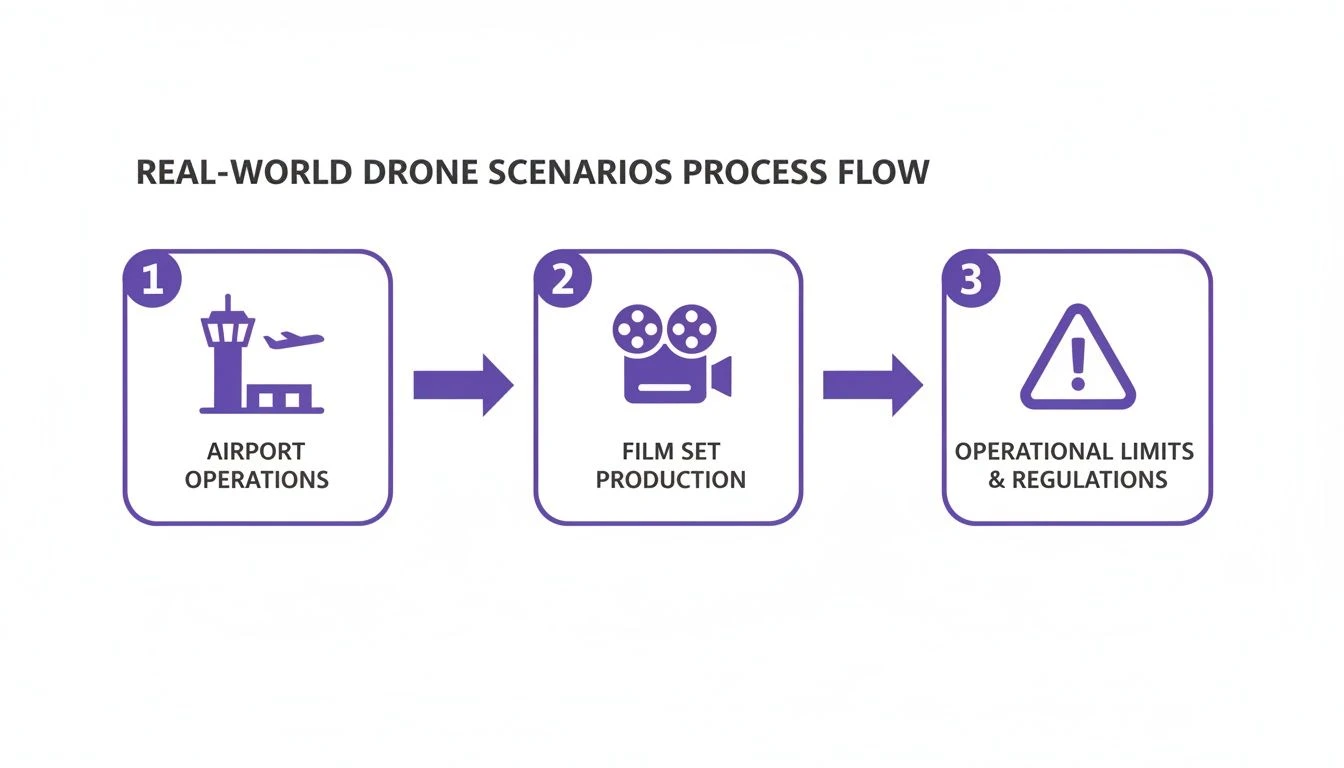
Whether you’re dealing with airport traffic or last-minute changes on a film set, these live observations are gold. They help you prove you’re aware of your operational limits and actively managing them.
From Observation to Actionable Record
The real magic happens when you document these observations in your Dronedesk risk assessments. It's a simple step, but it transforms a fleeting moment into a permanent, defensible part of your operational log. It’s proof that you’re not just hoping for the best, but actively monitoring and mitigating risk.
Say you’re prepping for a job near a small airfield. You check the FlightView app for Android and see something unexpected. You’d then pop a quick note into your Dronedesk plan.
Example Risk Assessment Note: "Checked FlightView live data at 10:15 AM. Noted an unscheduled helicopter performing low-altitude training two miles east of our site. Delayed mission start by 30 minutes to allow the aircraft to clear the area. Resumed pre-flight checks at 10:45 AM after confirming airspace was clear."
This level of detail is exactly what you want. It shows a level of professionalism and diligence that stands up to any kind of scrutiny, whether from a client or a regulator.
Creating a Two-Part Safety System
Treating these two tools as partners gives you a much stronger safety case for every single flight. Dronedesk gives you the strategic planning and compliance backbone, while FlightView delivers the tactical, on-the-ground truth.
Here’s how you can make that work in practice:
- Pre-Flight: Before you even leave, use FlightView to get a sense of the day's air traffic patterns. If you spot a trend—like "high volume of arrivals expected from 14:00-16:00"—add it to your Dronedesk risk assessment.
- On-Site: Keep FlightView running for live monitoring right before and during your operation. If any unexpected traffic appears, make a note of it.
- Post-Flight: Log all your in-flight observations back into your Dronedesk flight records. This keeps your operational history complete and accurate.
This two-pronged approach makes sure your planning is both rock-solid and responsive to real-world changes. To get a better idea of how Dronedesk is built for this kind of information, check out the details on Dronedesk's airspace intelligence features. When you combine these tools, you truly get the best of both worlds, leading to safer and more successful jobs.
Common Questions About Using FlightView For Drone Operations
Whenever a new tool like the FlightView app for Android pops up, it’s only natural for pro drone pilots to have questions. After all, we’re talking about an app built for airline passengers, and slotting it into a professional aviation workflow isn't exactly straightforward. Let's dig into some of the most common questions we hear to help you use this tool safely and effectively.
The first question is always the big one: "Can I use FlightView instead of my official drone planning tools?" The answer to that is a firm and absolute no. FlightView is a handy extra for situational awareness, but it is in no way a substitute for LAANC authorisations or your main planning platform like Dronedesk.
Here’s a good way to think about it: Your Dronedesk plan is the full weather forecast, detailing all the known risks and procedures for your entire operation. FlightView, on the other hand, is like a live weather radar showing you what’s happening in the sky right now. One informs the other, but you can't replace the forecast with the radar.
Does FlightView Show All Air Traffic?
This is a critical point to get your head around. The FlightView app for Android is brilliant at what it does, which is tracking commercial aircraft broadcasting Automatic Dependent Surveillance-Broadcast (ADS-B) signals. That’s its strength, but for us drone pilots, it's also a major limitation.
You have to be acutely aware of what the app won't show you:
- Military Aircraft: Most military operations are invisible on public trackers.
- VFR Traffic: Small, private planes flying under Visual Flight Rules often don't show up.
- Helicopters: Police, air ambulance, and news choppers might not be visible.
- Other Drones: It will not show you any other drone activity in the area. Ever.
Because of these blind spots, you can't ever let your guard down. Keep those eyes and ears open. FlightView is great for spotting the predictable commercial traffic, but it won’t see everything.
FlightView’s data is powerful for seeing the known commercial traffic patterns. Your eyes and ears are what will protect you from the unknown, local traffic that won't show up on any app.
How Reliable Is The Data?
FlightView pulls its data from several sources to give you that real-time picture. For the commercial flights it tracks, the information is generally very reliable. That said, it’s not perfect. User reviews on Android and other platforms sometimes mention performance issues or lag.
It's best to treat the data as a very accurate guide, not gospel. A 2026 review pointed out that while the app's core tracking is solid, its user ratings have bounced around, currently sitting at 3.4 stars on Android. This tells us it's a dependable tool, but not one to be trusted as your single source of truth without backing it up with your own checks.
Can I Use It For Official Flight Logging?
Nope. The FlightView app for Android is not built for official flight logging or creating any kind of legal record for your drone operation. The info you get from it is purely for making tactical decisions out in the field.
If you spot something important on the app—like a sudden spike in air traffic or an unexpected flight path—you should be logging that manually in your official system of record. For example, you’d add a note to your Dronedesk risk assessment explaining what you saw and how you adjusted your flight plan. This is how you show due diligence and build a rock-solid, defensible record of your safe operating procedures.
To help clarify these points, we've put the most common queries from drone operators into a simple table.
Frequently Asked Questions
| Question | Answer |
|---|---|
| Is FlightView a substitute for Dronedesk or LAANC? | Absolutely not. It's a supplementary tool for in-the-moment situational awareness only. |
| Does the app show all aircraft? | No. It primarily tracks ADS-B-equipped commercial flights. It will not show most military aircraft, many private planes (VFR), some helicopters, or any other drones. |
| Can I rely on the data 100%? | The data for commercial flights is generally reliable, but occasional lags or inaccuracies can occur. Always use it as a guide, not an infallible source. |
| Can I use FlightView for my official flight logs? | No. It's not designed for official record-keeping. Any important observations must be manually transferred to your official logbook or platform like Dronedesk. |
Using a tool like FlightView shows you're thinking about the bigger airspace picture, which is great. Just remember its place is to support, not replace, your core professional systems.
By managing your flight plans, risk assessments, and operational records in one place, Dronedesk gives you the professional framework you need. Use tools like FlightView to inform your decisions, but trust Dronedesk to manage your compliance. Find out more at Dronedesk.io.
 How to Start a Drone Mapping Business With a Clear Workflow →
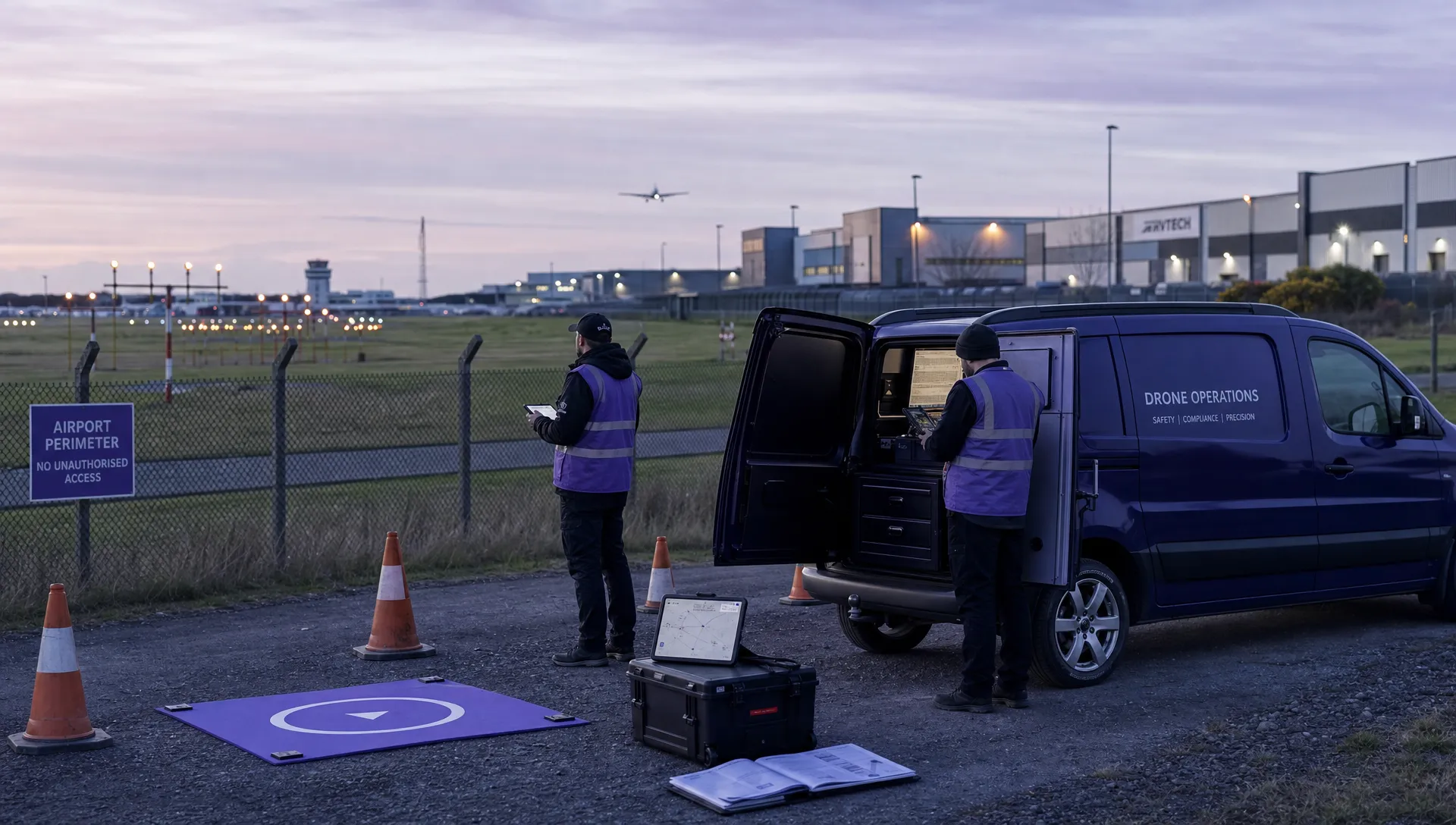 Class C Airspace Drone Rules for Commercial Flights →
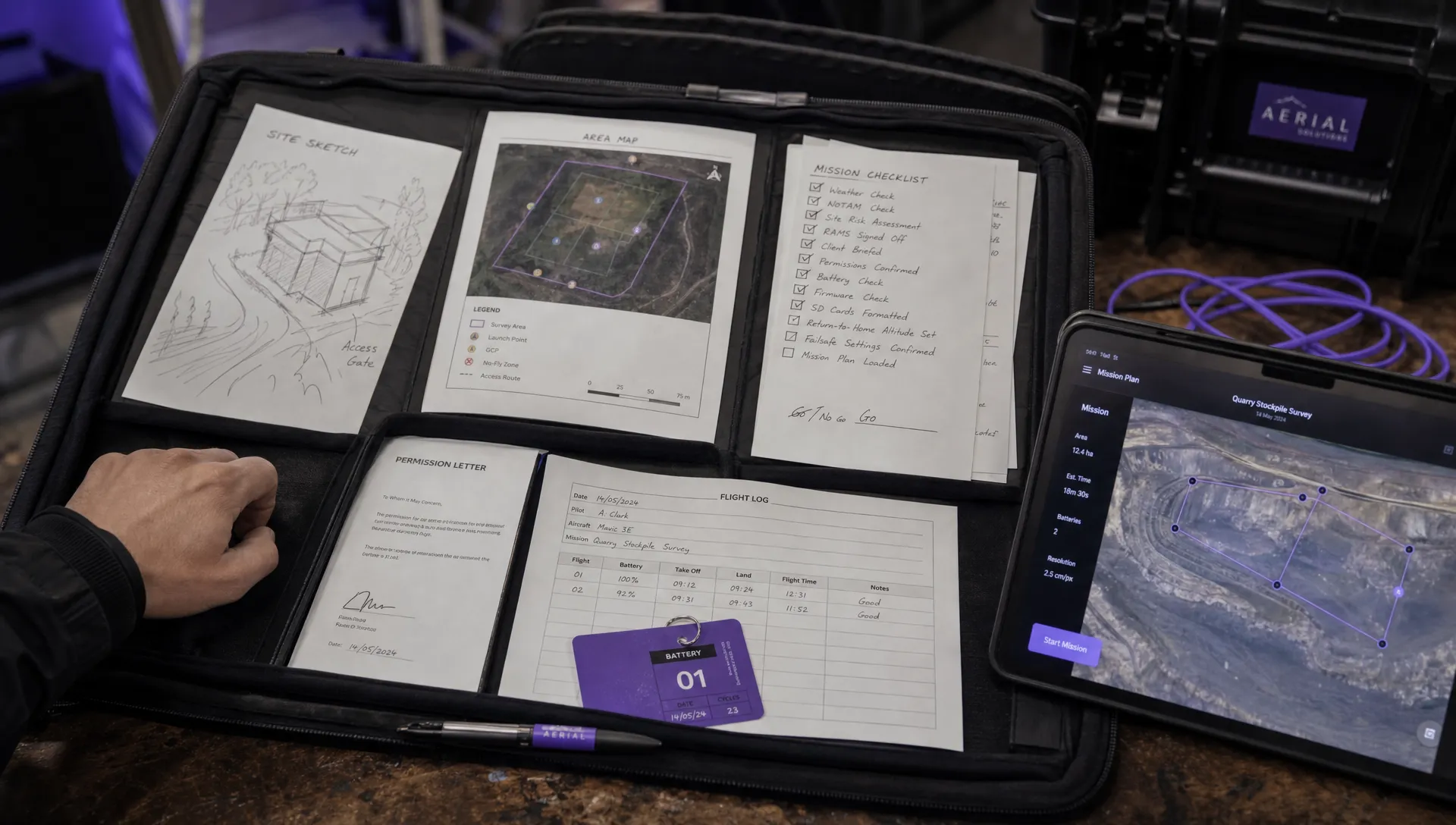 How to Create a Drone Job Pack for Every Mission →
 FAA Small UAS Rule: Key Requirements for Operators →
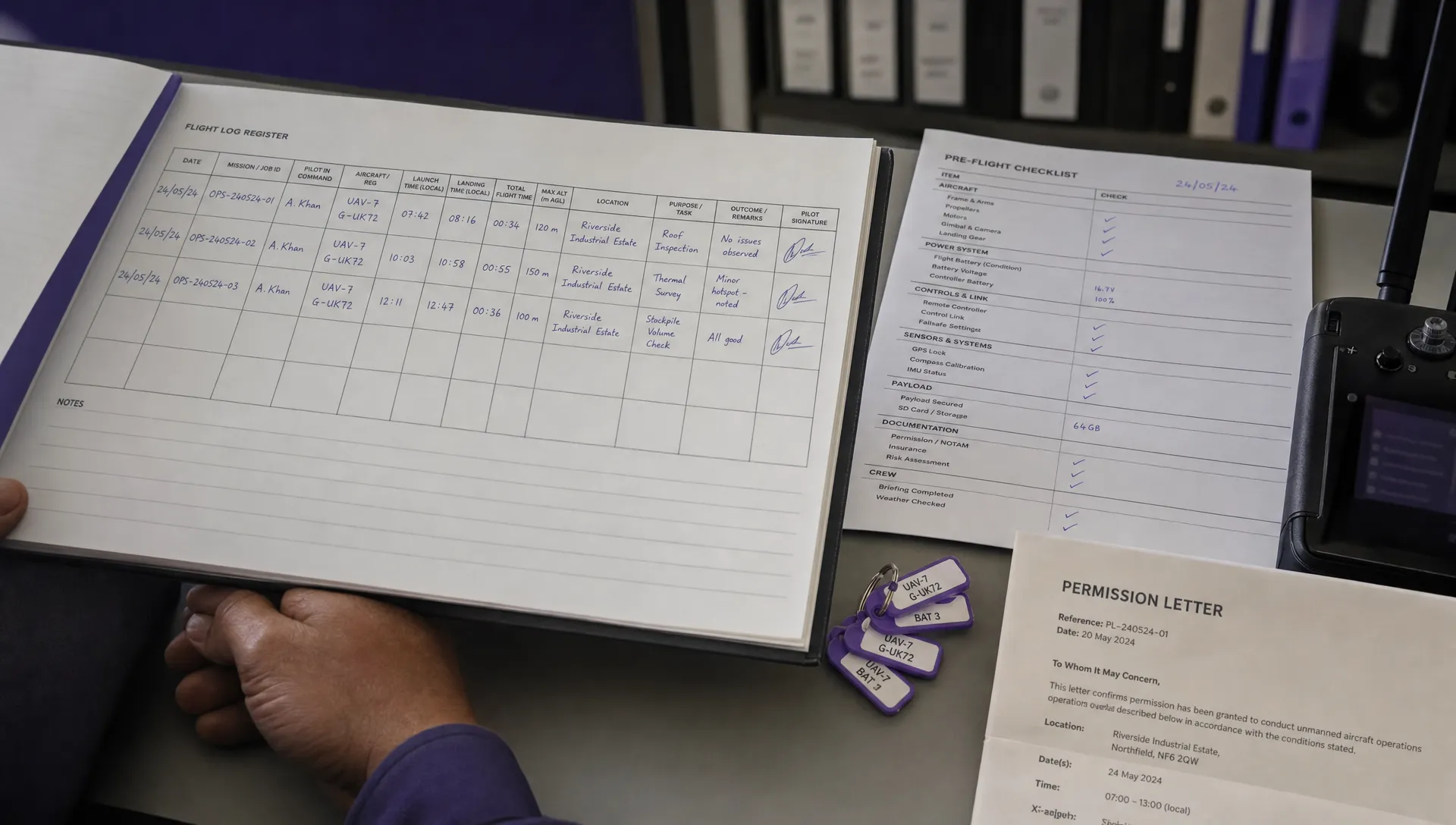 How to Build a Drone Pilot Flight Log That Is Audit Ready →
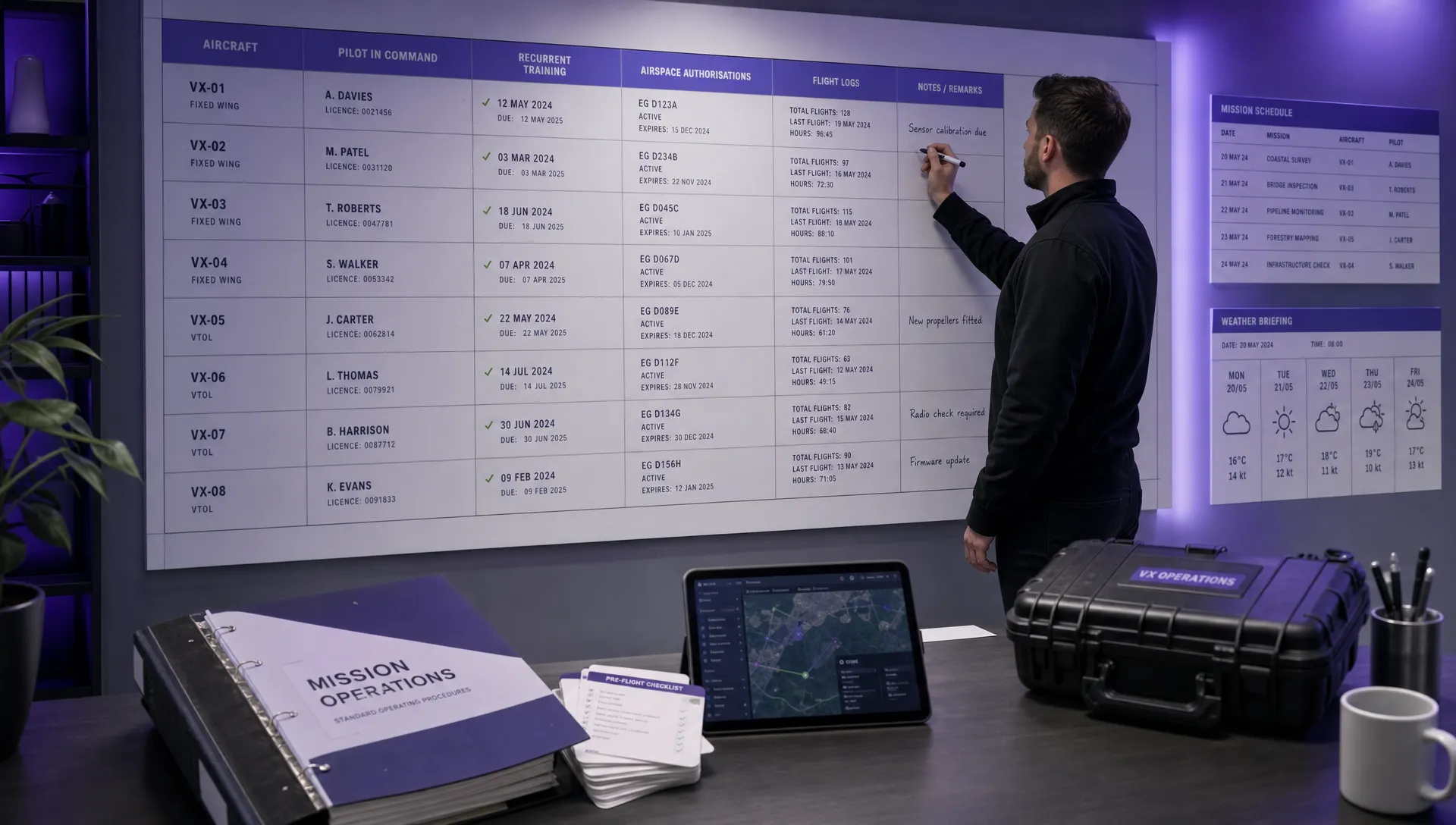 FAA Drone Licence Requirements for Commercial Pilots →
 FAA BVLOS Waivers Granted: What Successful Cases Show →
 How to Export DJI Flight Logs for Incident Reviews →
 Drone Safety and Legal Duties for Business Operations →
 EASA Drone Regulations: Open, Specific and Certified Categories →