
Flight Computer Manual: Master Drone Operations
You're probably dealing with one of two situations right now. Either you've got a drone on the bench with a flight controller, GPS, telemetry radio, and too many cables, or you've already flown enough missions to know that “it armed and flew yesterday” isn't a procedure.
A solid flight computer manual has to do more than explain menus and settings. In professional drone work, the flight computer sits at the center of aircraft control, mission execution, data capture, and the evidence trail you'll need after the job. If your workflow depends only on what the app says in the moment, you're running a fragile operation.
The better approach is simple. Use digital tools for speed, use manual methods for verification, and train crews to reconcile the two before a discrepancy becomes a field problem. That's how you build repeatable, audit-friendly operations.
Understanding Flight Computer Fundamentals
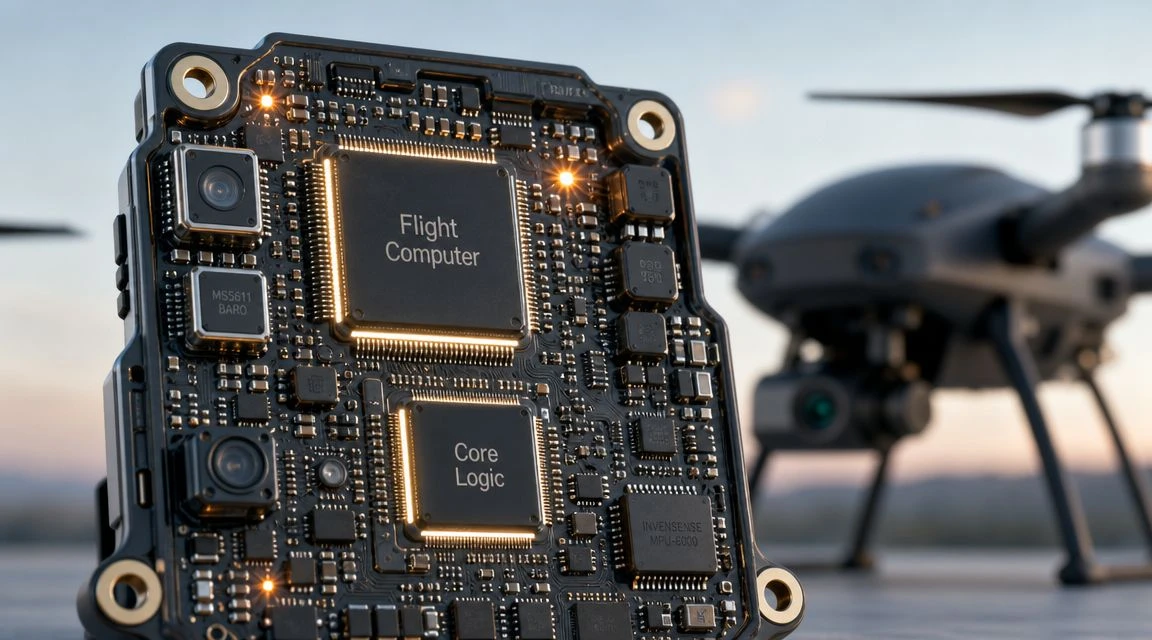
In a modern drone, the flight computer is the system that takes sensor inputs, applies control logic, and turns pilot intent or mission commands into aircraft movement. It ingests data from inertial sensors, GNSS, compass inputs, power monitoring, and often payload or air data sources. Then it decides what the motors and control surfaces need to do next.
That sounds digital, but the underlying logic is older than drone software. Aviation has always depended on structured calculation, cross-checking, and disciplined interpretation of inputs.
From the E6-B to onboard autonomy
The classic E6-B shows that lineage clearly. Its core function is proportional calculation using a circular logarithmic slide rule, enabling practical computations such as temperature scale conversion, time, distance, fuel burn, density altitude, groundspeed, and wind drift correction, which is why it became a standard aviation aid long before electronic computation was widely available, as described by Gleim's history of the E-6B.
That matters for drone pilots because today's autopilot does the same class of work in a different form. It solves navigation and performance problems from multiple inputs, just much faster and continuously. When pilots understand the older logic, they usually make better decisions with the newer systems.
A practical example is the relationship between air data, altitude logic, and performance assumptions. If your operation uses fixed-wing UAVs or higher-end multirotor systems with airspeed sensing, it helps to understand how an air data computer supports aircraft calculations and how those calculations interact with the flight computer rather than treating them as separate black boxes.
What the flight computer actually does in the field
On a job, the flight computer usually handles several functions at once:
- Stabilization: It corrects attitude deviations from wind, pilot input, and turbulence.
- Navigation: It tracks a position solution and compares it to a planned route or commanded point.
- Mode management: It switches between manual, assisted, autonomous, and failsafe behaviors.
- Safety supervision: It monitors battery state, sensor health, GPS quality, and trigger conditions for return or land actions.
Practical rule: Don't think of the flight computer as a box that “flies the drone.” Think of it as a decision engine that needs good inputs, correct configuration, and pilot oversight.
When new team members struggle, it's usually not because they can't press the right button. It's because they don't yet understand which data the system trusts, what assumptions sit behind the result, and what backup method they'll use when a reading doesn't make sense.
Setting Up Your Flight Computer Hardware
Bad installs create good-looking failures. The aircraft powers up, connects, and maybe even hovers, but vibration, poor grounding, loose connectors, or RF interference show up later as unstable behavior, random mode changes, or unreliable navigation.
Treat hardware setup like aircraft assembly, not hobby wiring.
Bench layout before installation
Start on the bench with every component visible and labeled. At minimum, identify the flight computer, power module, GNSS receiver, compass if separate, telemetry radio, RC receiver, ESC or motor outputs, payload triggers if used, and any companion computer or network device.
Use this pre-install checklist:
- Confirm compatibility: Match voltage requirements, connector types, and firmware family before mounting anything.
- Check orientation marks: Most flight computers assume a defined forward direction. If you mount off-axis, document the rotation and configure it correctly later.
- Plan service access: Leave enough room to reach USB, SD, or diagnostic ports without tearing the aircraft apart.
- Separate noisy systems: Keep power wiring, video transmitters, and high-current lines away from compass and GNSS components where practical.
Mounting and cable discipline
The mounting standard is simple. The flight computer must be secure, protected from excessive vibration, and installed where cable strain won't pull on the board.
I prefer to route in layers. Power first, then control and signal, then telemetry and payload wiring. That makes faults easier to isolate later.
A useful mental model comes from the manual E6B itself. A manual E6B flight computer has two distinct functional interfaces: a circular slide-rule calculator side for time and speed and a wind side for ground speed and wind-correction work. On the calculator side, the common expert workflow is to set pressure altitude opposite outside air temperature, then read TAS on the outer scale opposite calibrated airspeed on the middle scale, as shown in the Siebert E6B circular instructions. Hardware installation should follow the same discipline. Separate functions clearly, and don't create a layout where one adjustment disturbs three unrelated systems.
A clean install standard
Use this as your minimum shop standard:
- Mount the flight computer on an appropriate isolation platform if your aircraft type benefits from it.
- Lock all major connectors so they can't back out under vibration.
- Secure every cable run so nothing can rub on carbon edges, hot components, or moving parts.
- Mount GNSS with a clear sky view and separation from RF emitters where possible.
- Label non-obvious ports and harnesses for field maintenance.
If a technician can't identify every cable path and connector purpose during a quick inspection, the install isn't finished.
For pilots moving between dedicated controllers, tablets, and cockpit-style planning tools, it's also worth understanding how interface layout affects workload. The discussion on mastering the cockpit with an EFB is useful because it reinforces a point drone crews often learn the hard way: hardware placement and information presentation directly affect decision quality.
Configuring Your Flight Computer Software
Software configuration is where many aircraft become airworthy or misleading. The hardware might be perfect, but if the firmware family, frame type, sensor calibration, and failsafe logic don't match the aircraft, you're only looking at a neat failure state.
Do the setup in one uninterrupted workflow. Don't calibrate half the aircraft, fly another one, and come back later guessing what changed.
Core configuration sequence
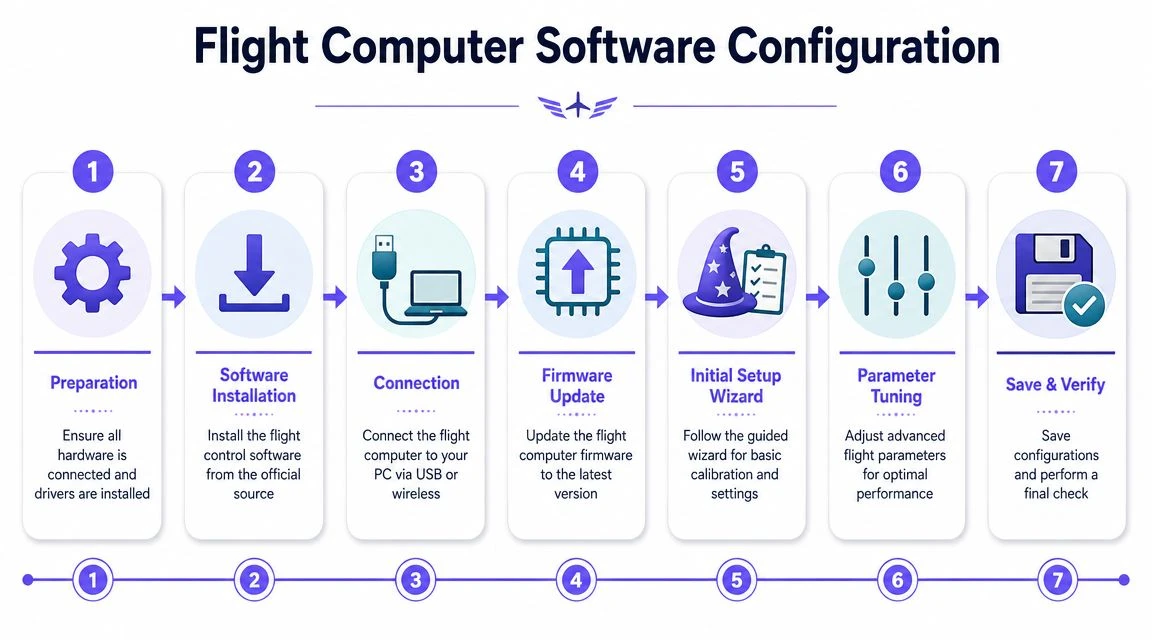
A reliable starting sequence looks like this:
- Install the ground control software and confirm drivers load correctly.
- Connect the flight computer by the intended maintenance method.
- Load the correct firmware for the aircraft class and hardware target.
- Set the airframe or mixer type correctly before deeper tuning.
- Calibrate accelerometer, gyro, compass, and radio inputs.
- Verify live sensor behavior on the bench.
- Set initial mode assignments and conservative failsafes.
The key is order. If you skip to advanced parameters before basic calibration, you'll waste time tuning around bad inputs.
What to verify before first arm
After calibration, don't just look for green indicators. Read the data as a pilot.
Check for:
- Attitude sense: Tilt the aircraft by hand and confirm the display mirrors the movement correctly.
- Compass plausibility: Rotate the airframe and look for smooth heading response rather than jumps or reversals.
- Radio mapping: Make sure sticks, switches, and kill functions match your SOP, not just the software defaults.
- Battery reporting: Confirm voltage and warning thresholds are sensible for the actual power system.
- Flight mode behavior: Test mode switching on the bench and confirm you understand what each mode will do on signal loss.
A common failure is treating all warning messages equally. Some matter immediately. Some are setup reminders. Your crew should know the difference before field deployment.
A flight computer that reports clean, logical data on the bench is easier to trust in the air. A flight computer that reports strange data on the bench should never be “tested to see if it works anyway.”
Set conservative defaults first
On initial setup, avoid aggressive tuning, complicated automation chains, or nonessential integrations. First flights should prove that the aircraft can arm correctly, stabilize, hold position if applicable, respond to mode changes, and execute its primary failsafe without surprises.
When crews get into trouble early, it's often because they configured for the full mission profile before validating the basic aircraft behavior. Your flight computer manual should force the opposite habit.
Integrating with Dronedesk and Operations Platforms
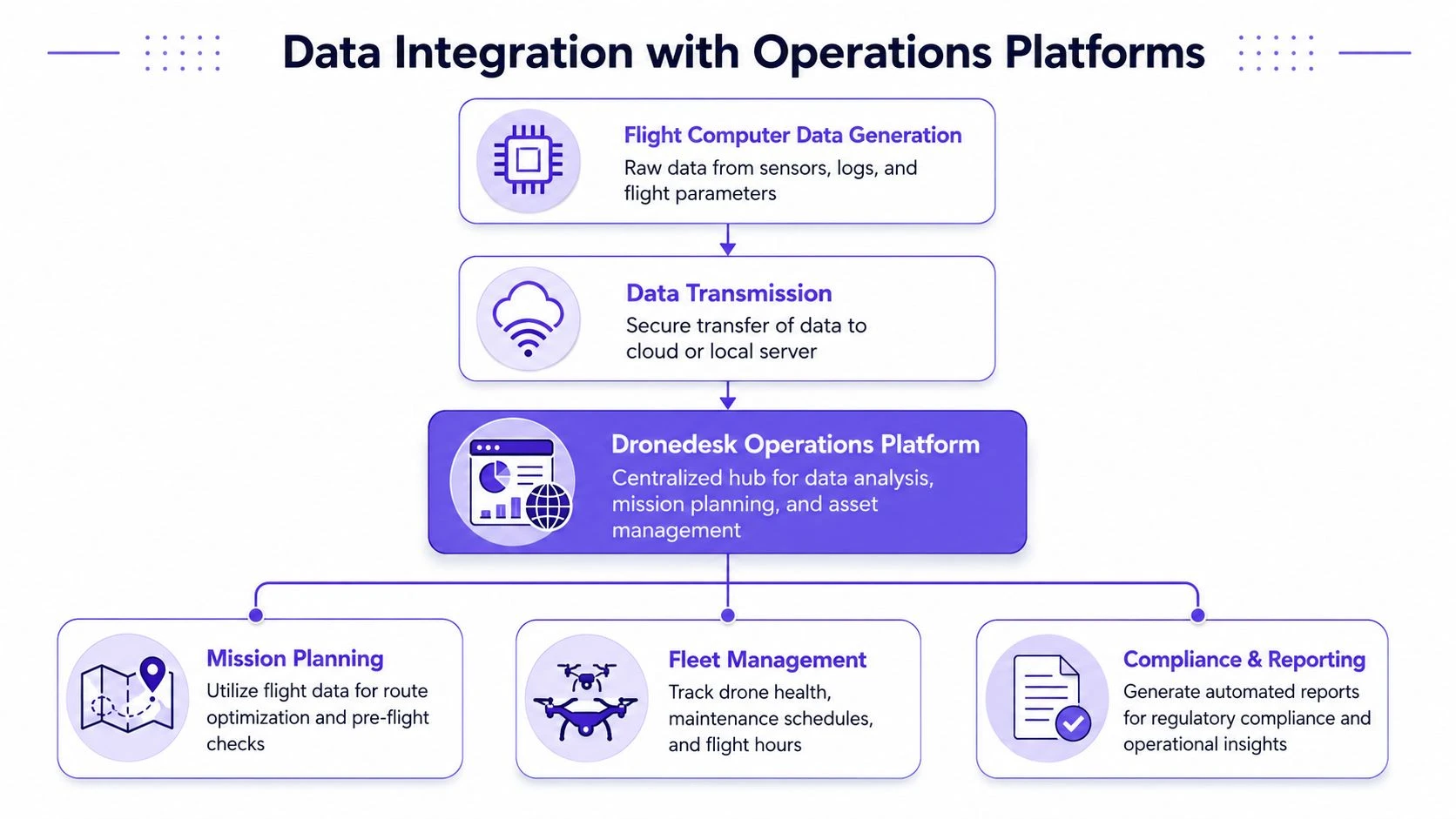
A flight computer produces more than control outputs. It generates an operational record. That record matters for maintenance, incident review, mission planning, trend analysis, and proving that the team followed procedure.
Most crews feel the pain here after the flight, not during it. They finish the mission, then someone has to reconstruct where the aircraft flew, who flew it, whether the battery was fit for service, and whether the log matches what the client was told.
Treat flight data as operational evidence
The practical model is straightforward. The aircraft captures telemetry, event logs, and mission results. Those records then need to move into an operations system where pilots, managers, and compliance staff can use them without manual re-entry.
That workflow becomes more valuable when planning, airspace review, and mission records sit in one chain of custody. Teams handling complex sites should already be thinking this way during planning, especially where airspace constraints and nearby hazards influence route design. A useful reference for that side of the workflow is airspace intelligence for drone planning.
What should sync into your operations stack
Not every field from the flight computer is equally useful. Focus on records that support decisions and accountability.
- Flight logs: Keep actual mission timing, route behavior, and notable events.
- Asset history: Link aircraft usage to inspection and maintenance records.
- Pilot activity: Preserve who operated, supervised, or approved the mission.
- Mission traceability: Match the flown mission to the planned task and site record.
An operations platform proves its worth. Dronedesk can be used to centralize planning, logging, and operational records so flight activity doesn't stay trapped in the aircraft ecosystem or an individual pilot's device. That's useful when multiple aircraft, multiple pilots, and repeat clients create a volume problem.
The workflow that actually scales
The best integrated workflow isn't complicated. It's disciplined.
- Build and approve the mission before travel.
- Fly with the flight computer configured to produce consistent logs.
- Sync records after the operation without relying on handwritten reconstruction.
- Review anomalies while the crew still remembers what happened.
- Archive everything in a format your team can retrieve later.
Logs are most valuable when they answer a question your client, regulator, or chief pilot asks three weeks later.
What doesn't scale is a mix of app screenshots, memory, and notebook fragments. Once a team passes a handful of recurring jobs, that method breaks down fast.
Executing Standard Flight Operational Procedures
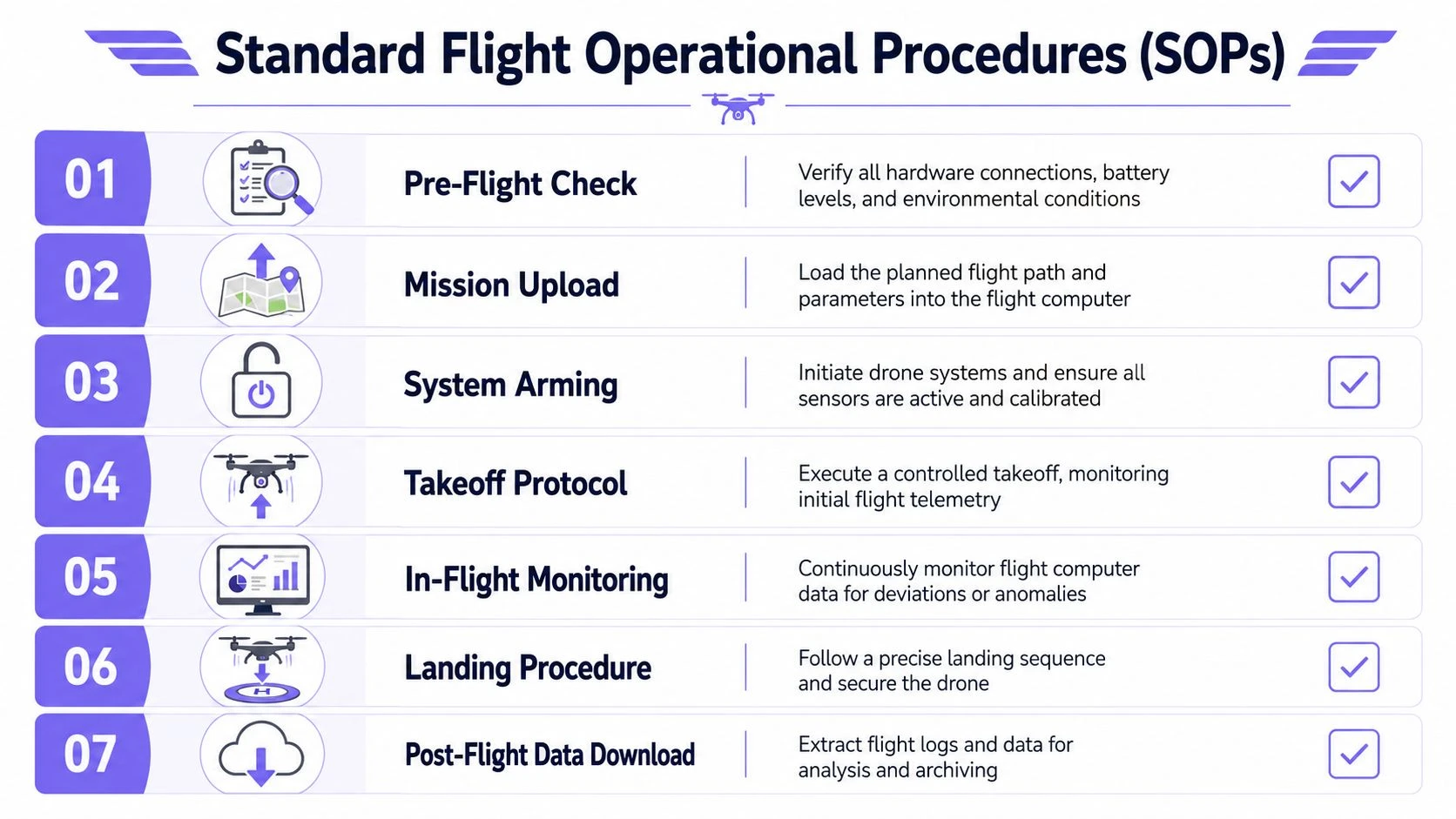
A professional flight computer manual lives or dies on repeatability. Every pilot should know what to check before launch, what to monitor in the air, and what must be captured after shutdown. If your process changes every time the site gets busy, then you don't have a process.
Use the flight computer as an operational instrument, not just the thing that arms the motors.
Pre-flight SOP
Before power-up, inspect the aircraft physically. Then verify the digital side with the same discipline.
Use this launch sequence:
- Confirm mission match: The loaded mission, geofence, home logic, and payload settings must match the actual site and task.
- Check navigation health: Verify the position solution is stable and not drifting on the ground.
- Review sensor status: No unresolved compass, IMU, or battery warnings.
- Validate mode assignments: The pilot must know which switch positions correspond to manual recovery, assisted flight, autonomous mode, and failsafe behavior.
- Assess wind and route effect: Don't just note wind direction. Decide whether it changes takeoff direction, orbit quality, or battery reserve planning.
In-flight SOP
Once airborne, the pilot's job is to monitor trend, not just glance at one green screen.
Watch for three things first: navigation consistency, energy use, and aircraft response quality. If one of those degrades, stop the mission task and fly the aircraft.
For manual wind correction knowledge, the old method still matters. For wind correction, the E6B wind side uses a grommet and a transparent rotating disk. The standard procedure involves aligning wind direction with the true index, marking wind speed, and then sliding the grid until the grommet is on the planned course line to find the wind-correction angle, as explained in Flying Magazine's E6B guide. Drone pilots don't need to carry a wheel for every mission, but they do need to understand what a wind correction solution is supposed to look like when the autopilot gives them a route or groundspeed result.
Post-flight SOP
A safe landing doesn't end the job. The record matters.
After shutdown:
- Save and secure the flight log.
- Record any anomaly while the details are fresh.
- Inspect airframe, props, mounts, and connectors.
- Flag any battery, GPS, or control issue before the next sortie.
- Confirm the mission result and any client deliverable notes.
Don't let crews use post-flight as a cleanup phase only. It's also the first phase of maintenance and incident prevention.
Performing Maintenance and Firmware Updates
Flight computers don't usually fail all at once. They drift into failure through loose mounts, contaminated connectors, aging cables, neglected logs, rushed updates, and assumptions that yesterday's behavior proves today's airworthiness.
A good maintenance routine catches those issues before the field team does.
Daily and post-mission checks
These are short checks, but they need to happen every time:
- Inspect connectors: Look for partial backing-out, bent pins, cracked housings, or latch wear.
- Check mounting security: Confirm the flight computer and GNSS hardware haven't shifted.
- Review event logs: Note recurring warnings, brownout signs, or sensor complaints.
- Examine cable runs: Watch for chafe, compression, or fresh strain at tie points.
Don't treat repeated “minor” warnings as background noise. If the same issue appears across several flights, that's your maintenance trigger.
Scheduled bench maintenance
On a recurring bench interval, slow down and inspect properly. Remove covers if needed. Clean around sensor areas, inspect isolation mounts, and confirm nothing has loosened under vibration.
A practical bench checklist includes:
| Maintenance area | What to inspect | Action if abnormal |
|---|---|---|
| Flight computer mount | Compression, cracks, movement | Refit or replace mounting hardware |
| Wiring harness | Chafe, heat marks, strain | Re-route or replace affected section |
| GNSS and compass placement | Shift, shielding changes, contamination | Restore intended position and retest |
| Power connections | Oxidation, looseness, damage | Clean, re-terminate, or replace |
Firmware update discipline
Firmware updates need policy, not impulse. New doesn't always mean operationally better for your aircraft, payload, or mission set.
Use this decision path:
- Read the release notes and identify what affects your fleet.
- Back up parameters and document current settings.
- Update one noncritical aircraft first when possible.
- Recheck calibration, modes, failsafes, and payload behavior.
- Fly a controlled validation mission before returning the aircraft to normal tasking.
What doesn't work is updating in the field because someone saw a new version badge. That's how teams lose a morning to an avoidable compatibility issue.
If the update changes core behavior, retrain pilots. A flight computer that behaves differently after a firmware revision is a different operational system, even if the hardware didn't change.
Troubleshooting Issues and Resolving Error Codes
Most flight computer problems fall into a few categories. Position problems, sensor disagreement, power instability, link loss, and bad configuration. The trick is to diagnose by symptom and sequence, not by guesswork.
Human factors matter here. A frequently asked but poorly answered area is edge-case accuracy and human factors, such as dealing with variable winds or negative temperatures. Guides rarely quantify the error impact of small input mistakes or discuss how to estimate whether a computed result is plausible before flying, as noted by Pilot Institute's E6B discussion. That same weakness shows up in drone troubleshooting when crews accept a number because it appeared on screen rather than because it made operational sense.
Start with symptom, not assumption
If the aircraft won't arm, don't begin by changing parameters blindly. Ask what class of condition the system is blocking. Safety lockout, sensor invalidity, GPS requirement, RC mismatch, or power fault.
If the aircraft flies poorly, separate these possibilities:
- Navigation issue: Position drift, toilet-bowling, poor mission tracking.
- Attitude issue: Wobble, oscillation, sluggish correction, unstable hover.
- Power issue: Reboots, sudden warnings, unexplained mode exits.
- Link issue: Telemetry dropouts, delayed commands, intermittent control.
A side note for teams diagnosing bench equipment and support laptops. If the ground station machine itself is unstable, generic IT troubleshooting can save time before you blame the aircraft. This guide on fix computer restart issues is a useful reminder to check the workstation side when your configuration session keeps failing unexpectedly.
Common Flight Computer Error Codes and Solutions
| Error Code / Message | Meaning | Recommended Action |
|---|---|---|
| GPS not healthy | Position source is unavailable or unreliable | Wait for stable lock, inspect antenna placement, verify site conditions |
| Compass inconsistency | Heading inputs disagree or are disturbed | Recheck interference sources, mounting location, and calibration |
| Pre-arm battery warning | Voltage or monitoring state is outside safe limits | Inspect battery condition, confirm power module readings, replace if doubtful |
| RC failsafe active | Control link is missing or invalid | Check transmitter state, receiver bind, channel mapping, and antenna placement |
| EKF or estimator warning | The navigation solution is not confident | Land if airborne conditions worsen, review sensor agreement and vibration sources |
| Barometer unstable | Pressure readings are erratic | Inspect enclosure airflow, contamination, and heat sources near the sensor |
| Mission upload rejected | Parameters or mission structure conflict with system limits | Review waypoint logic, frame setup, and mode compatibility |
A practical diagnostic order
When troubleshooting in the field, use a fixed order:
- Power integrity.
- Sensor validity.
- GPS and heading plausibility.
- RC and telemetry links.
- Parameter or mission logic.
That order works because bad power and bad sensors often create misleading secondary faults. If you skip straight to software, you can spend half an hour fixing the wrong problem.
For teams formalizing post-flight analysis, it helps to keep errors tied to logs and events in a single review process. A structured flight data recorder software workflow makes recurring faults easier to spot than ad hoc note-taking.
If the result looks implausible, stop and prove it. Pilots get in trouble when they troubleshoot the message but ignore the behavior.
Ensuring Safety and Regulatory Compliance
The professional standard isn't “trust the automation.” It's trust, then verify. That applies to route planning, battery assumptions, geofence setup, return behavior, and every navigation output your crew uses to justify a go decision.
Pilots often use manual E6B methods for verification or backup, but documentation rarely addresses redundancy, error-checking, or how to reconcile discrepancies between a manual solution and digital outputs. The practical question is not how to use the wheel but how to standardize cross-checks across tools and crews, as stated in Gleim's E6B instruction resource.
Build redundancy into the SOP
Redundancy doesn't mean duplicating every system in the aircraft. It means using a second method to confirm critical assumptions.
That should include:
- Route verification: Cross-check distance, direction, and mission geometry before upload.
- Wind plausibility: Compare forecast conditions, on-site observation, and aircraft behavior after takeoff.
- Battery reserve logic: Validate software estimates against real aircraft history and payload configuration.
- Failsafe confirmation: Test that return, hover, or land behavior matches the site risk profile.
For higher-risk work, especially complex sites or extended routes, the crew should brief what they'll do if the digital output and manual expectation disagree. “We'll figure it out on site” is not a safety method.
Compliance depends on records and consistency
Regulatory compliance rarely fails because one pilot forgot one button. It fails because the organization can't show consistent planning, verification, execution, and recordkeeping.
A flight computer supports compliance when your team can prove:
| Compliance area | What the crew should verify | What the record should show |
|---|---|---|
| Airspace and site limits | Planned mission fits the approved area | Mission record matches the flown task |
| Aircraft condition | The system was fit for flight | Inspection and fault records are complete |
| Pilot decision quality | Key assumptions were checked before launch | Notes and logs support the go decision |
| Failsafe suitability | Emergency behavior matched site risk | Configuration was reviewed and understood |
Reconcile discrepancies before launch
If your tablet says one wind effect, the aircraft says another, and the pilot's manual estimate says a third, don't choose the one you like most. Investigate the disagreement.
That mindset is what separates a compliant operation from a convenient one. The flight computer is powerful, but professional crews don't outsource judgment to software.
Flight Computer FAQs for Professional Pilots
When is the built-in flight computer enough
If the aircraft's native system supports your mission type, captures the data you need, and gives you reliable control over safety settings and logs, it's often enough. For many inspection, media, and standard mapping jobs, the limiting factor isn't raw compute power. It's crew discipline and workflow quality.
A custom setup makes more sense when you need unusual payload integration, specific autonomy behavior, advanced logging control, or a tighter relationship between aircraft configuration and mission design.
How should I choose between flight computer options
Choose by mission profile, not by feature list. Survey and inspection crews usually need predictable mission execution, stable logging, and straightforward maintenance. Cinematography crews may prioritize response feel, manual override confidence, and payload integration. Fixed-wing teams often care more about navigation behavior, endurance management, and air data integration than a short-range multirotor crew does.
If two systems both meet the mission, pick the one your team can configure, verify, and troubleshoot consistently.
How often should sensors be recalibrated
Recalibrate when the system, airframe, environment, or behavior justifies it. That includes hardware changes, firmware changes, transport shocks, mounting changes, unexplained drift, or repeated warnings. Don't recalibrate casually to “see if it helps,” and don't avoid recalibration just because the aircraft still arms.
A calibration should solve a reasoned problem or validate a known change.
What are the security concerns with connected flight computers
Any network-connected flight stack increases the importance of device control, account hygiene, update discipline, and log handling. Protect the tablet, laptop, radios, and cloud accounts around the aircraft. A weak link in the support system can compromise the operation even if the aircraft itself is fine.
Do manual skills still matter in automated drone operations
Yes. Manual reasoning matters because automation can present clean-looking but wrong outputs. Crews need enough underlying flight knowledge to spot a bad heading solution, an implausible groundspeed, or a route that doesn't fit the actual site conditions.
For broader thinking on operational habits that support safer aviation decisions, this piece on improving general aviation safety is worth reading. The principles translate well to drone crews, especially the emphasis on disciplined decision-making instead of blind trust in routine.
What should every professional crew standardize first
Standardize the basics before advanced automation:
- Pre-arm checks
- Mode naming and switch logic
- Failsafe behavior
- Log retention
- Discrepancy reporting
- Post-flight fault review
If those aren't standardized, adding more software won't make the operation safer.
If you want a cleaner way to connect planning, logging, compliance, and team oversight, take a look at Dronedesk. It helps professional drone operators keep mission records, fleet activity, and operational admin in one workflow so the flight computer's data stays useful after the aircraft is back in the case.
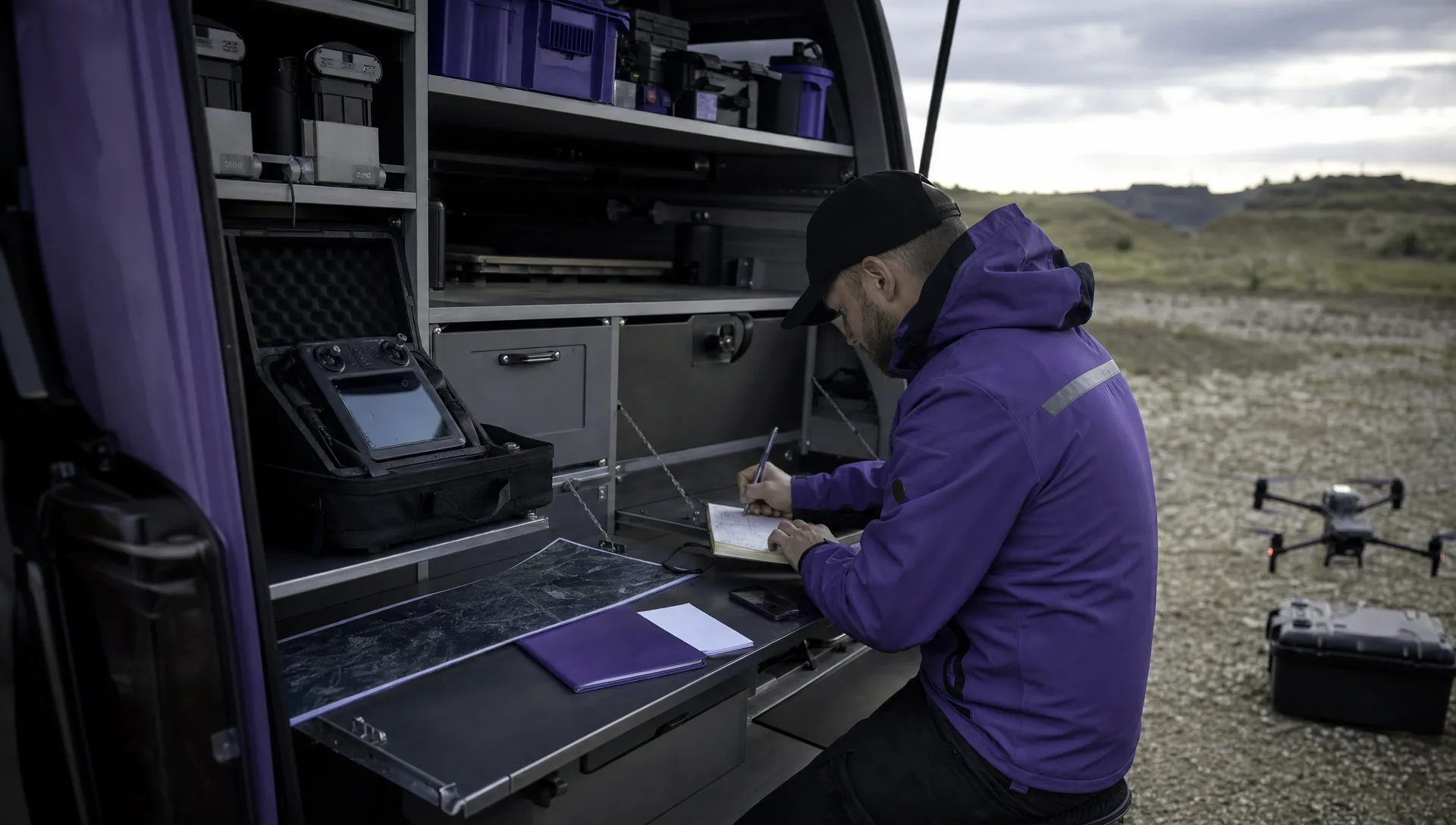 How to Evaluate a Free Drone Logbook Before Using It →
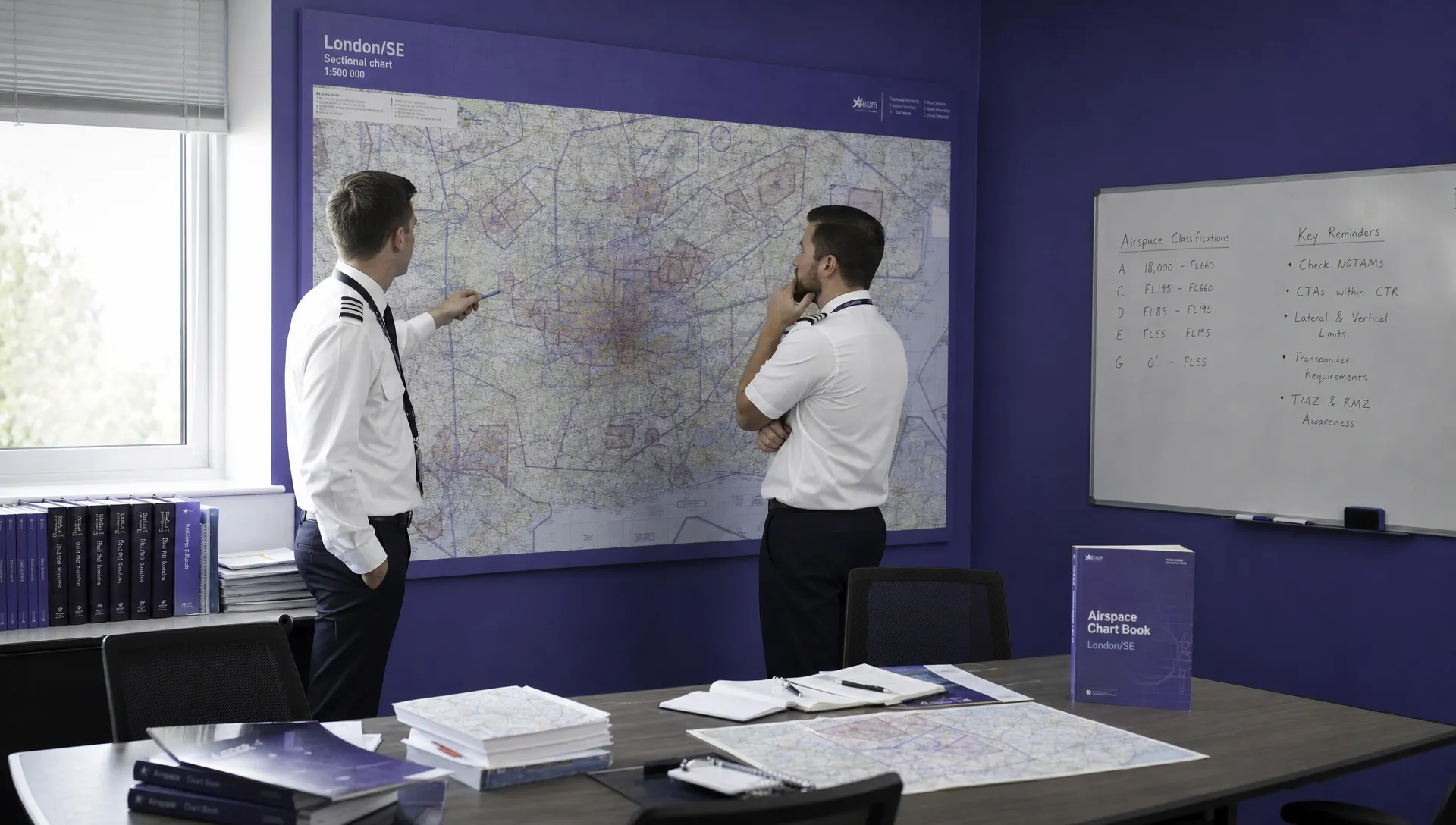 FAA Part 107 Test: How to Master Airspace Questions →
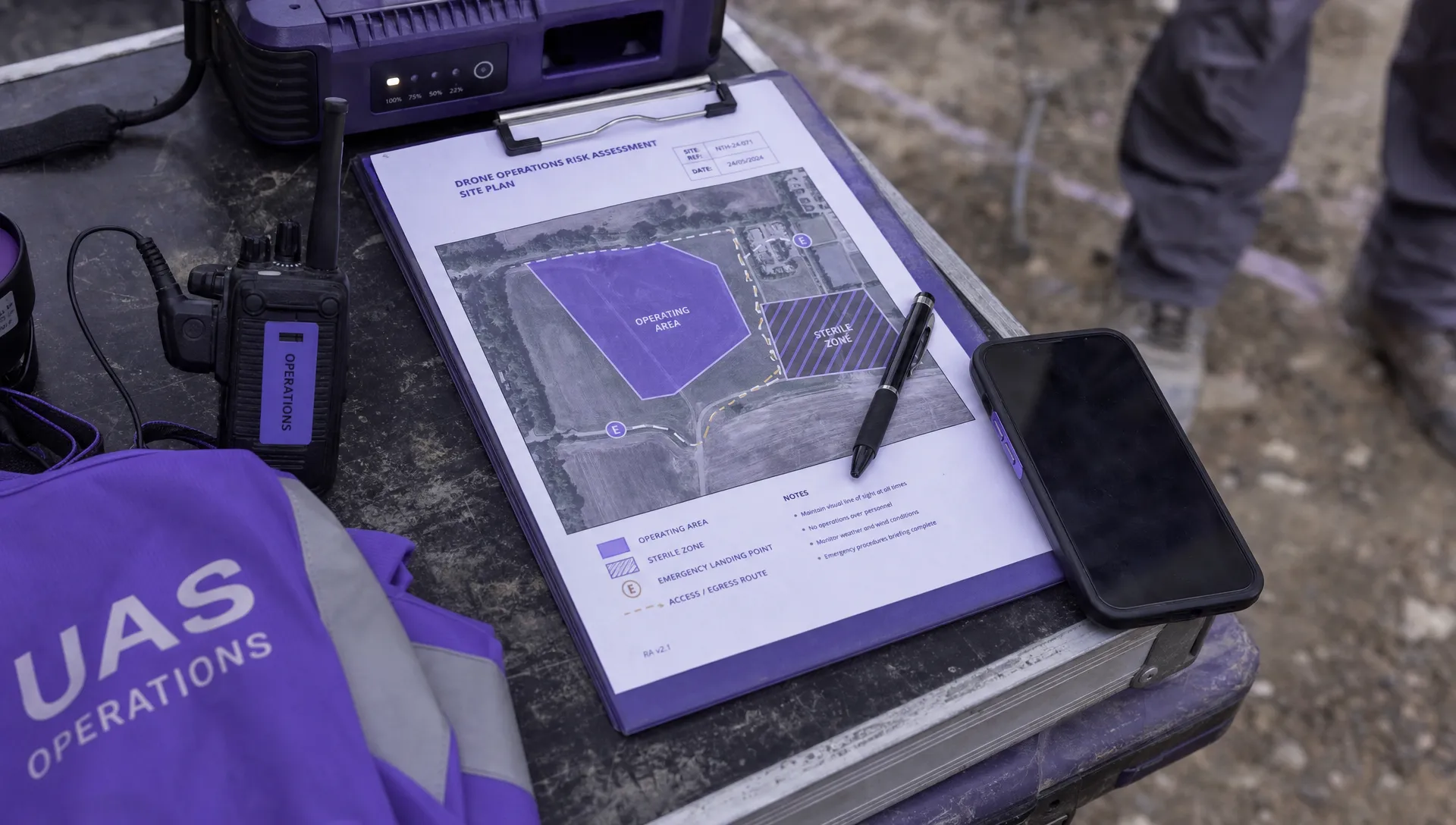 Drone Risk Assessment Controls That Work in the Field →
 FAA Drone License Costs Beyond the Knowledge Test →
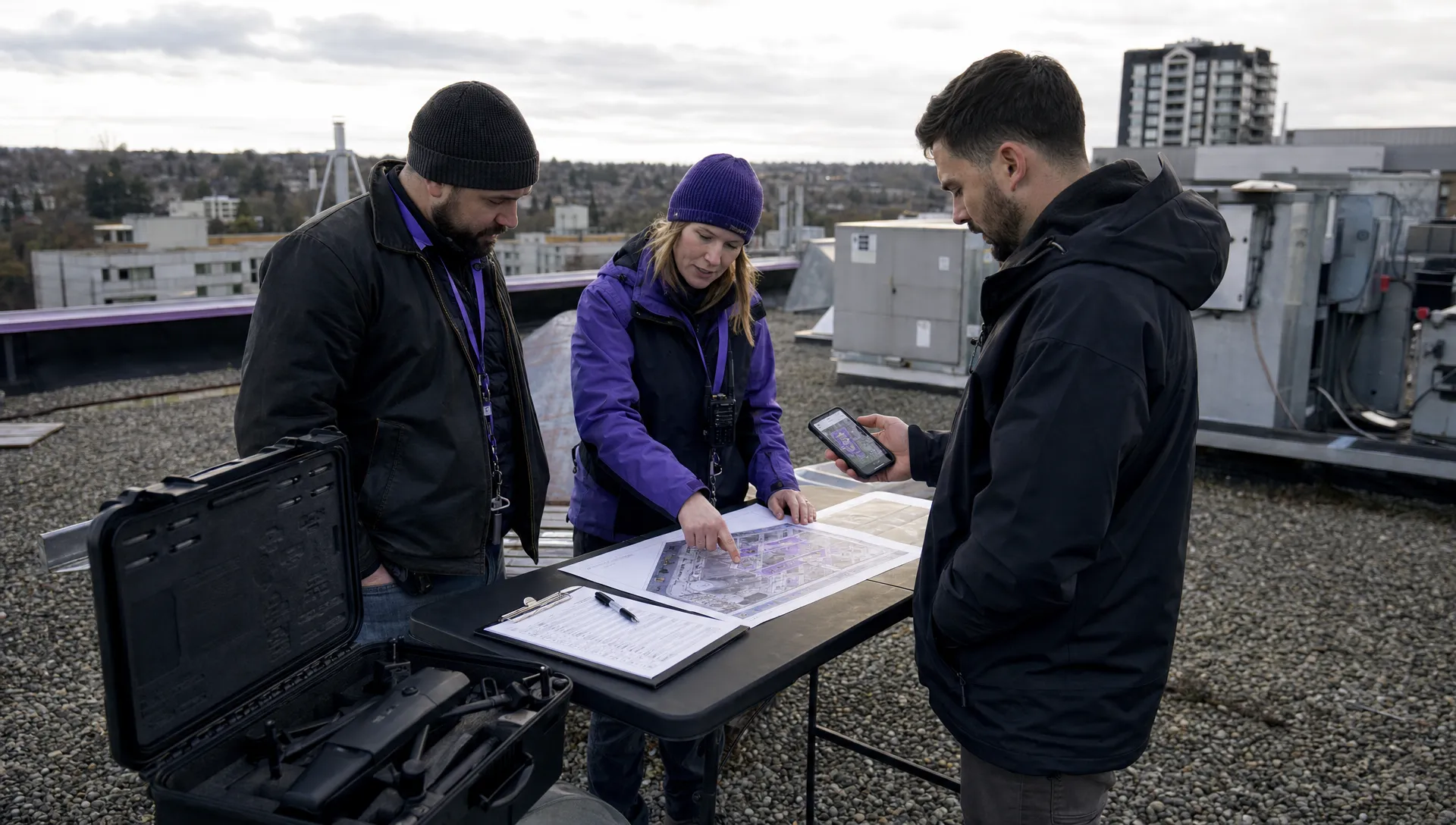 Drone Part 107 Operations: When a Waiver May Be Needed →
 Drone Operating Rules for Managing Contractors and Employees →
 BVLOS Drone Requirements for Building a Safety Case →
 Drone Pilot Test Mistakes That Cost Candidates Marks →
 FAA 107 License vs Part 107 Certificate: What’s the Difference? →
 Drone Airport Rules: A Field Checklist for Site Assessments →