
How to Fix Code 30064 DJI Errors and Take Off in 2026
You arrive on site early. Wind is fine, batteries are ready, airspace checks are done, and the client is standing nearby waiting for the first lift. Then the aircraft powers up, you tap to launch, and the screen throws the message every DJI pilot hates seeing: Unable to take off (Code: 30064).
If you're dealing with code 30064 dji, the good news is that this error usually isn't random. It tends to follow a short list of causes, and if you work through them in the right order, you can often get back in the air without wasting the whole job window. The key is not trying ten fixes at once. Start with the highest-probability cause, then move to the less common ones only if needed.
That Sinking Feeling DJI Code 30064 Appears
The frustration with Code 30064 isn't just the error itself. It's the timing. It almost always shows up when the aircraft was flying fine before, the site is ready, and every minute of delay starts to cost you.
In day-to-day operations, this is one of those issues that can make a competent pilot feel stuck because the drone looks normal. Props are on. Battery is seated. GPS may be fine. The aircraft powers up, the controller connects, and yet it still won't arm. That makes it different from an obvious hardware fault.
You don't need a vague troubleshooting ritual here. You need a priority order that matches how this error shows up in the field.
For most operators, the fastest path is simple. First, treat it as a software sync problem. If that doesn't clear it, treat it as a gimbal or calibration problem. If both paths fail, stop guessing and document the incident properly before support gets involved.
That approach matters because downtime isn't only about one missed takeoff. It affects battery planning, site access windows, crew time, client confidence, and in regulated work, your audit trail. A one-time fix helps. A repeatable process helps far more.
Decoding DJI Error 30064 What It Really Means
Code 30064 DJI is a takeoff prevention error. In plain terms, the aircraft is failing a final readiness check and won't arm the motors. That's a safety lockout. The drone is telling you something in the startup chain doesn't look right enough for launch.
The two causes that matter most in practice are software mismatch and gimbal-related startup failure. Knowing that changes how you troubleshoot. You don't start by tearing into the aircraft. You start by identifying which of those two paths is more likely.
The software mismatch pattern
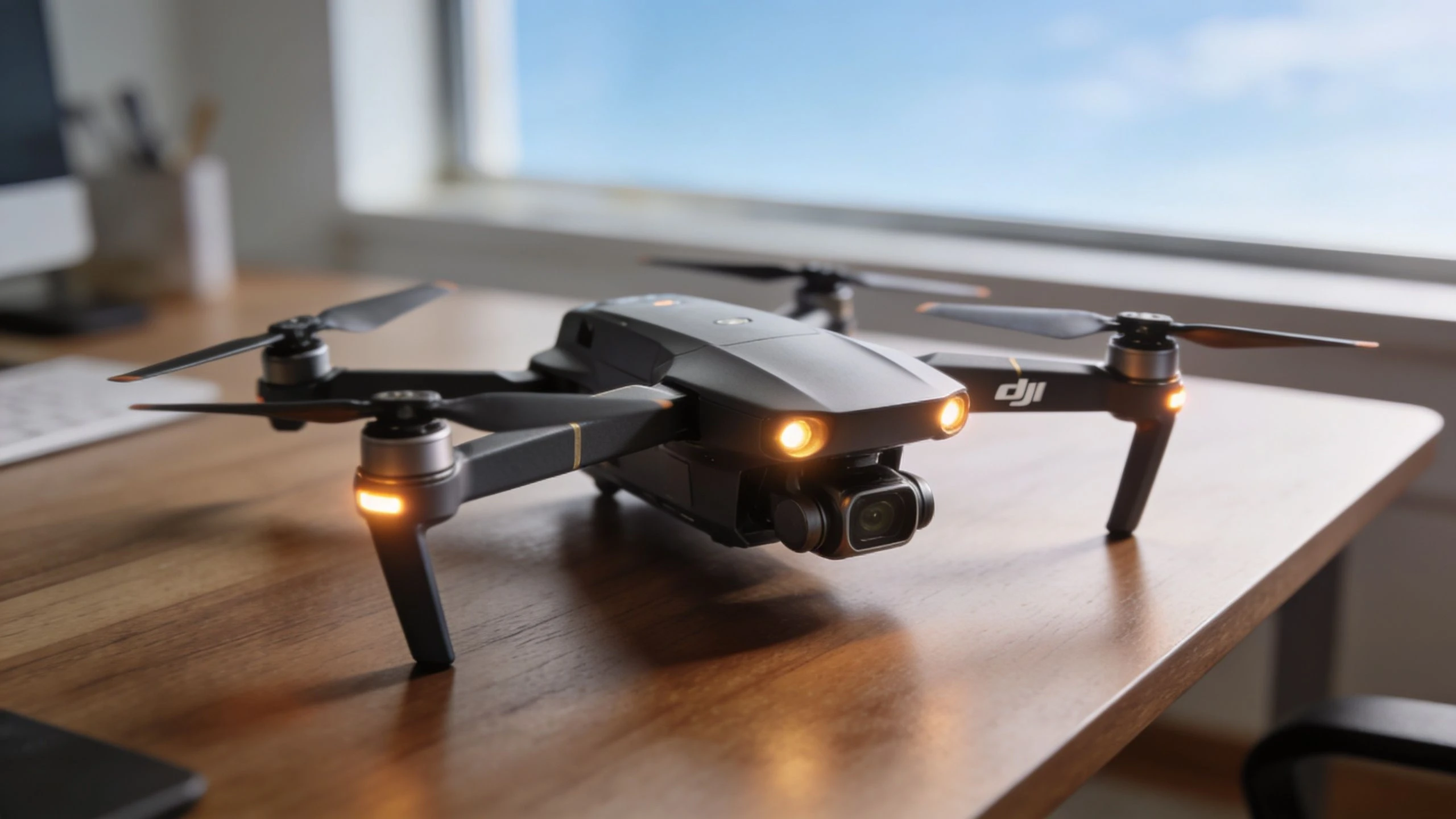
This error became widely recognized in mid-2022 with the release of DJI Fly App version 1.9.8, and forum analysis estimated it affected 15 to 20% of DJI Air 2S users. The issue stemmed from a firmware and app incompatibility, and DJI's official fix was to update the DJI Fly app to v1.9.9 or above for mobile devices and update DJI RC firmware to v01.02.0600 for built-in screen controllers, as documented in the Grey Arrows discussion of the 30064 rollout.
That history still matters because it explains the pattern many pilots see now. The aircraft may be healthy, but one component in the chain is behind the others. The controller, app, and aircraft aren't speaking the same language cleanly enough to permit takeoff.
The gimbal-related pattern
If software is current and synced, the next likely cause is the gimbal. That's usually a physical obstruction, a startup overload, or calibration drift. In real jobs, that often means one of a few boring but common problems:
- Debris in the gimbal assembly after dusty or sandy field work
- A stiff gimbal after transport or cold-weather setup
- An accessory issue such as a filter that changes balance enough to upset initialization
- Calibration drift after a bump, rough landing, or awkward packing
How to tell which path to take first
Use the startup behavior as your clue.
| What you notice | Most likely direction |
|---|---|
| Error appears after an app or controller update, with no physical symptoms | Firmware and app sync |
| Gimbal twitches oddly, binds, buzzes, or doesn't settle cleanly | Gimbal inspection and calibration |
| Aircraft was stored or transported roughly before the job | Gimbal and IMU checks |
| Multiple aircraft in a fleet show the same issue around the same time | Software mismatch |
Practical rule: If the drone looks physically normal, start with software. If the gimbal looks or sounds wrong, start with hardware checks.
Your First Response Firmware and App Sync
If you're grounded by code 30064 dji, this is the first response that deserves your time. Not because it's glamorous, but because it fixes the most common version of the problem with the least risk and the least wasted effort.
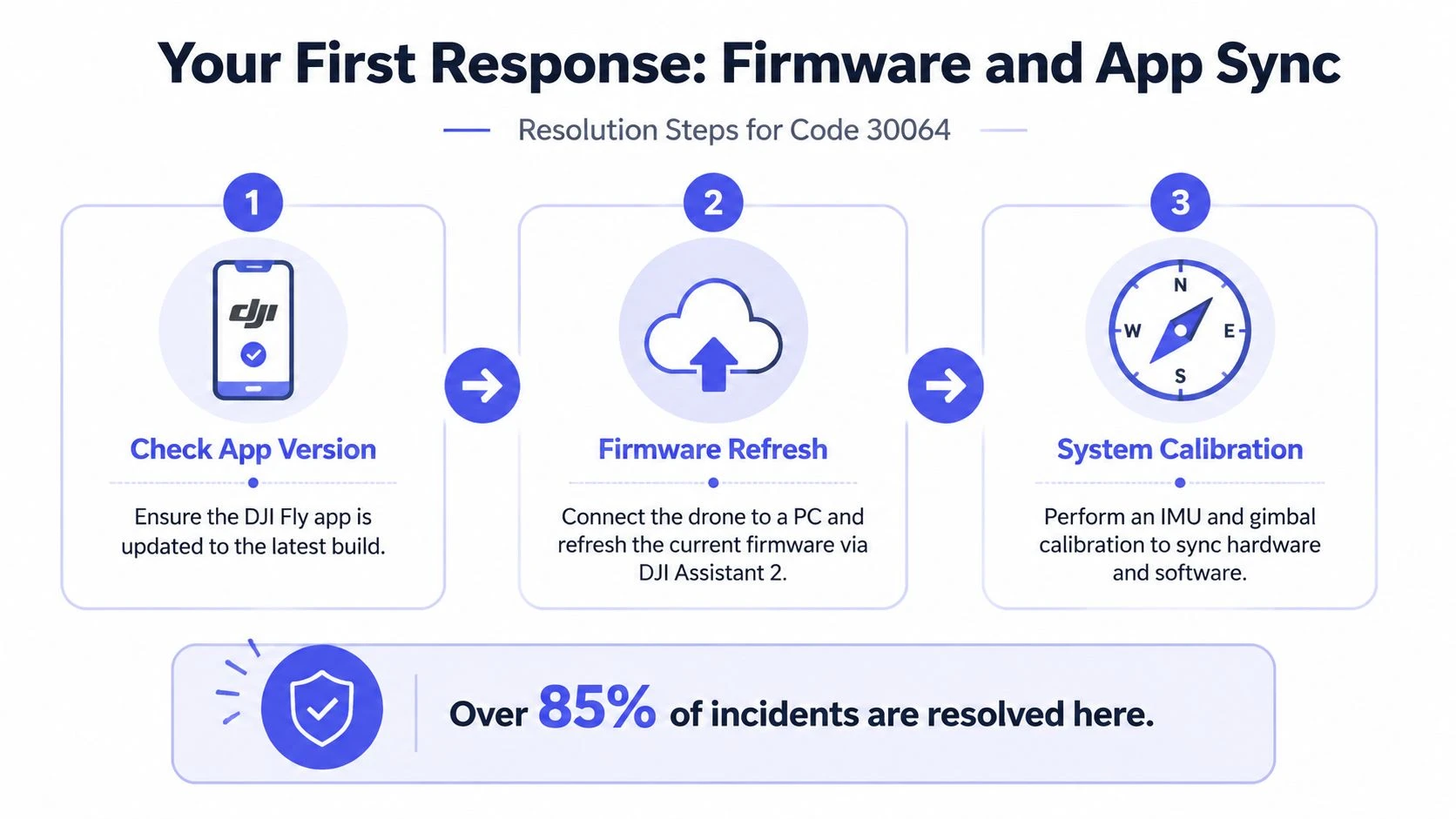
DJI's official guidance for DJI RC-based cases is clear. Update the controller to V01.02.0600 or above, then recalibrate. DJI support reports a 95% resolution rate after the firmware update, while community data shows an 85% fix rate that rises to 98% when the DJI Fly app is also synced to v1.9.9 or newer, as outlined in DJI's support instructions for Code 30064.
Start with the fast reset
Before you connect to Wi-Fi or open a laptop, do the simple reset properly.
- Power down everything. Aircraft off, controller off.
- Remove the drone battery for 30 seconds.
- Reinsert the battery and restart the system cleanly.
This won't solve every case, but it clears transient startup faults and prevents you from chasing a stale state in the system.
Then check the version chain
The mistake many pilots make is updating only one part of the setup. Code 30064 often survives when the aircraft, controller, and app are not aligned.
Use this order:
-
If you fly with DJI RC
- Open Settings
- Go to About
- Tap Check for Updates
- Install V01.02.0600 or newer
-
If you fly with a phone-connected controller
- Update the DJI Fly app to v1.9.9 or above
- Confirm the controller and aircraft are also current
-
If the update won't appear
- Connect to a more stable Wi-Fi network
- Try a hotspot if needed
- Use DJI Assistant 2 (Consumer Drones Series) on a computer if the field method fails
Don't skip calibration after the update
A lot of pilots stop as soon as the firmware finishes. That's incomplete troubleshooting. After the update, run both checks below:
- IMU calibration
- Gimbal calibration
On DJI systems, that post-update calibration step is part of the official recovery path for this error. It helps sync the sensors and startup assumptions after the software change.
If the update succeeds but you relaunch immediately without recalibrating, you're leaving one of the official recovery steps unfinished.
What actually works in the field
The trade-off here is time versus certainty. If you're on a live site with poor connectivity, updating can feel slow. But compared with random trial-and-error, it's still the most efficient move when software mismatch is the likely cause.
A practical field workflow looks like this:
| Action | Why it matters | What to watch for |
|---|---|---|
| Battery-out power cycle | Clears temporary state issues | Wait the full 30 seconds |
| Connect controller or phone to Wi-Fi | Required for update check | Weak connections can stall the process |
| Update DJI RC or DJI Fly | Resolves known version mismatch | Confirm the installed version, don't assume |
| Reboot all devices | Applies changes cleanly | Start controller first, then aircraft |
| Run IMU and gimbal calibration | Finishes recovery sequence | Use a stable, level surface |
If your controller and phone connection itself has been unreliable, this guide on connecting your drone to your phone is worth checking before you assume the aircraft is at fault.
What usually wastes time
These are the detours that rarely help early on:
- Swapping batteries repeatedly when the issue started right after an app change
- Reinstalling props with no sign of propulsion fault
- Trying to force takeoff again and again without changing anything in the setup
- Partial updates where the app is current but the controller isn't, or the controller is current but the app isn't
If the aircraft still throws Code 30064 after a clean update path and calibration, move on. That's the point where physical gimbal and sensor checks become worth your time.
Troubleshooting Gimbal and Sensor Issues
When software sync doesn't clear the fault, the next place to look is the gimbal system. Many persistent Code 30064 cases originate in this component. The aircraft powers on, but the startup self-check sees resistance, overload, or bad calibration data and blocks takeoff.
For gimbal-related 30064 cases, the root cause is often mechanical obstruction or calibration drift. A proven field method is a physical inspection, a 60-second battery reset, and DJI Fly Gimbal Auto-Calibration. Analysis of popular troubleshooting guides puts on-site fixes at around 75%, and a common pitfall is ignoring stiffness from cold weather or skipping calibration after a rough ride, which can account for up to 40% of persistent cases, based on the troubleshooting analysis in this YouTube repair guide.
Run a proper physical inspection
This check needs to be deliberate, not a quick glance.
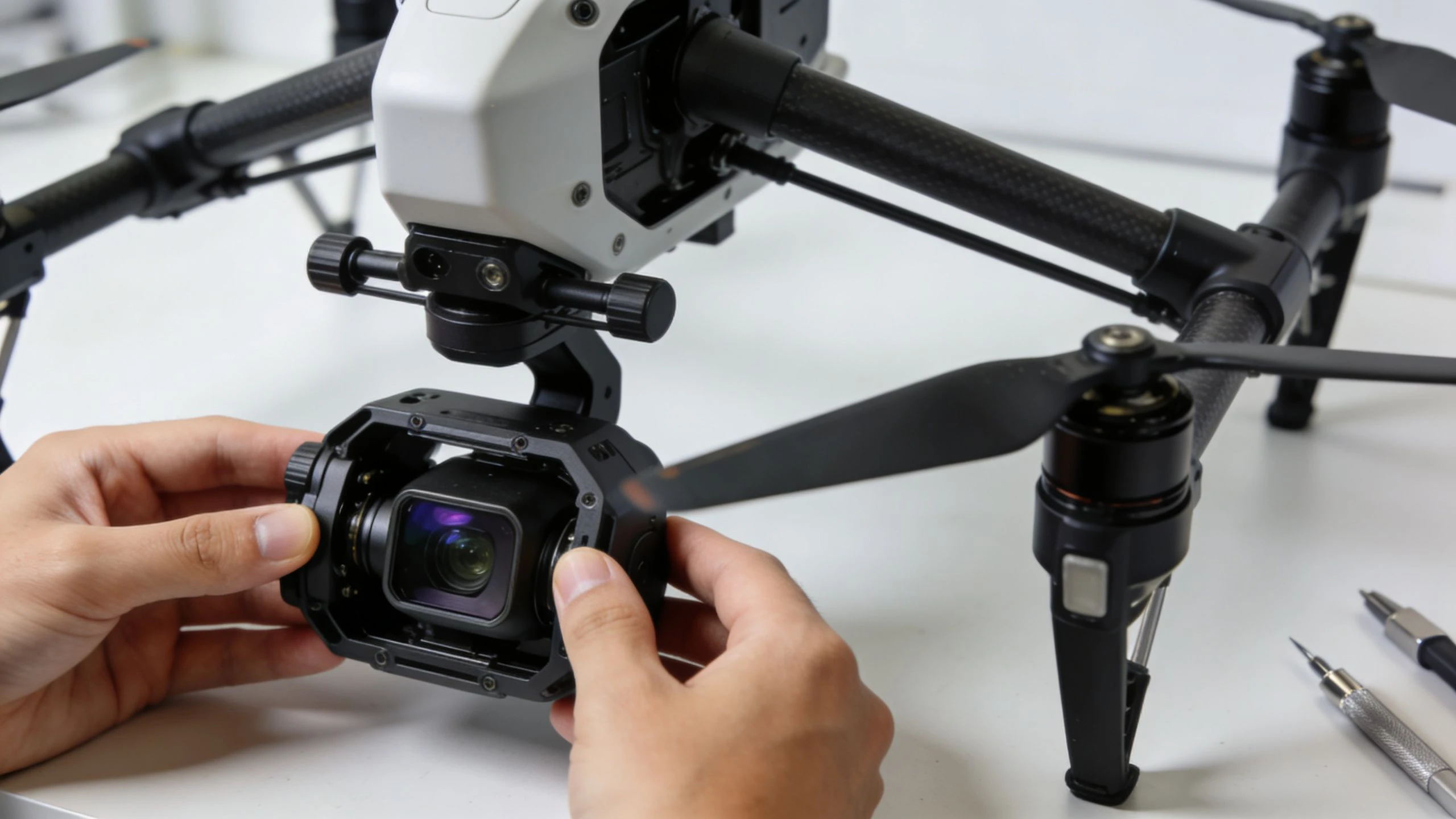
- Remove the gimbal cover. It sounds obvious, but it still gets missed in rushed setups.
- Power the aircraft off before touching the gimbal.
- Gently move the gimbal through its range. You're checking for smooth motion, not forcing it.
- Look for debris. Dust, sand, grass, and packing lint are all common offenders.
- Remove accessories. If you're using an ND filter or another add-on, take it off and retest.
The reason this works is simple. The startup check doesn't care whether the obstruction is dramatic or minor. If the gimbal can't initialize correctly, takeoff can be blocked.
Battery reset and calibration sequence
After inspection, do the reset in this order:
- Remove the battery for 60 seconds.
- Reinstall it and place the drone on a flat, stable surface.
- Open DJI Fly and run Gimbal Auto-Calibration.
- If that completes but the error remains, run an IMU calibration next.
That sequence matters. Physical check first, then reset, then calibration. If you calibrate before removing the actual obstruction, the process can fail or give you misleading confidence.
A gimbal that feels even slightly stiff on the bench can turn into a no-takeoff fault in the field.
Signs you're dealing with more than a field fix
Use judgment here. Some symptoms suggest you should stop trying to nurse it back into service on site.
| Symptom | What it suggests |
|---|---|
| Gimbal motion feels rough or catches in one direction | Mechanical obstruction or damage |
| Calibration repeatedly fails | Deeper gimbal or sensor issue |
| Error returns after transport every time | Ongoing alignment or hardware instability |
| Buzzing or visible strain on startup | Motor overload or imbalance |
If the drone had a recent bump, a rough case ride, or cold exposure before launch, take those seriously. Those are exactly the kinds of conditions that turn a mild gimbal issue into a takeoff block.
Preventing Code 30064 with Smart Operations
The best way to handle Code 30064 is to keep it from showing up on a job at all.
By the time this error appears on site, you've already lost time. The aircraft is grounded, the client is waiting, and the crew starts burning minutes on checks that should have happened before departure. In day-to-day operations, prevention is usually simpler than field recovery. The patterns covered earlier point to the same conclusion. Startup faults often come back to routine issues that should be caught in a controlled environment, not in a muddy layby or on the edge of a live worksite.
Build a pre-departure routine
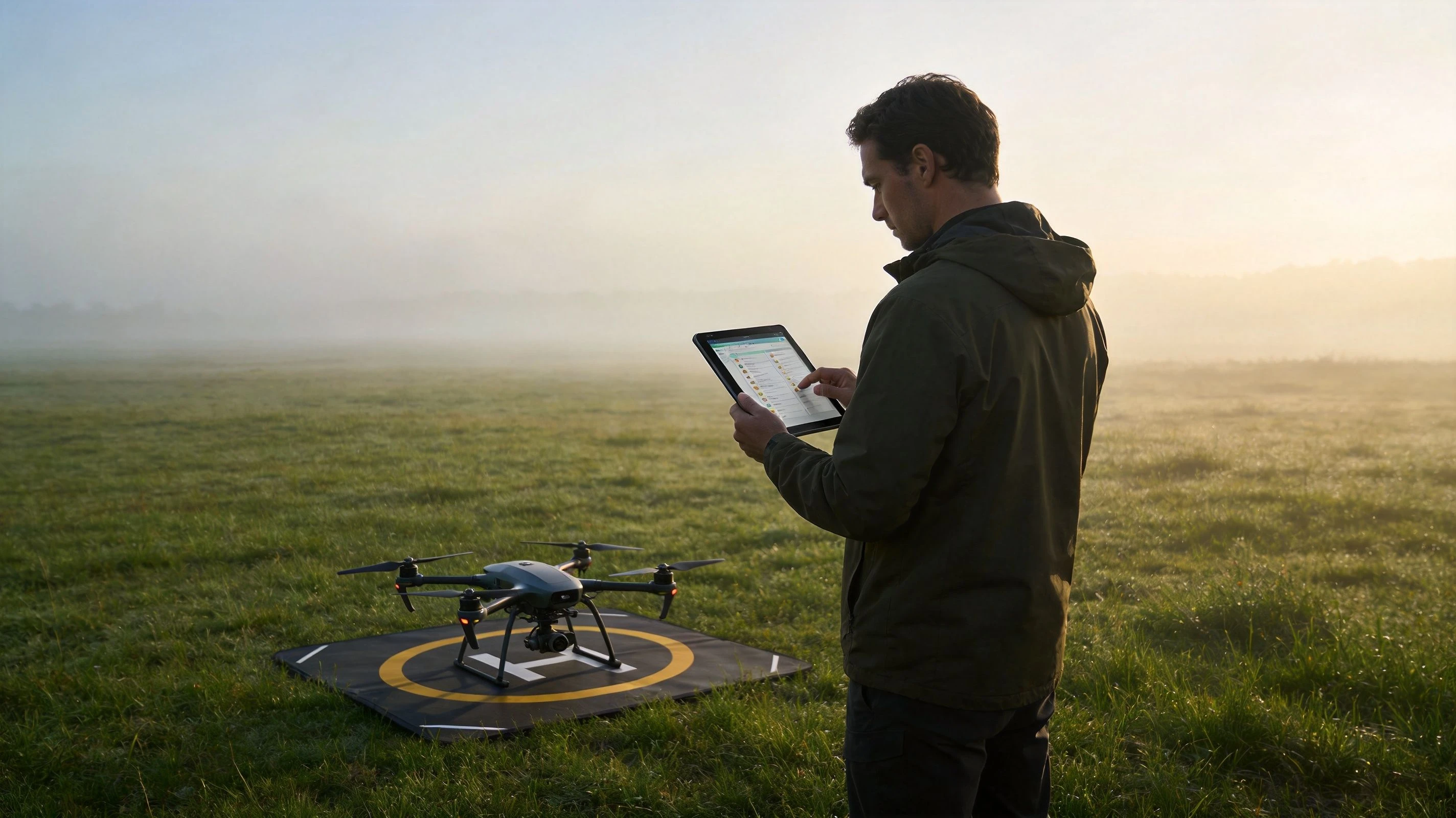
A useful workflow starts with one rule. Never let the first full power-up happen at the job.
Run this checklist before travel:
- Check firmware and app status the day before, not in the field
- Power on aircraft, controller, and app together so sync issues show up early
- Inspect the gimbal physically. Remove the cover, confirm free movement, and look for anything rubbing or slightly out of line
- Review the last flight notes for repeat warnings, transport knocks, or calibration failures
- Set aside any aircraft with a pattern of startup faults until maintenance has reviewed it
That last point matters. Crews lose a lot of time treating repeat errors like random bad luck. If one aircraft keeps showing startup warnings after transport, it belongs in the maintenance queue.
Use records instead of memory
Good operators standardize this work. Great operators document it.
A checklist helps the pilot on the day. An operations system helps the whole team over time. If you log recurring startup faults, firmware changes, hard case transport, and calibration history in Dronedesk or a similar platform, patterns become obvious before they become dispatch problems. That is the practical difference between a one-off fix and prevention built into the workflow.
If you need a starting point, this preventive maintenance schedule template is useful for turning ad hoc checks into a repeatable process across aircraft and crews.
Reliable drone operations come from recorded checks, clear ownership, and aircraft that are held back before they fail on site.
This approach also fits wider professional standards. Teams expanding drone work in construction, inspection, or documentation usually need tighter SOPs alongside pilot qualifications. For contractors building that side of the operation, guidance on drone certification for paving contractors can support the training and compliance piece while your maintenance records tighten the operational one.
When to Call for Help Logging and Contacting Support
There is a point where field troubleshooting stops being efficient. If you've completed the update path, checked the gimbal physically, run calibration, and the aircraft still won't arm, stop experimenting. Repeating the same startup cycle over and over rarely reveals anything new, and it can obscure what occurred.
A persistent Code 30064 after the usual fixes is no longer just a pilot inconvenience. It's now a maintenance event. Treat it that way.
What to log before contacting support
Support goes faster when you send facts, not a vague description. Your record should include:
- Aircraft and controller model
- Exact wording of the error
- Date, time, and location
- What changed before the issue appeared, such as an update, transport, or accessory swap
- Each step you already tried, in order
- What happened after each step, including whether calibration completed or failed
That log helps in two ways. First, it keeps your own troubleshooting clean. Second, it gives support or a repair technician a usable timeline instead of forcing them to restart the conversation from zero.
When escalation is the right call
Use this threshold. Escalate when one of these is true:
| Condition | Recommended action |
|---|---|
| Firmware and app are current, but error persists | Contact DJI support |
| Gimbal calibration repeatedly fails | Stop field troubleshooting |
| Physical resistance or visible gimbal abnormality remains | Prepare for service |
| Error returns immediately after successful temporary fix | Log as recurring maintenance fault |
If repair becomes likely, it's worth reviewing how the service process typically works before opening a case. This guide to DJI repair service is useful for setting expectations around next steps and documentation.
The fastest support case is the one that arrives with a clear incident history, not a pile of guesses.
The practical takeaway is simple. If the aircraft won't clear 30064 after disciplined troubleshooting, don't frame it as a bad day in the field. Frame it as a traceable technical issue, document it properly, and hand support a record they can act on.
Dronedesk helps professional pilots turn one-off troubleshooting into a repeatable operational process. If you want tighter maintenance tracking, cleaner flight logs, and better visibility across your fleet, take a look at Dronedesk.
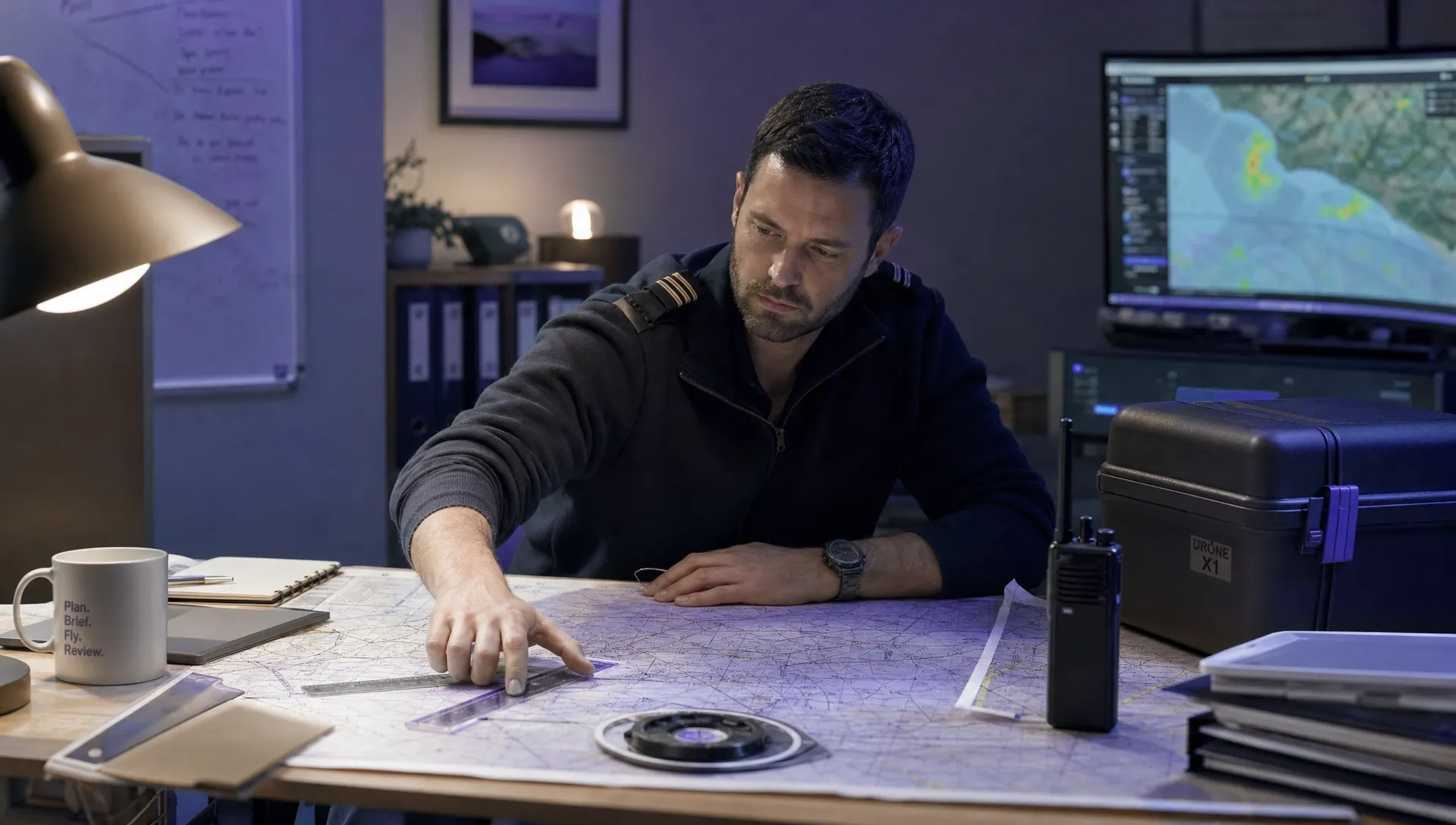 How to Prepare for the Drone Licence Test →
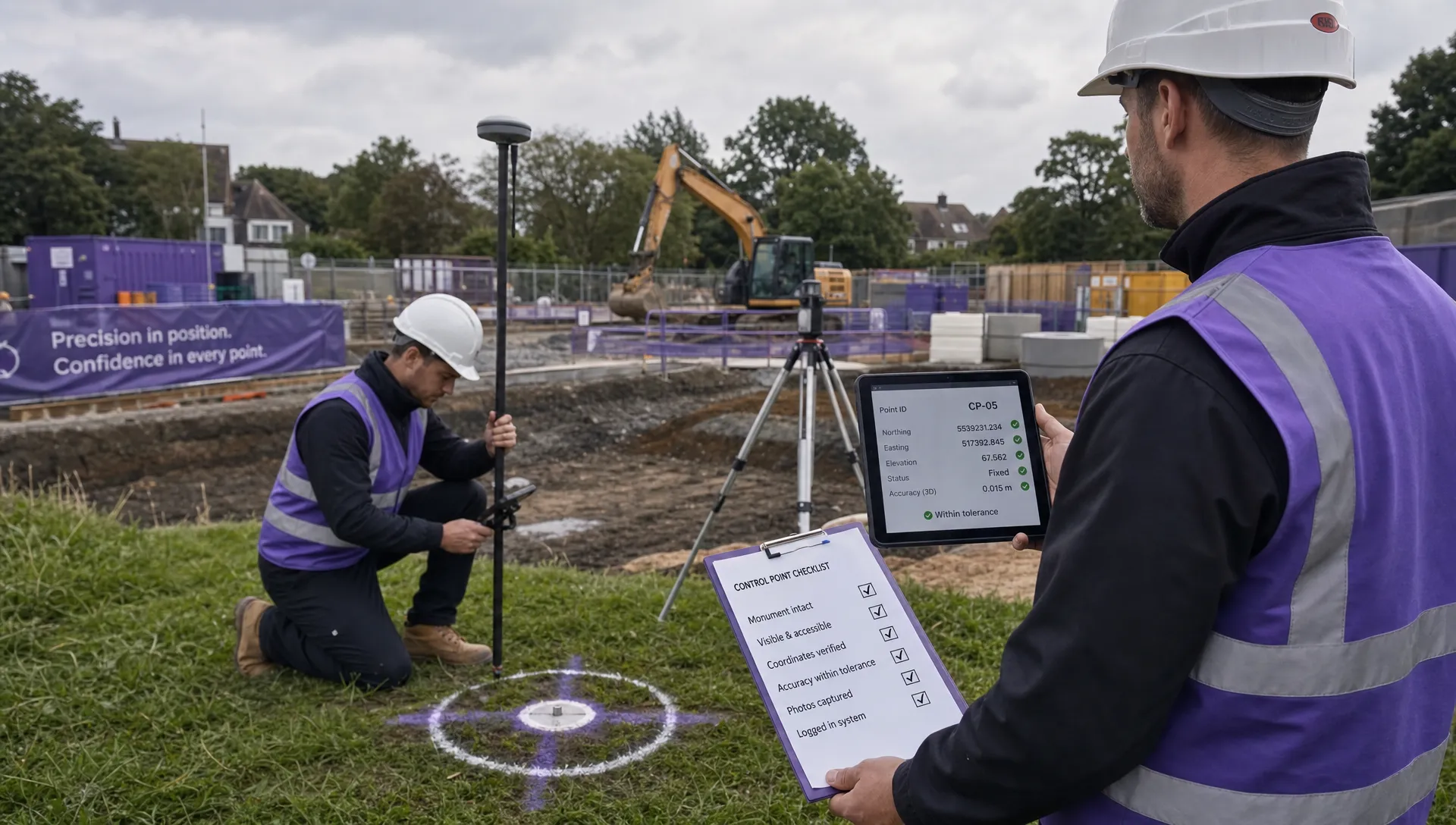 How to Choose a Drone Mapping Service for Your Project →
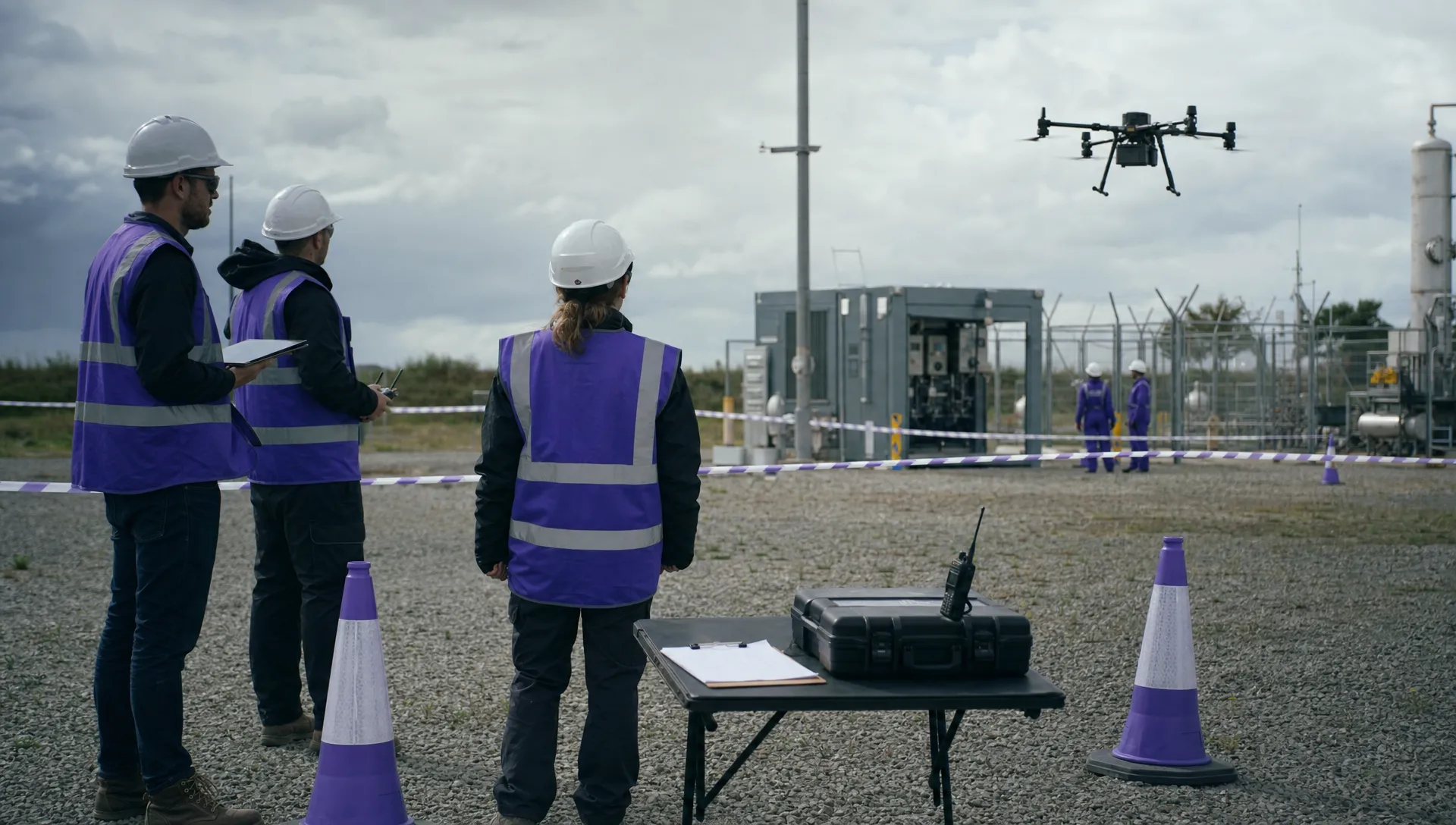 Drone Safety Rules That Every Commercial Team Needs →
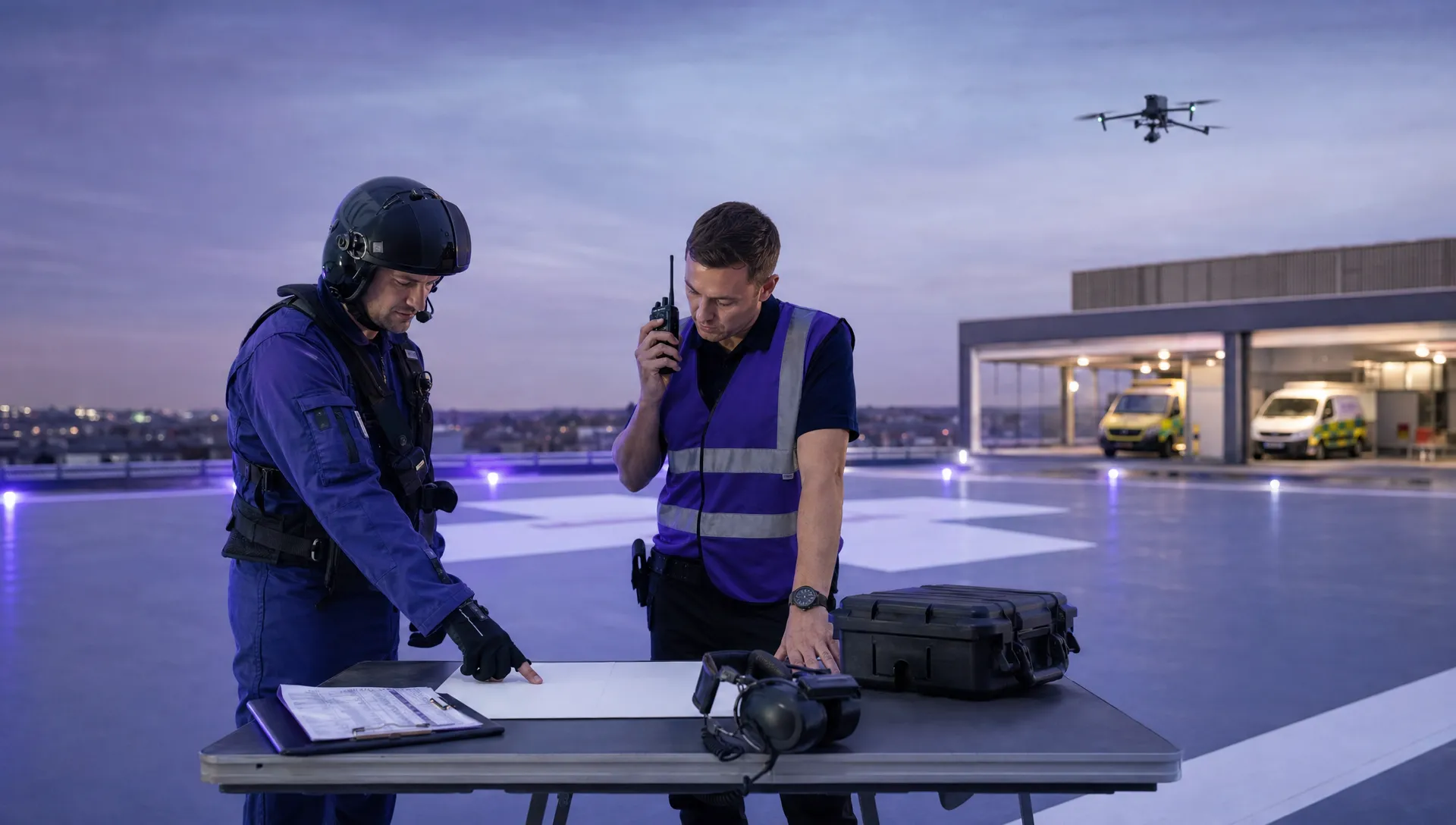 Airport Drone Rules: How to Plan Flights Without Surprises →
 FAA Part 107 Licence: Your Step-by-Step Application Guide →
 How to View DJI Flight Logs Online Safely →
 What Part 107 Covers Beyond the Pilot Certificate →
 How to Download and Read a DJI Flight Log →
 Drone Videography Planning Tips for Professional Crews →
 EU Drone Rules for Sub-250g Aircraft Explained →