
How to Connect Your Drone to Your Phone A Complete Guide
To get your drone talking to your phone, you'll be using the manufacturer's app and one of three main link-up methods: the drone's or controller's Wi-Fi signal, a Bluetooth connection, or a direct USB cable. From experience, I can tell you the most reliable method, especially for professional work, is a hardwired USB connection from the controller straight to your phone.
Why Your Drone-to-Phone Link Matters
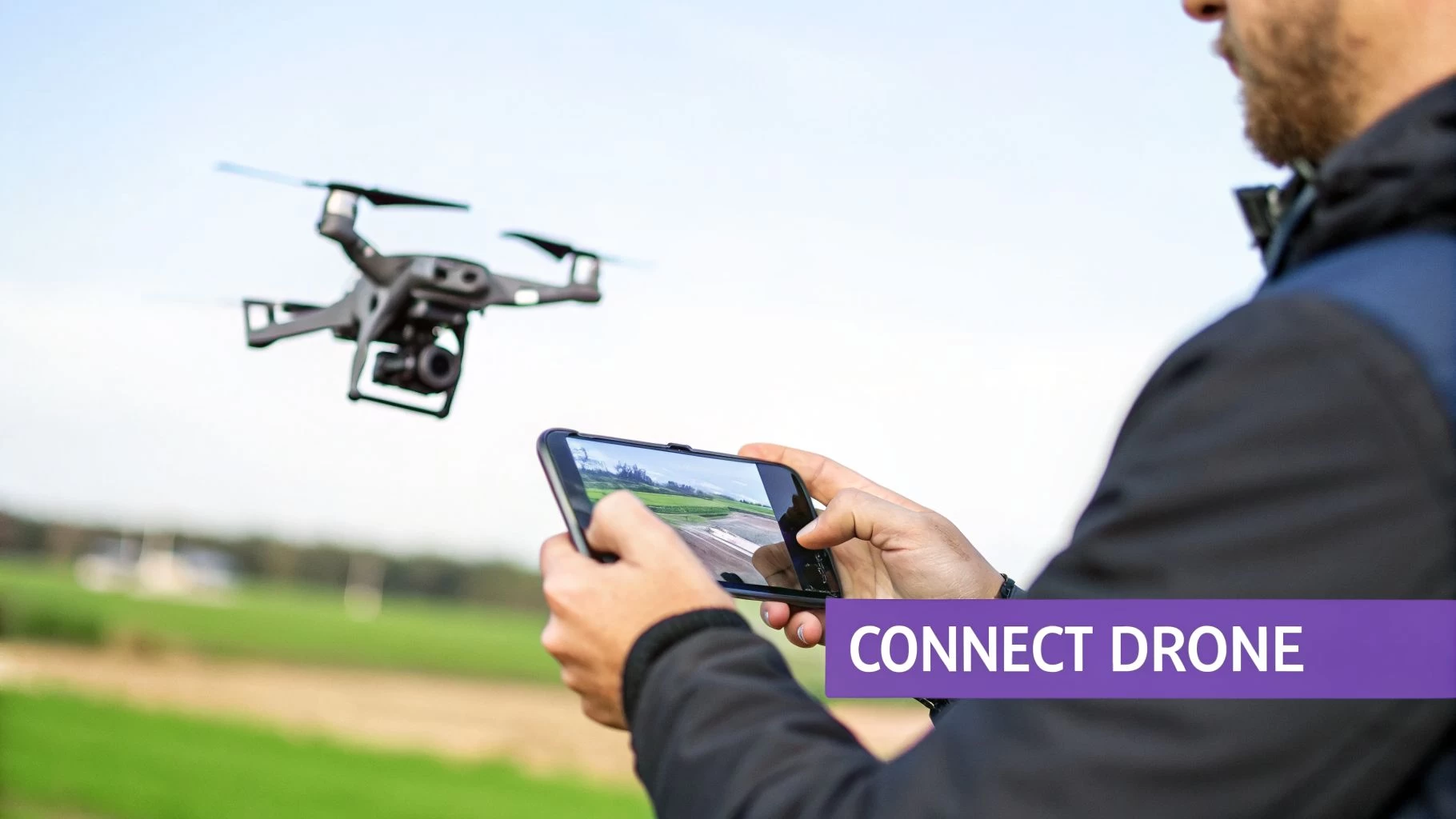
Think of the link between your drone and your phone as the aircraft's central nervous system. It’s not just about seeing what the camera sees. This connection is your cockpit view, your control centre, and your data hub all rolled into one indispensable link.
A flaky connection means you lose your first-person view (FPV), flight control telemetry, and the ability to run your mission plans. For any professional operator, a dropped signal isn't just an annoyance; it can mean a failed mission, lost data, or even a serious safety incident.
The Three Primary Connection Methods
You’ve got three main ways to get your drone and phone communicating. Each has its pros and cons, and knowing which to use in different scenarios is key to a smooth flight every single time.
- Direct Wi-Fi: Many consumer drones create their own Wi-Fi network. You just connect your phone directly to the drone, which is perfect for quick setups and short-range flights without a controller.
- Controller-Based Wi-Fi or Bluetooth: This is the most common setup. Your phone connects to the remote controller, which then communicates with the drone over a much more powerful, long-range radio frequency.
- Hardwired USB (OTG): For maximum reliability, pros connect their phone directly to the controller with a USB On-The-Go (OTG) cable. This physical link is practically immune to the wireless interference you find all over urban environments.
For any mission where data integrity and flight stability are non-negotiable—like a mapping survey or an infrastructure inspection—a hardwired USB connection is the industry standard. It just removes all the guesswork and risk that comes with wireless signals.
What This Guide Covers
This guide is built for professional operators who need dependable results. We're going to move beyond the basic setup and dive into the practical, field-tested knowledge you need for safe and efficient drone operations. You'll learn how to connect your drone to your phone reliably, troubleshoot common headaches, and figure out which method is best for your specific mission.
From syncing complex flight plans with platforms like Dronedesk to ensuring a rock-solid FPV feed for cinematic shots, mastering this fundamental step is a must for any serious pilot. We'll walk through the specific steps for each connection type.
Wireless Connections with Wi-Fi and Bluetooth
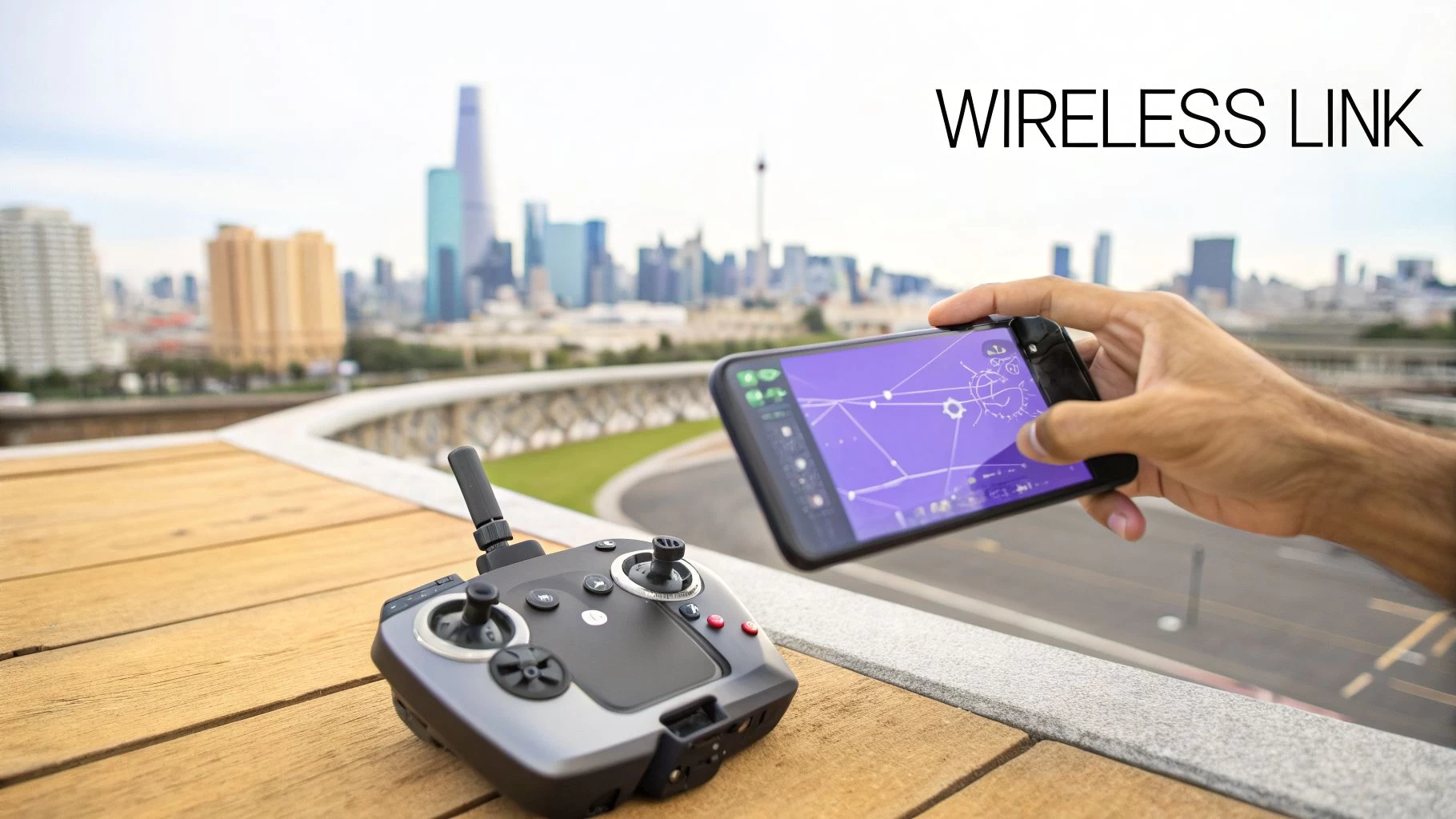
For a lot of pilots, going wireless is the fastest way to get in the air. This usually means linking your phone to the drone's remote controller—or sometimes directly to the drone itself—using Wi-Fi or Bluetooth. It's hands-down the most convenient method for a huge range of jobs.
Think about it: you're a real estate photographer arriving on-site. You need to launch, get your shots, and move on to the next property without any fuss. A direct wireless connection is your best friend in this scenario, letting you skip the cables and get airborne in minutes.
Mastering the Wi-Fi Direct Connection
Many consumer drones, like the Ryze Tello or models from Parrot, broadcast their own Wi-Fi network. This is the absolute simplest way to connect, as it completely bypasses the controller and links your phone straight to the drone.
Just power on the drone, then pop open your phone’s Wi-Fi settings. You should see a new network pop up with a name like "TELLO-XXXXXX" or "Parrot_Bebop2_XXXX." Tap to connect and punch in the password if it asks for one—you can usually find it printed on the drone's body or tucked away in the manual.
Once you’re connected, fire up the drone's companion app. It should instantly find the drone and show you a live feed from the camera. This setup is brilliant for flying indoors or for quick outdoor shots where you don't need to fly far. The big catch is the range, which is typically under 100 meters, making it a non-starter for most professional missions.
Pro Tip: Flying in a built-up area? The 2.4 GHz Wi-Fi band is often incredibly congested. If your drone and app allow it, switch over to the 5 GHz band. You'll get a shorter range, but the connection will be far more stable thanks to less interference from every home router in the vicinity.
Linking to Your Controller via Wi-Fi or Bluetooth
For most professional-grade drones from DJI or Autel, your phone actually connects to the remote controller, not the drone. The controller then handles the heavy lifting, using a powerful, proprietary radio signal to maintain a rock-solid, long-range connection with the aircraft. You get the best of both worlds: a simple wireless link to your controller and a robust connection to the drone.
Take most modern DJI controllers, for instance. They use Wi-Fi to talk to the DJI Fly app on your phone.
- First, power on both the controller and the drone.
- On your phone, head into your Wi-Fi settings.
- Find and select the controller’s network (it'll look something like "DJI_RC_XXXX").
- Launch the app, and you're good to go.
Bluetooth is less common for the main video feed but often pops up during initial setup or for connecting secondary bits of kit. Some smaller drones or specific controller features might use it for low-data communication. The process is pretty much the same: make the device discoverable, find it in your phone’s Bluetooth menu, and hit pair. If you run into any snags, general guides on troubleshooting Bluetooth issues can be a great help.
For those of you flying with an Android device, it’s well worth checking out our guide to the best https://blog.dronedesk.io/drone-app-android/, where we break down features and connectivity needs for different platforms.
Why Pros Prefer a Hardwired OTG Connection
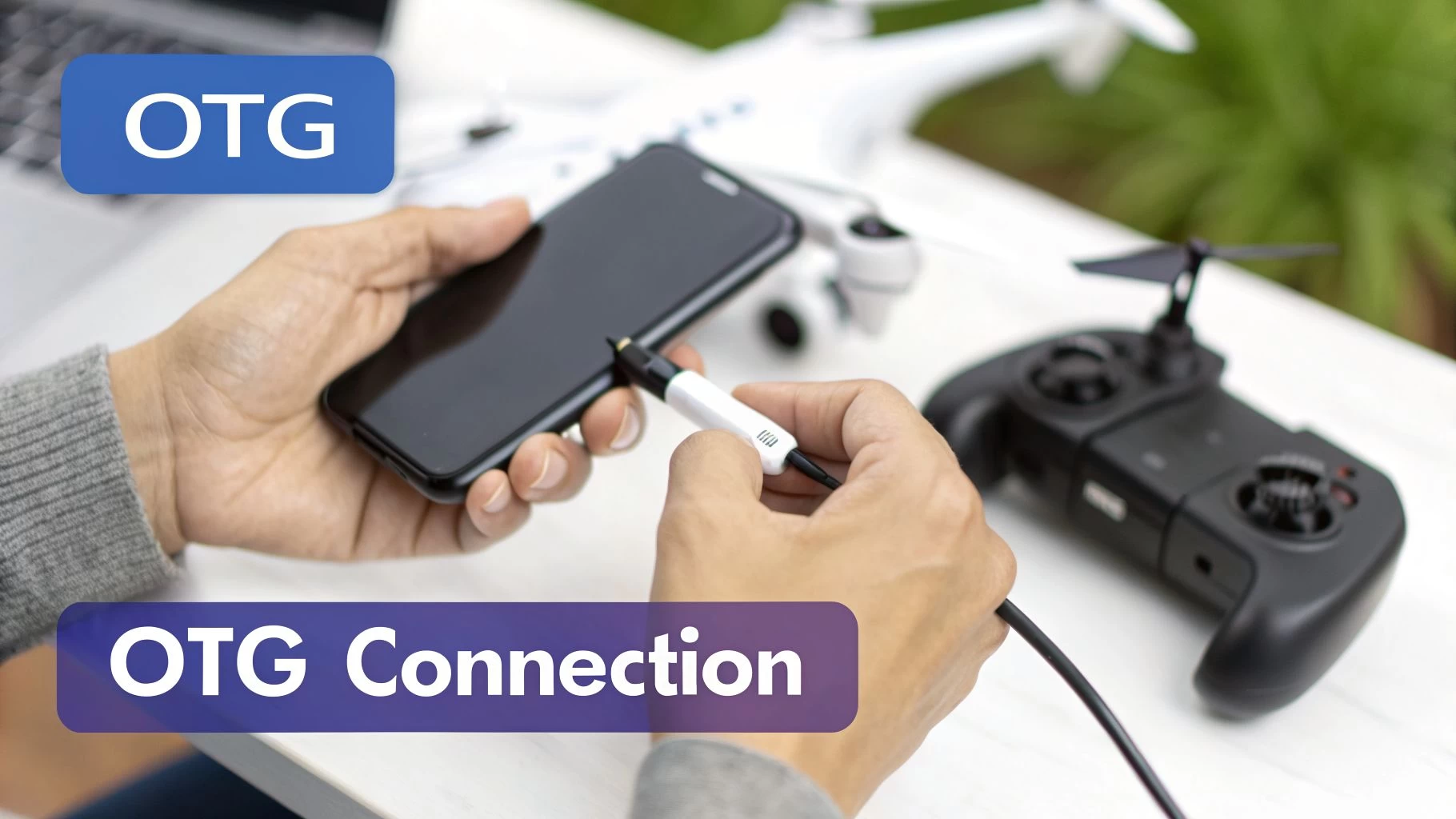
When the mission is critical and the stakes are high, a dropped signal is a non-starter. While wireless connections have their place, you'll find that seasoned professionals almost always fall back on a hardwired USB On-The-Go (OTG) connection. It's all about one thing: rock-solid reliability.
This physical link between your controller and phone all but eliminates the risk of wireless interference.
Think about it. You could be a utility inspector flying a DJI Mavic 3 to assess power lines in a dense urban area. The air is thick with competing Wi-Fi signals from every home and business. A wireless link would be a constant battle against dropouts and lag—but an OTG cable ensures your video feed is smooth and uninterrupted. That’s absolutely essential when you're navigating just feet from critical infrastructure.
The Power of a Physical Link
The biggest win with an OTG connection is the massive drop in latency—that tiny delay between the drone's camera seeing something and it showing up on your screen. In professional cinematography or high-speed inspections, even a fraction of a second of lag can mean missing the perfect shot or misjudging an obstacle.
A hardwired connection gives you a dedicated, high-bandwidth data pipe. This kind of stability is becoming more crucial as the drone communication market grows, with projections showing a leap from $3,250 million in 2026 to $6,350 million by 2034.
Professionals need real-time command and a latency under 50ms to prevent costly mistakes. An OTG connection is how you get there.
For a professional pilot, an OTG cable isn't a backup; it's the primary tool. It transforms a potential point of failure into your most dependable, mission-critical asset.
Choosing the Right Cable and Connection Sequence
Here’s a common trip-up for new pilots: not all USB cables are the same. You can’t just grab your phone's charging cable and expect it to work. You specifically need a USB OTG cable.
This special cable tells your phone to act as a "host" device, allowing it to receive the data stream from the controller. Using a standard charging cable will get you nowhere and is a frequent source of frustration.
The exact cable you need depends on your gear:
- DJI RC Series Controllers (RC-N1, RC 2): These modern controllers usually have a USB-C port. You’ll need a cable with USB-C on both ends for most modern Android phones, or a USB-C to Lightning cable for iPhones.
- Older Controllers (e.g., Mavic 2 Pro Smart Controller): These might use a Micro-USB port. In that case, you'd need a Micro-USB to USB-C or Micro-USB to Lightning cable.
The order you connect everything in matters, too. It helps establish a proper software handshake with apps like DJI Fly or Litchi.
Here's the sequence I always follow to avoid any headaches:
- Power on your remote controller first. Leave the drone off for now.
- Connect the OTG cable to both the controller and your phone.
- Launch the drone app (like DJI Fly) on your phone.
- Finally, power on the drone itself.
Following this order helps the app lock onto the controller as the primary input, preventing conflicts and ensuring a stable connection right from the start. For a deeper dive into what your controller can do, check out our guide on how to get the most from your drone control remote.
Dialing in Your App Permissions
Getting a solid physical connection is only half the battle. If the software isn't playing nice, you're not getting off the ground. It’s a classic scenario: a pilot is out in the field, convinced their cable is bad or there’s too much Wi-Fi interference, only to find out the problem was a simple app permission they denied during setup.
Your drone app—whether it’s DJI Fly, Autel Sky, or another platform—is a complex bit of kit. To work its magic, it needs to tap into your phone’s core systems. When you first launch it, you'll see a flurry of requests for access. It’s tempting to just say no, but blocking these can cause all sorts of mysterious glitches right when you're ready to fly.
Why Your App Gets So Nosy
It's smart to be cautious about app permissions, but for drone operations, they're absolutely essential. Each one serves a critical function that keeps your flights safe and unlocks the features you paid for.
Here’s a look at the usual suspects and why they’re so important:
- Location Access: This one’s a deal-breaker. The app needs your phone's GPS to show your position on the map, accurately update the home point if you move, and enforce geofencing rules. Flying without it is like trying to navigate a new city with a blank map.
- Storage Access: Those gorgeous 4K videos and high-res photos have to go somewhere. The app needs permission to save files directly to your phone's gallery. It also uses storage to cache map data, which is a lifesaver when you're flying in an area with spotty mobile service.
- Network/Wi-Fi Access: This is how the app talks to your drone or controller over Wi-Fi. It also uses this connection to phone home for firmware updates and download the latest airspace advisories before you take off.
My best advice? Grant these core permissions when you first set up the app. It's the single easiest way to avoid a world of connection headaches later. If you do run into trouble, your phone's app settings should be the very first place you check.
Keeping Your Connection and Data Locked Down
For commercial operators, data security is paramount. Whether you're surveying critical infrastructure or shooting for a high-profile real estate client, that data link needs to be secure. An easy first step is to change the default Wi-Fi password on your drone or controller, if the hardware lets you. This simple move can stop someone from snooping on your live video feed.
This focus on secure, reliable connectivity is a huge deal for the industry. Projections show that by 2026, the drone market will hit US$69 billion, largely thanks to better connectivity like IoT and 5G turning drones into autonomous tools. The phone app is the brain of this operation, already helping service providers run missions 30% faster in fields like urban delivery and inspections. You can get more insights into these IoT trends on Telefonicatech.com.
For maximum security, stick to encrypted channels, which are standard on most professional-grade drones. This scrambles the data stream between the drone, controller, and your phone, protecting your client’s confidentiality and ensuring your data is uncompromised from takeoff to touchdown.
Solving Common Drone Connection Problems
There’s nothing that kills the momentum of a job faster than a drone that just won’t talk to your phone. You're on-site, the clock is ticking, and all you can see is a "disconnected" error. It's one of the most frustrating things a pilot can face.
We can skip the classic "have you tried turning it off and on again?" and get straight into a more methodical way to figure out what's wrong and get you back in the air. Most of these connection headaches stem from just a few usual suspects, from simple software quirks to mismatched firmware.
Diagnosing the Root Cause
Before you even think about blaming the hardware or swapping out expensive cables, start with the software. Nine times out of ten, that's where the problem is hiding.
- App Cache and Reinstallation: Over time, an app's cache can get clogged up and corrupted. It’s a simple fix: go into your phone’s settings, find your drone app, and clear the cache. If that doesn’t do the trick, a complete reinstallation is your next best bet. It often clears up those stubborn, hidden software conflicts you can't see.
- Firmware Mismatches: Drone manufacturers are always pushing out updates for the aircraft, the controller, and the app itself. If one of these components is running a different version from the others, they’ll often refuse to communicate. It's a non-negotiable pre-flight check: make sure everything is running the latest firmware before you leave for a job.
- Permissions Check: This one is a classic showstopper. If the app can't access your phone's location, network services, or storage, it’s dead in the water. We've all accidentally tapped "Deny" when we meant to hit "Allow." Double-check that all necessary permissions are granted.
This decision tree gives you a quick visual on the core permissions your drone app needs to function properly.
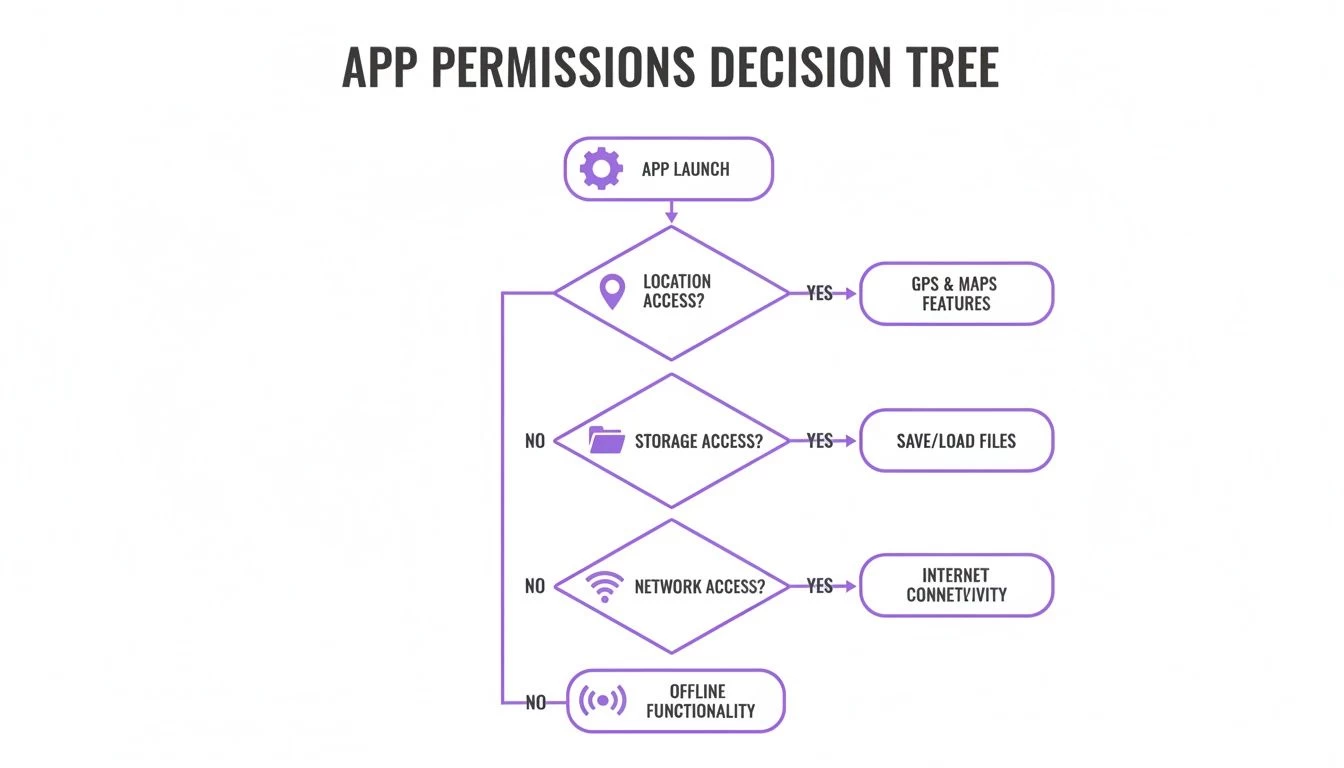
As the flowchart shows, access to location, storage, and network settings is absolutely fundamental for a successful connection. For a deeper dive into other things that can go wrong, check out our guide on common https://blog.dronedesk.io/problems-with-drones/.
Hardware and Environmental Factors
If you’ve run through all the software checks and come up empty, it’s time to start looking at your physical gear and the environment you're in. This is becoming even more critical with the rise of cellular-connected drones, a market segment set to explode from USD 1.16 billion in 2023 to an estimated USD 8.80 billion by 2033. That massive growth is all driven by reliable phone-based control.
A dodgy cable is a surprisingly frequent culprit. The constant plugging and unplugging in the field leads to inevitable wear and tear. Take a close look at the connectors for any signs of damage and always have a spare, high-quality OTG cable in your kit to test with.
Don't forget to consider your surroundings. Trying to connect via Wi-Fi in an urban area saturated with hundreds of other networks can be an absolute nightmare. Interference is a real issue. For more general advice that might help, this guide on troubleshooting Bluetooth connection problems has some solid tips that can apply to any wireless connection.
By working through these steps methodically, you’ll be able to pinpoint the problem quickly, save the mission, and avoid those costly delays.
A Few Common Drone Connection Questions
Even when you follow the steps perfectly, tech can be temperamental. Let's run through some of the most common questions and sticking points pilots face when trying to get their drone and phone to talk to each other.
Why Won't My DJI Drone Connect to My Phone?
This is, without a doubt, the question we hear most. It’s a frustrating problem, but it usually boils down to one of a few simple culprits.
First, check your physical connection. Give that cable a once-over. Are you using the official cable that came with the drone, or at least a high-quality certified one? A cheap charging cable just won't cut it. Make sure it's plugged in firmly at both ends—sometimes it just needs a good push.
Next, look at the software. Is your DJI Fly or Go 4 app up to date? An old version of the app can easily clash with newer drone or controller firmware. And speaking of which, the classic "turn it off and on again" works wonders. A quick restart of your phone and the controller can clear out any temporary software gremlins.
For you Android users, there's an extra step. Dive into your phone’s settings and make absolutely sure the app has been granted all the permissions it's asking for, especially anything related to network or USB access.
A firmware mismatch is a guaranteed connection-killer. If the drone, controller, and app aren't all on the same software version, they will flat-out refuse to communicate. Always run your updates when the app prompts you, and try to do it at home before you head out to a job site.
Can I Connect My Drone to My Phone Without a Controller?
Yes, you can! Many consumer-level drones, like the DJI Mini series or the little Ryze Tello, are designed with this in mind. They broadcast their own Wi-Fi network, and you can connect to it directly from your phone’s Wi-Fi settings, just like you would with your home router.
Once you’re connected, the manufacturer’s app gives you a set of on-screen virtual joysticks to fly the drone. It's a neat feature for a quick flight indoors or just for fun in the garden.
But, and this is a big but, this method drastically cuts down your range—often to less than 100 meters. You also lose the fine, tactile control that a dedicated remote provides. For any kind of professional work or even serious hobby flying, using the controller is always the better, safer, and more reliable option.
What’s the Difference Between an OTG Cable and a Regular USB Cable?
They might look identical, but how they work internally is night and day. A standard USB cable is designed for one-way traffic: charging your phone or connecting it as a 'slave' device to a host computer.
An On-The-Go (OTG) cable, however, flips that role. It allows your phone to act as the host device. Think about it: in a drone setup, the controller is pushing a massive stream of video and telemetry data to your phone. For your phone to be on the receiving end of that firehose of data, it needs to be the host.
Using a simple charging cable is one of the most common and frustrating reasons for connection failure. Always, always use the OTG cable that came in the box or a certified, high-quality replacement. It’s the only way to guarantee a stable link.
At Dronedesk, we help you move past connection issues and focus on what matters most—running your operations. Our platform simplifies everything from flight planning to compliance, so you can manage your fleet and jobs effortlessly. Plan your next mission with Dronedesk and see how much time you can save.
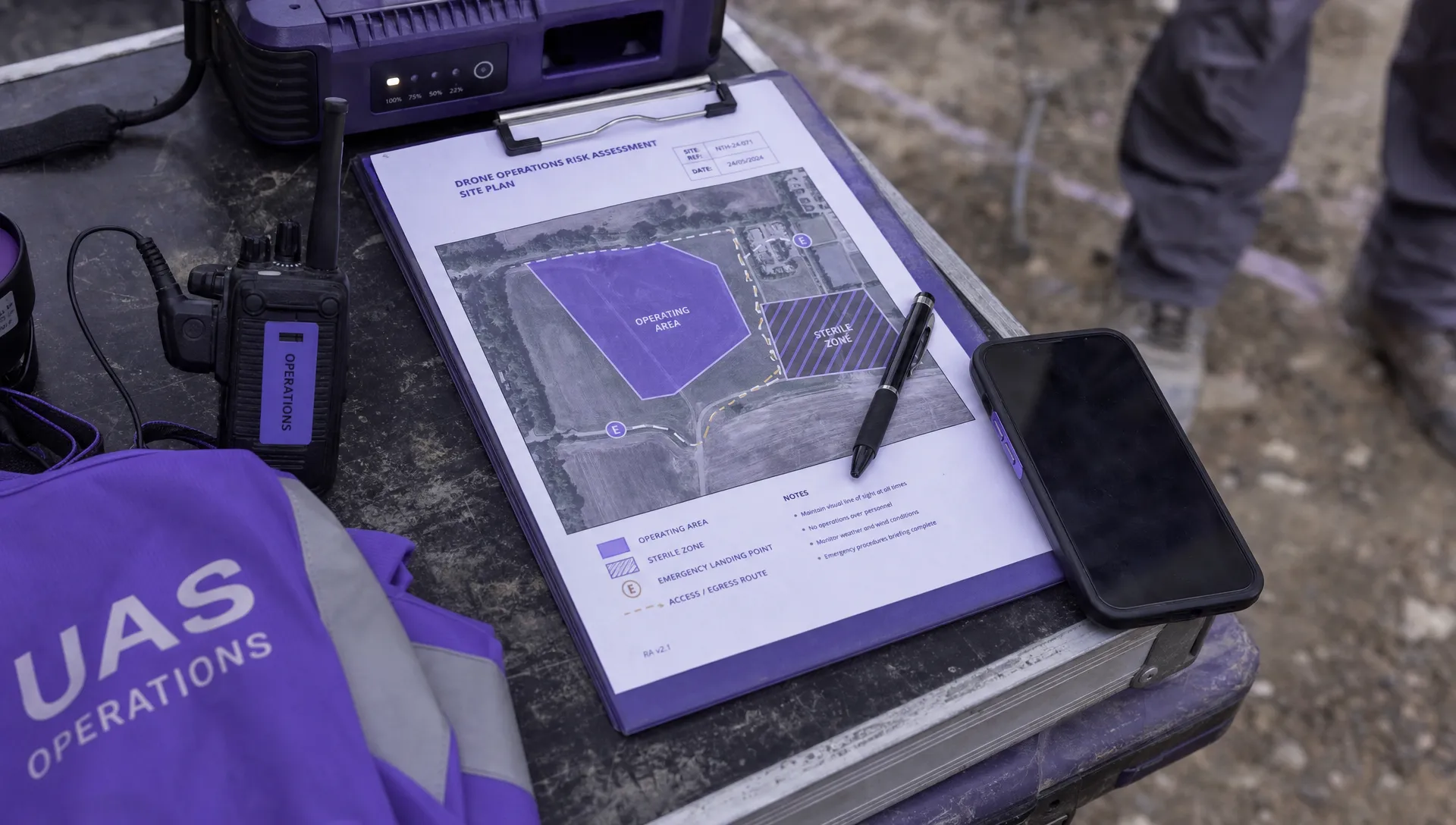 Drone Risk Assessment Controls That Work in the Field →
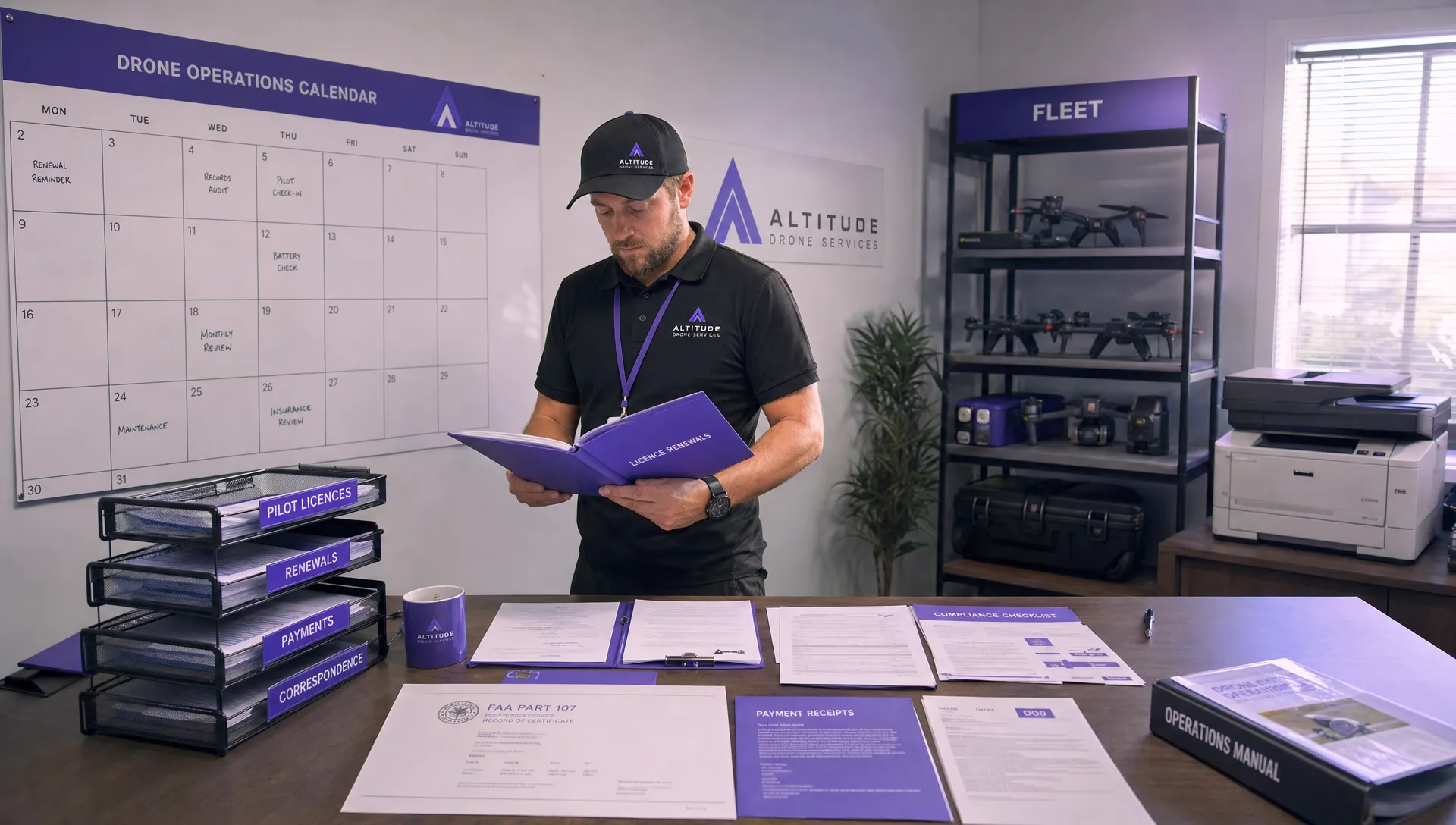 FAA Drone License Costs Beyond the Knowledge Test →
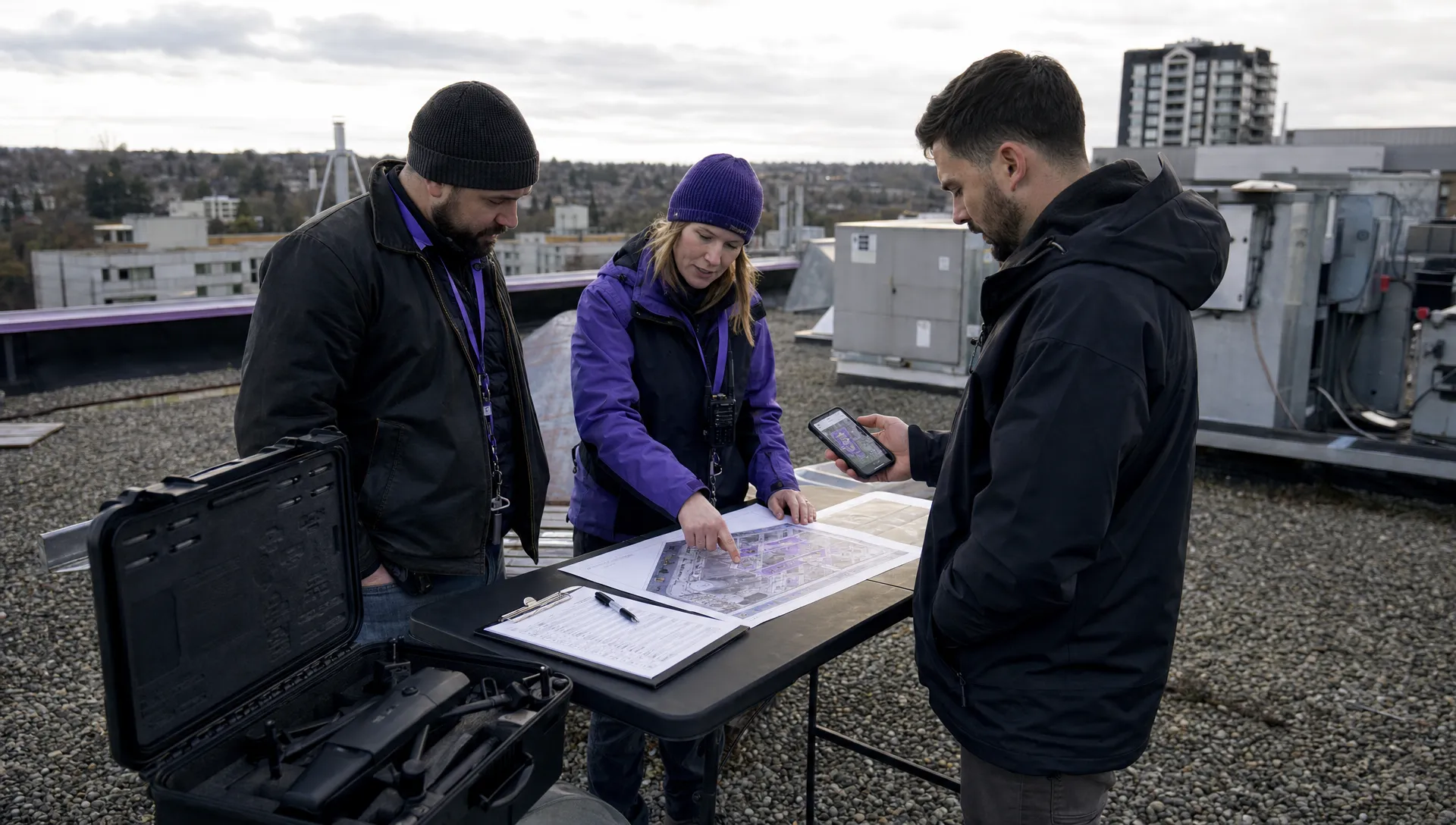 Drone Part 107 Operations: When a Waiver May Be Needed →
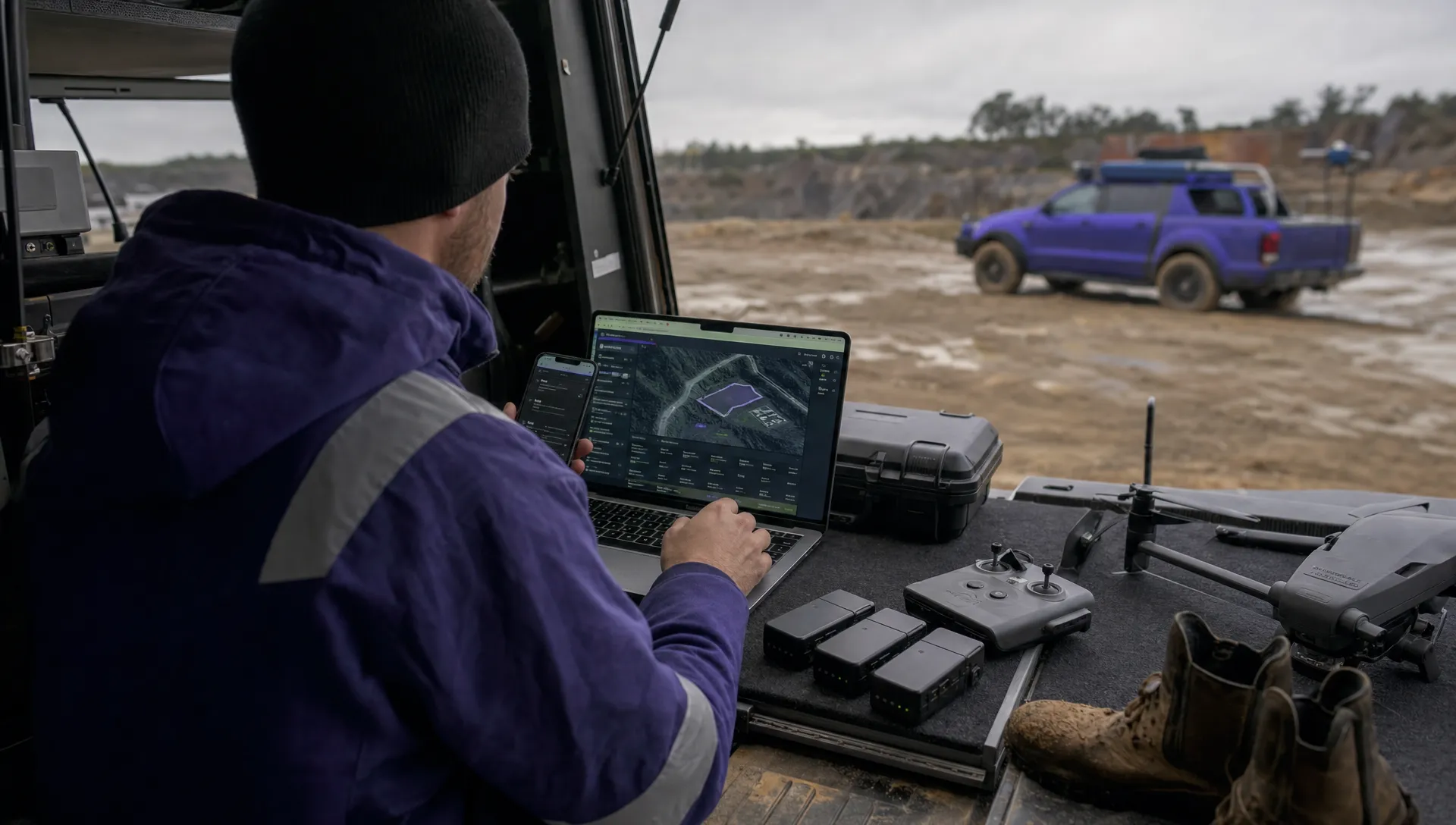 Drone Operating Rules for Managing Contractors and Employees →
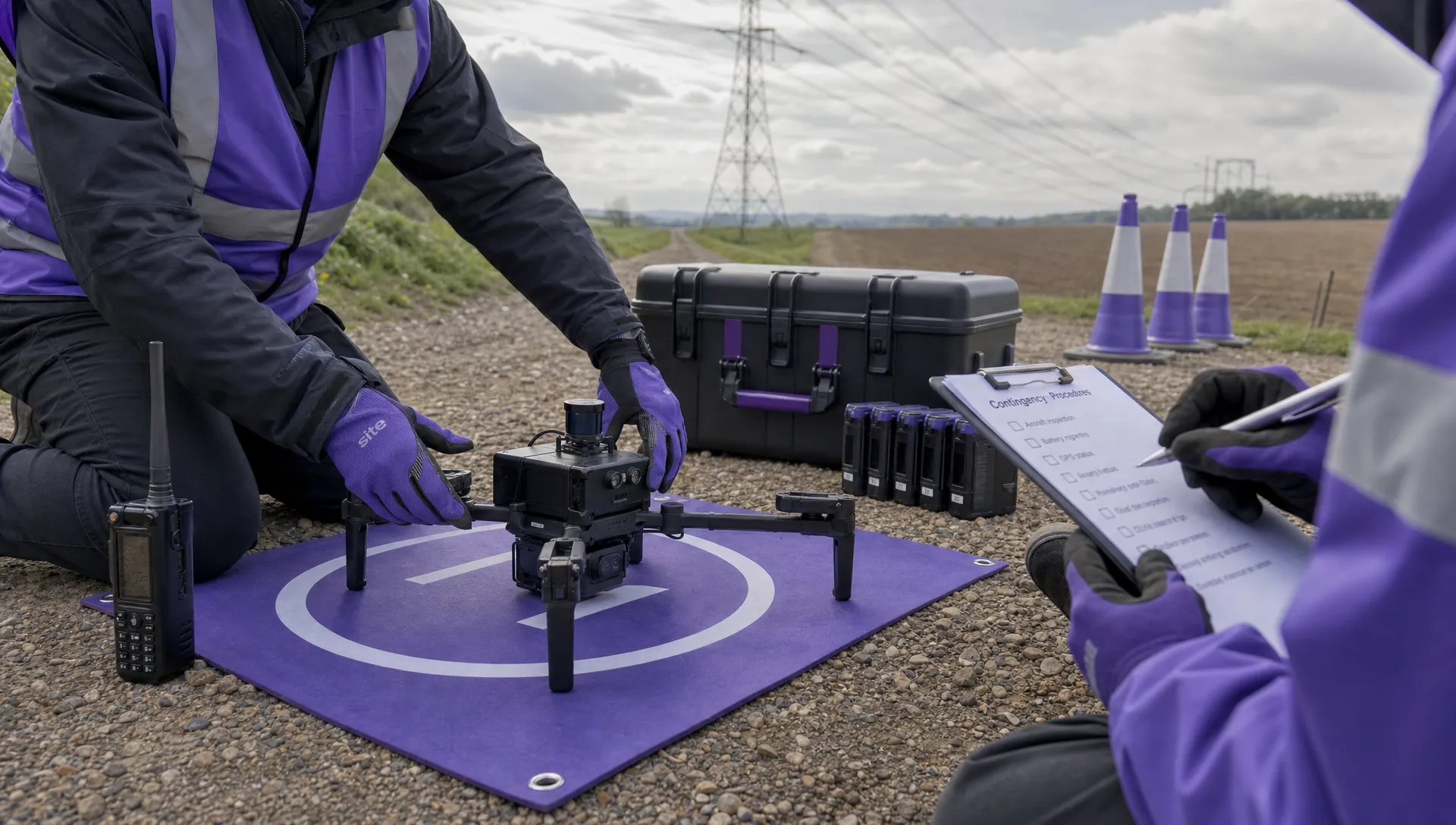 BVLOS Drone Requirements for Building a Safety Case →
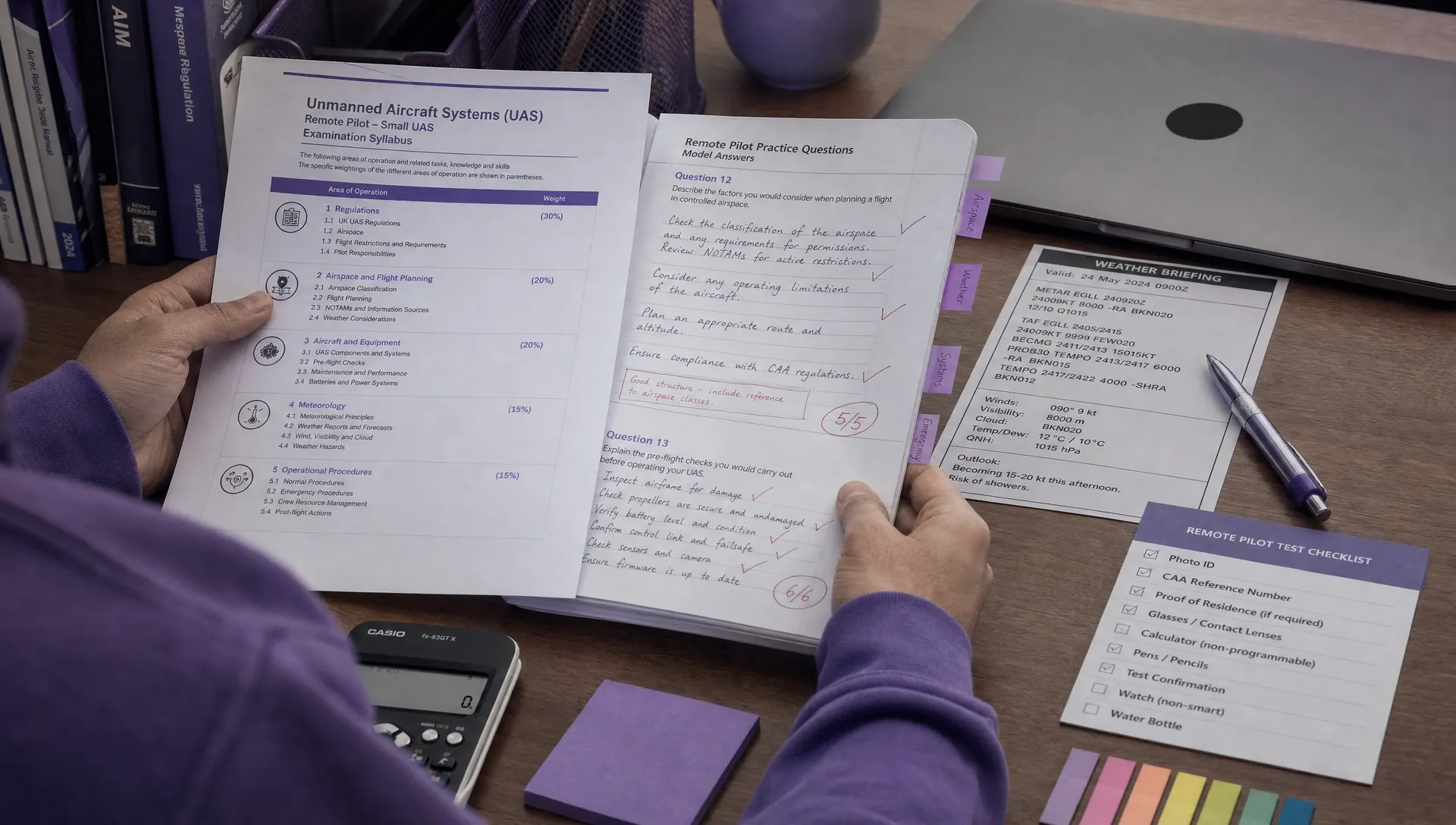 Drone Pilot Test Mistakes That Cost Candidates Marks →
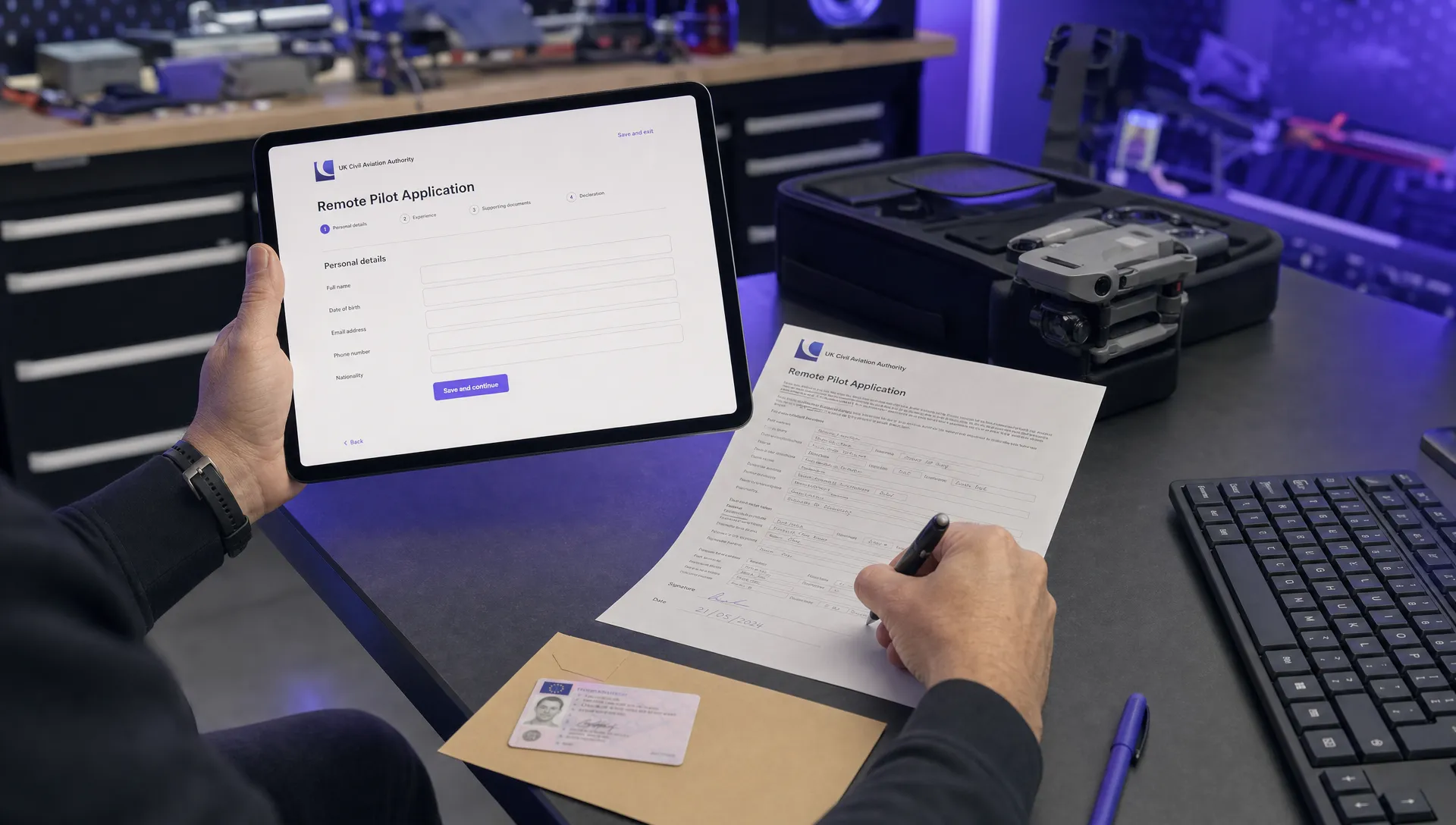 FAA 107 License vs Part 107 Certificate: What’s the Difference? →
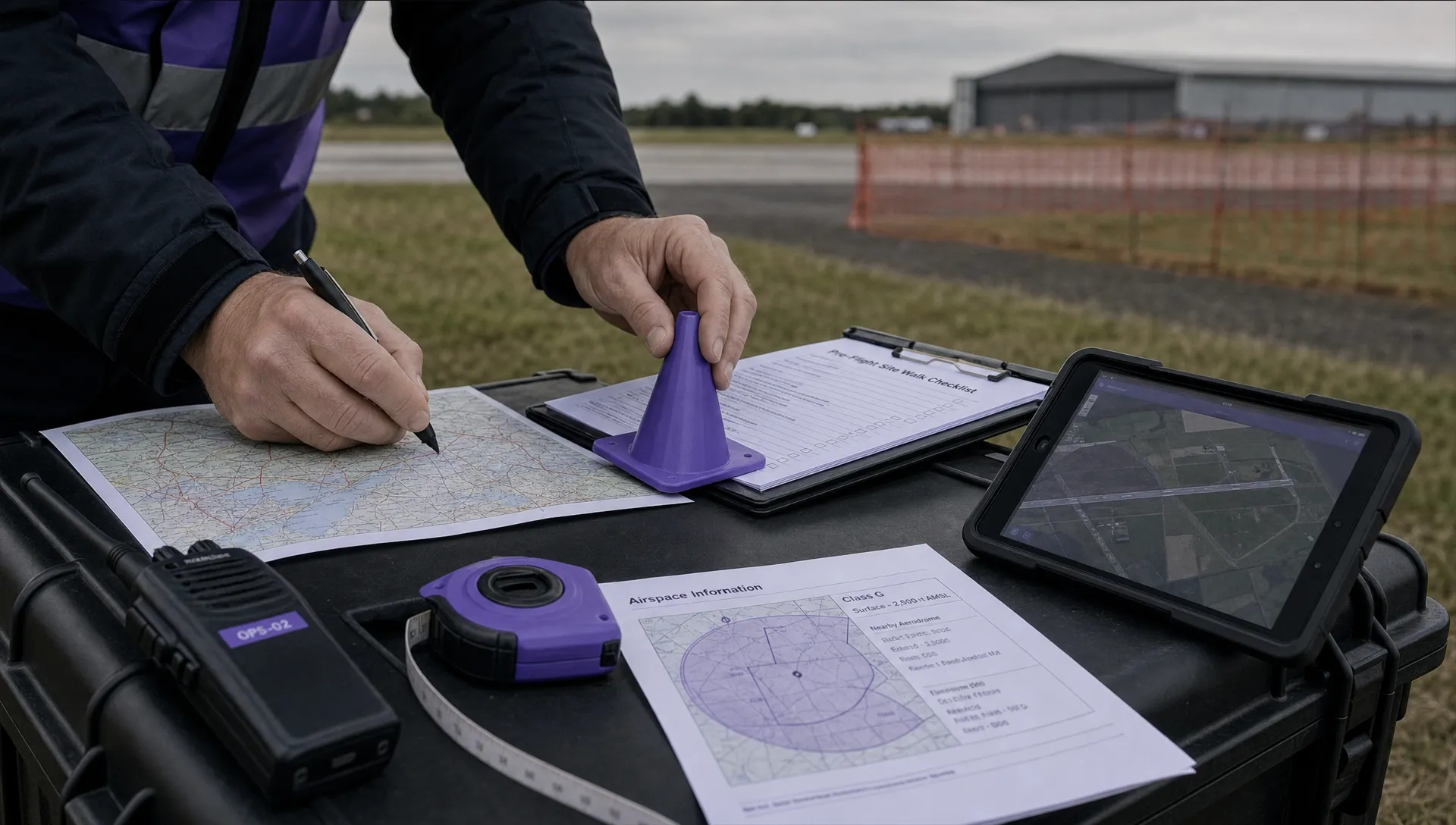 Drone Airport Rules: A Field Checklist for Site Assessments →
 FAA Part 107 Record-Keeping Rules for Commercial Teams →
 How to Review a DJI Flight Log After an Unexpected Event →