
How to Export DJI Flight Logs for Incident Reviews
When something goes wrong on a drone job, the DJI flight record is often the quickest route from assumptions to evidence. It can show where the aircraft was, how it responded to control inputs, which warnings appeared and how the battery behaved. For survey companies, utilities, emergency services and commercial drone operators, exporting that data quickly is part of a professional incident review.
This guide explains how to export DJI flight logs from the places they are most commonly stored, how to preserve the files so they remain useful and how to turn them into a review pack that supports corrective action, insurance conversations or a manufacturer support case.
It is written for operational evidence gathering, not legal advice. If an incident is reportable, do not delay regulator, insurer or client notifications while trying to interpret the logs.
What DJI flight logs can and cannot tell you
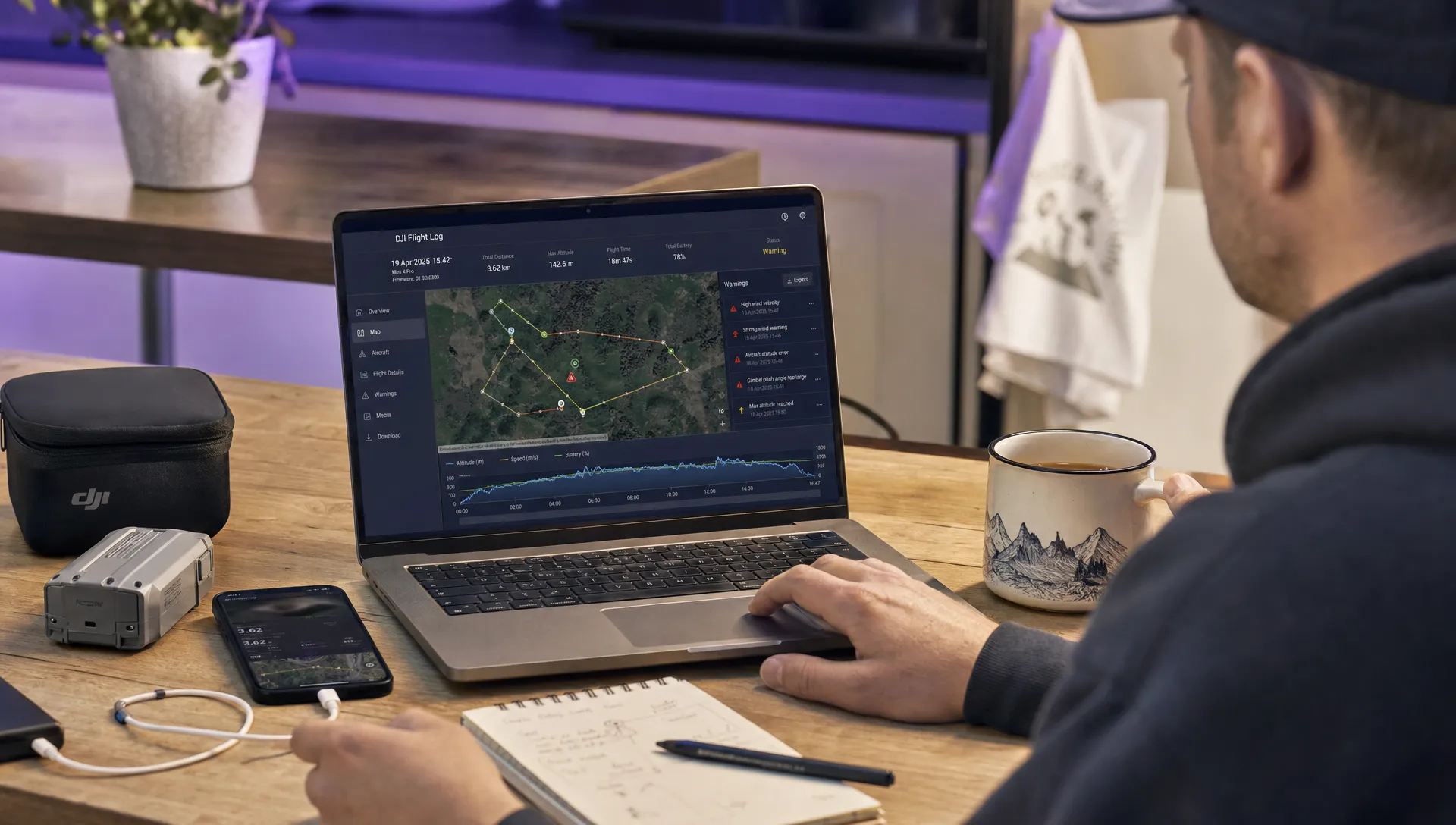
A DJI flight log is a record created by the DJI app, controller or aircraft during a flight. Depending on the aircraft, app and firmware, it may include GPS position, altitude, speed, flight mode, control inputs, battery state, warning messages, home point updates and return-to-home events.
That makes the log highly useful, but not perfect. Logs can be incomplete, time references can be misunderstood and not every aircraft records the same fields. A log may show that a warning appeared, but it may not fully explain why the pilot made a particular decision. Treat it as evidence to be reviewed alongside witness statements, photographs, maintenance records, weather, permissions and the original operating plan.
A useful incident review does not simply ask who made a mistake. It asks whether the plan was suitable, whether the aircraft was fit for the task, whether the pilot had the right information and which controls should change before the next flight.
First actions before you export anything
Before you search for files, preserve the evidence. In a serious incident, the way you handle the aircraft, controller and app data can matter as much as the log itself.
- Stop using the affected aircraft, controller and batteries until they have been recorded and assessed.
- Photograph the aircraft, battery, controller screen, take-off area, landing or crash location and any relevant obstacles.
- Record the local time, UTC time if available, location, pilot, observer, aircraft, battery and controller serials.
- Copy raw log files before uploading, converting, renaming or editing them.
- Do not uninstall the DJI app, clear cache, factory reset a controller or delete synced records.
If a battery is damaged, swollen, hot or physically compromised, follow your battery safety procedure before attempting to power anything on. For aircraft internal logs, it may be safer to wait for the manufacturer, insurer or an approved repair organisation to advise.
Know which DJI logs you need
There is not one single DJI log. The most useful source depends on the app, controller and severity of the incident.
| Log source | Typical file type | Best use in an incident review | Key limitation |
|---|---|---|---|
| DJI app flight record | .TXT | Quick review of route, altitude, warnings, battery status and pilot inputs | Fields vary by aircraft and app version |
| Mobile device DAT | .DAT | More detailed telemetry captured by the mobile device or controller | May not exist for every flight or may require specialist tools |
| Aircraft internal log | .DAT or exported DJI log package | Manufacturer investigation, crash analysis, warranty or possible hardware fault review | Often encrypted or not human-readable without DJI tools |
| Controller log | App folders, system logs or exported packages | Useful when using DJI RC, Smart Controller, RC Pro or enterprise controllers | Access depends on controller model and permissions |
| Media metadata | EXIF, SRT or video subtitle data | Confirms camera position, time, GPS, gimbal angle or scene context where enabled | It is supporting evidence, not a full flight log |
For most incident reviews, start with the app flight record because it is the fastest to retrieve and the easiest to match to a specific sortie. For collisions, flyaways, suspected hardware faults or warranty cases, collect aircraft and controller logs as well.
How to export DJI app flight records
The exact folder names vary by app, operating system and DJI updates, but the workflow is broadly the same: connect the device, locate the DJI flight record folder, copy the raw files to a secure evidence location and only then create converted working copies.
Export from an iPhone or iPad
For iOS and iPadOS devices, connect the phone or tablet to a Mac or Windows computer with a cable. On recent versions of macOS, open Finder and select the device. On Windows or older macOS versions, use iTunes device file sharing.
Look for the DJI app under file sharing. Depending on what you fly with, this may be DJI Fly, DJI GO 4, DJI Pilot or another DJI app. Copy the folders commonly named FlightRecords, FlightRecord or MCDatFlightRecords to your computer. If the DJI folder is visible in the Files app under On My iPhone or On My iPad, you may also be able to copy it to a secure drive or share it to an approved location from there.
Do not copy only the one file you think matters. Copy the whole flight record folder for the relevant date range so you keep associated files, naming patterns and context.
Export from an Android phone or tablet
For Android devices, connect the device to a computer by USB and choose File transfer mode. Then browse the internal storage for the DJI app data folder.
Common locations include:
- DJI Fly: Internal storage/Android/data/dji.go.v5/files/FlightRecord/
- DJI GO 4: Internal storage/DJI/dji.go.v4/FlightRecord/ or Internal storage/Android/data/dji.go.v4/files/FlightRecord/
- DJI Pilot, Pilot 2 and enterprise apps: an app-specific DJI folder, often under Android/data/.../files/FlightRecord/
Also look for MCDatFlightRecords or similarly named DAT folders. These can be valuable if a basic TXT file does not contain enough detail.
On newer Android versions, access to Android/data may be restricted. If the folder is not visible through a normal file manager, try connecting to a computer, using the controller or device Files app, or following DJI Support guidance for your exact app and operating system. Avoid unsupported workarounds that could alter or lose evidence.
Export from DJI RC, DJI RC Pro, Smart Controller and enterprise controllers
Many DJI controllers are Android-based devices with internal storage. Connect the controller to a computer with USB-C, select file transfer if prompted and search the internal storage for the DJI app flight record folder.
If the controller does not expose the folder to the computer, use the built-in Files app where available to copy the FlightRecord and MCDatFlightRecords folders to a microSD card, USB-C storage device or another approved evidence location. For enterprise controllers managed by an organisation, administrator settings may control file access.
Avoid factory resets or app updates until the evidence has been copied and verified.
How to export aircraft or controller internal logs
Some incidents need more than the app flight record. If the aircraft struck an object, lost propulsion, entered failsafe unexpectedly, behaved erratically or may need a manufacturer assessment, internal logs can be important.
DJI provides model-specific versions of DJI Assistant 2 through the DJI Download Center. Choose the correct version for your aircraft or controller, such as consumer, Mavic, enterprise or FPV, because the wrong version may not recognise the device.
A typical aircraft log export process is:
- Install the correct DJI Assistant 2 application from DJI.
- Power on the aircraft or controller only if it is safe to do so.
- Connect the device to the computer with a suitable USB cable.
- Select the device in DJI Assistant 2 and open the log export or flight data section.
- Export the logs covering the incident time, plus a reasonable window before and after.
- Save the raw export to your evidence folder without editing or renaming the original files.
Internal aircraft DAT files are often encrypted or not designed for routine operator analysis. That does not make them useless. It means you may need DJI Support, an approved repair centre or another authorised investigator to interpret them.
Match the correct flight file to the incident
DJI flight record filenames usually include a date and time, often in a format similar to DJIFlightRecordYYYY-MM-DD[hh-mm-ss].txt. That is helpful, but it is not enough on its own. Time zones, device clock settings and repeated sorties at the same site can lead to mistakes.
Confirm the right file by checking the take-off and landing time, starting coordinates, aircraft model, flight duration and media timestamps. If the log viewer shows aircraft serial, battery serial, pilot account or controller information, record those details in your evidence manifest.
A simple manifest is often enough:
| Evidence item | File name or folder | Original location | Checksum or reference | Notes |
|---|---|---|---|---|
| App flight record | DJIFlightRecord date and time .txt | Pilot iPad or controller | SHA-256 if used | Primary telemetry record |
| Mobile DAT folder | MCDatFlightRecords | Pilot device or controller | SHA-256 if used | Preserve even if not analysed immediately |
| Aircraft log export | DJI Assistant 2 export folder | Aircraft internal storage | SHA-256 if used | May be required by DJI or repair centre |
| Media files | Photo, video, SRT and EXIF | SD card or internal aircraft storage | File reference | Supports timeline and location |
For higher-risk operations, utilities and emergency response work, using checksums such as SHA-256 helps demonstrate that files have not changed after collection. Even if your organisation does not require formal hashing, keep a read-only master copy and work only from duplicates.
Turn exported logs into a reviewable format
Raw DJI files are evidence. Converted CSV files, maps, charts and screenshots are working materials. Keep those categories separate.
Start by creating a copy of the raw log, then use a trusted log viewer or analysis tool to inspect the flight. Some operators use offline tools for TXT and DAT review, while others use authorised fleet or compliance platforms. If you upload logs to a third-party service, check your organisation's data security rules first, especially for critical infrastructure, emergency scenes, private land, client assets or sensitive survey sites.
Not every tool interprets every DJI field in the same way. If a finding is material, such as a battery anomaly, compass issue or loss-of-link sequence, preserve the raw file and avoid relying solely on a screenshot from one viewer.
| Review question | Log fields often worth checking | What it may help establish |
|---|---|---|
| Did the aircraft follow pilot inputs? | Stick input, flight mode, attitude, speed and heading | Whether control response matched commands |
| Was GPS or navigation degraded? | Satellite count, GPS health, compass or IMU messages, home point updates | Whether positioning data was reliable |
| Was battery performance a factor? | Voltage, percentage, temperature, current draw and warning messages | Whether power state affected the flight |
| Did failsafe or return-to-home trigger? | RC signal, failsafe state, RTH altitude, home point and mode changes | Whether the aircraft behaved according to settings |
| Was the aircraft close to people, structures or airspace constraints? | Coordinates, altitude, speed, media metadata and site records | Whether separation and permissions need review |
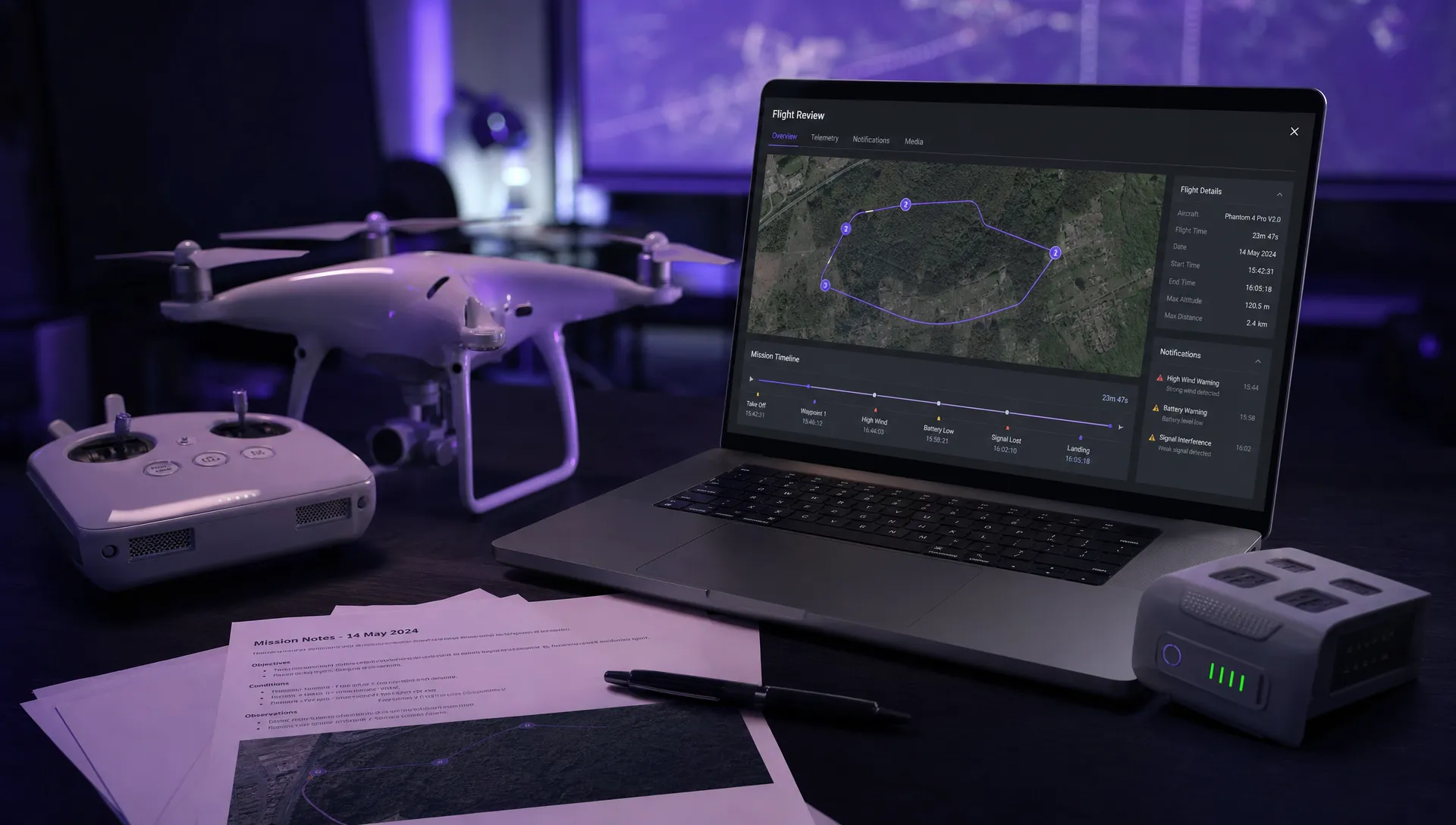
Build the incident review packet
A defensible review packet combines telemetry with operational context. The log might show that the aircraft returned home at a certain altitude, but the operation records explain why that altitude was selected, which hazards had been identified and whether the pilot completed the relevant checks.
Include the raw DJI logs, converted review files, photographs, videos, pilot and observer statements, weather observations, airspace evidence, client permissions, site maps, risk assessment, pre-flight checklist and maintenance or battery history. If your review identifies a gap in risk controls, update the operating procedure rather than treating the incident as an isolated event.
If you need to strengthen that part of your process, Dronedesk has a practical guide on building a drone flight risk assessment that works. It is a useful companion to log analysis because many incident findings are about planning, controls and decision points rather than aircraft telemetry alone.
UK operators should also check current CAA drone guidance and their operations manual to confirm reporting obligations. Operators outside the UK should follow the requirements of their aviation authority, client contract and insurer.
Where Dronedesk fits into the process
Dronedesk does not remove the need to export raw DJI flight logs from the DJI app, controller or aircraft. Those files remain the primary source of DJI telemetry.
What Dronedesk can do is keep the surrounding operation organised. According to the Dronedesk features page, the platform includes client management, fleet management, team management, airspace intelligence, proximity intelligence, flight planning, flight logging, data reporting, configurable checklists and risk assessments.
That matters because incident reviews rarely depend on telemetry alone. You need to know who was assigned, which aircraft and battery were used, what the planned task was, what checks were completed and which site-specific risks had been considered. For growing teams, good fleet records are also central to incident analysis, and Dronedesk's drone fleet management guide explains how operators can move beyond fragmented spreadsheets as operations become more complex.
The best time to organise those records is before an incident. When the DJI export, flight plan, checklist, risk assessment and flight log all point to the same operation, the review becomes faster, clearer and easier to defend.
Common mistakes when exporting DJI flight logs
The most common mistake is saving screenshots from the DJI app but not the underlying TXT and DAT files. Screenshots are useful for a quick briefing, but they do not preserve the raw telemetry.
Another mistake is exporting only from the phone when the flight was conducted with an integrated controller, or assuming that aircraft internal logs are unnecessary after a serious crash. If there is any chance of a hardware, firmware or warranty issue, preserve controller and aircraft logs as soon as it is safe.
Operators also lose clarity by mixing local time, UTC and device time without noting the difference. For incident timelines, write down the time standard you are using and apply it consistently across pilot statements, media, logs, weather and notifications.
Finally, be careful with third-party uploads. DJI logs can reveal client sites, critical infrastructure, emergency activity, residential addresses and pilot habits. Use only approved tools and follow your organisation's data handling policy.
Practical incident review checklist
| Stage | Action | Output |
|---|---|---|
| Preserve | Secure aircraft, controller, batteries, SD card and mobile device | Evidence held safely and not overwritten |
| Export | Copy app TXT logs, DAT folders and aircraft or controller internal logs where needed | Raw DJI evidence folder |
| Verify | Match log to flight by time, location, duration, aircraft and media | Confirmed incident log set |
| Analyse | Review route, warnings, battery, control inputs, mode changes and failsafe events | Working notes, charts or CSV files |
| Contextualise | Compare telemetry with plan, risk assessment, checklist, weather and statements | Complete incident review pack |
| Improve | Record findings, corrective actions and procedure changes | Safer future operation |
Frequently Asked Questions
Can I export a DJI flight log after a crash? Usually yes, if the phone, tablet or controller used for the flight is still available. Aircraft internal logs may also be exportable, but do not power on damaged aircraft or batteries unless it is safe and appropriate.
Are DJI TXT flight records enough for an incident review? They are often enough for an initial review, but serious incidents should preserve mobile DAT files, controller logs, aircraft internal logs and media metadata as well. The TXT file is useful, but it should not be the only evidence.
Can I rely on DJI cloud sync instead of exporting local files? No. Cloud sync availability varies by app, account, region and organisational policy. For evidence, copy the local raw files first and treat cloud records as secondary convenience copies.
Do DJI flight logs show pilot stick inputs? Many DJI app flight records include control input, flight mode and warning information, but available fields vary by aircraft, app and firmware. Check the exported file in a suitable viewer before drawing conclusions.
What should I do if the DJI flight record is missing? Search the device or controller that was actually connected during the flight, check the relevant app folder, look for MCDatFlightRecords and preserve media metadata. If the aircraft is available, use the correct DJI Assistant 2 version to see whether internal logs can be exported.
How long should exported DJI flight logs be kept? Follow your operations manual, client contract, insurance requirements and regulator guidance. For significant incidents, keep raw logs and review documents at least until the investigation, claim and corrective actions are fully closed.
Make your next review easier to defend
Exporting DJI flight logs is much easier when the rest of the operation is already organised. Raw telemetry tells you what the aircraft recorded, but the flight plan, checklist, risk assessment, pilot allocation and fleet history explain the context.
If you want those records in one operational workflow before the next incident occurs, take a look at Dronedesk and how it supports drone operations management from planning through to logging and reporting.
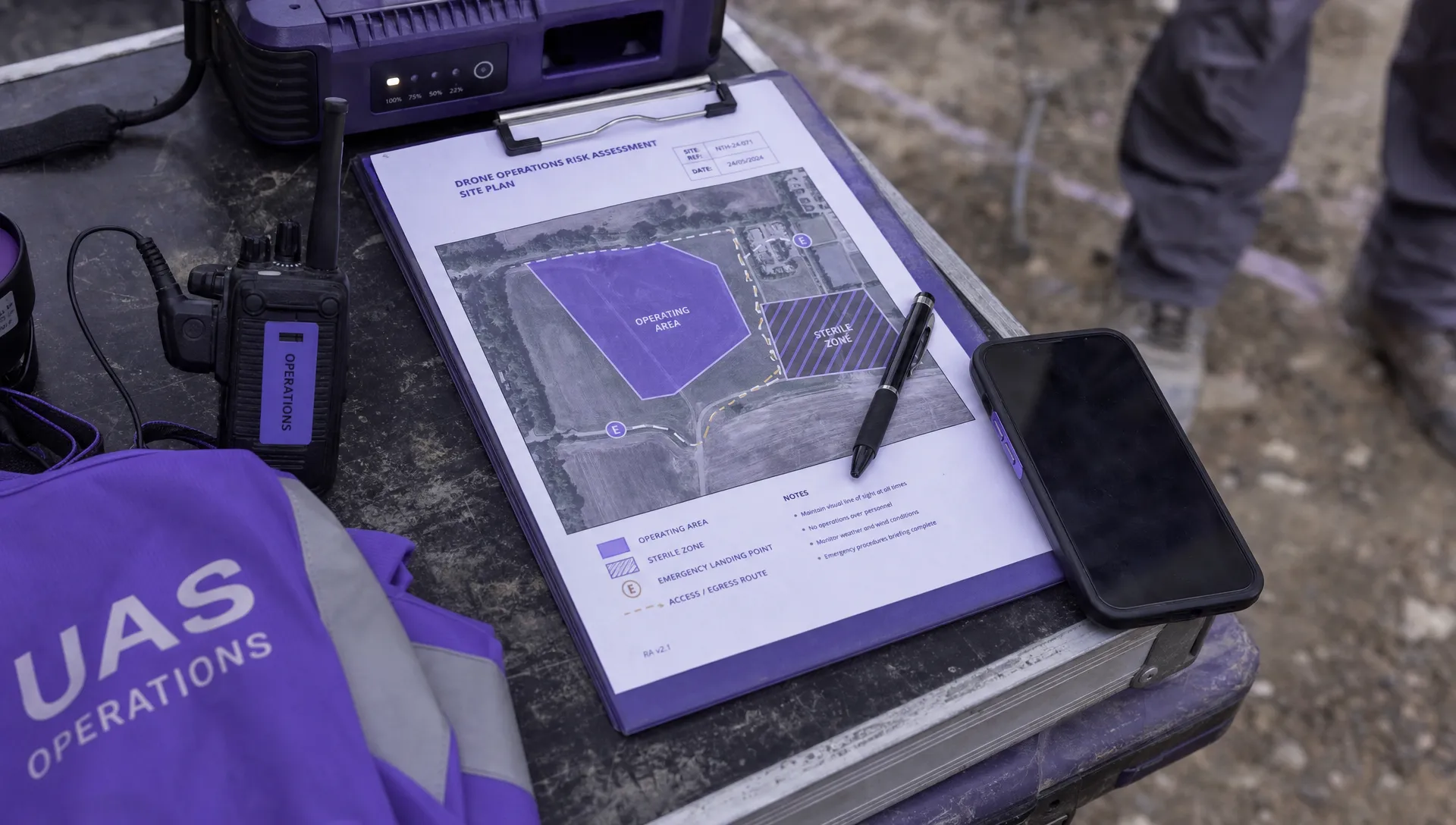 Drone Risk Assessment Controls That Work in the Field →
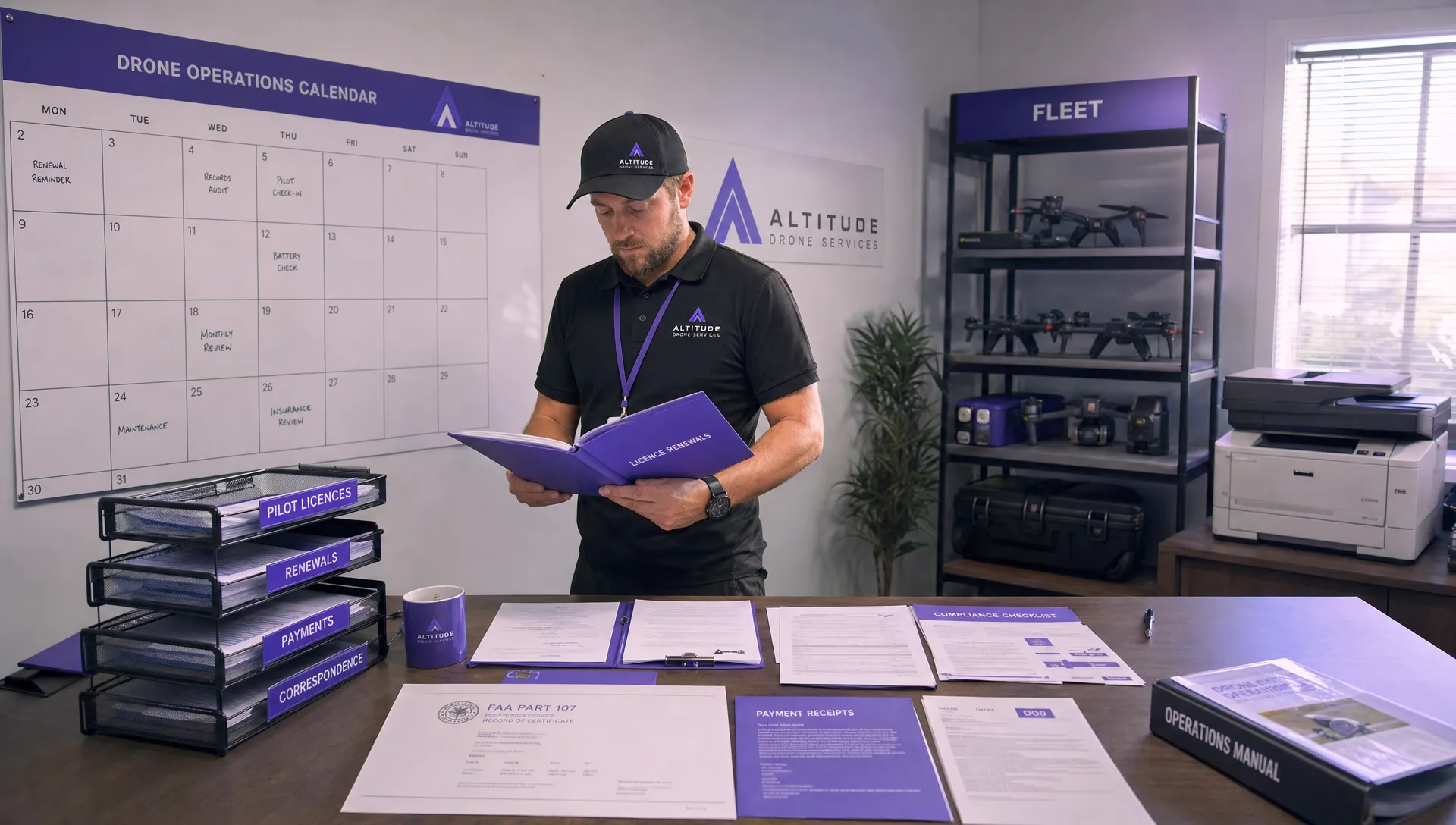 FAA Drone License Costs Beyond the Knowledge Test →
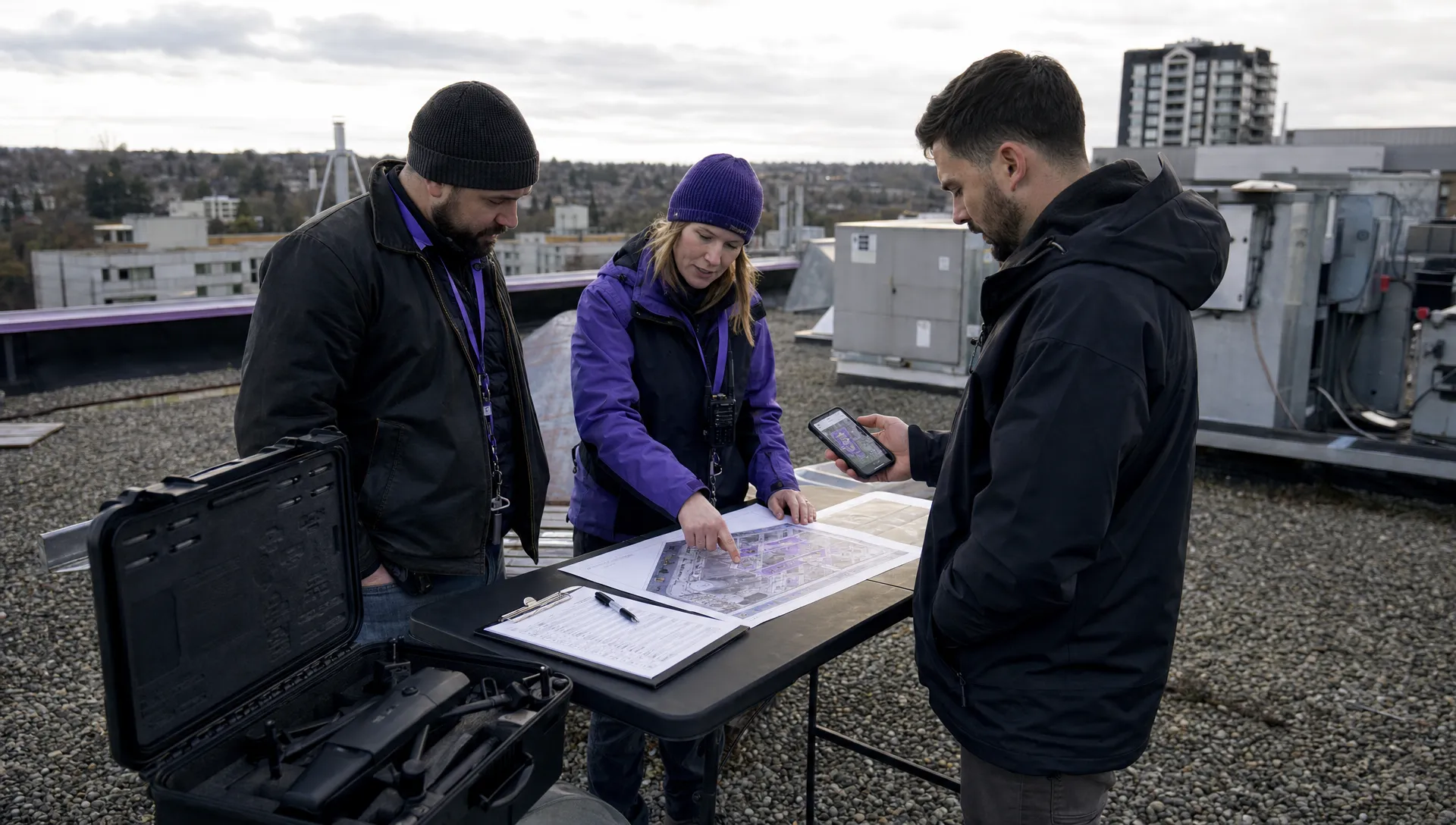 Drone Part 107 Operations: When a Waiver May Be Needed →
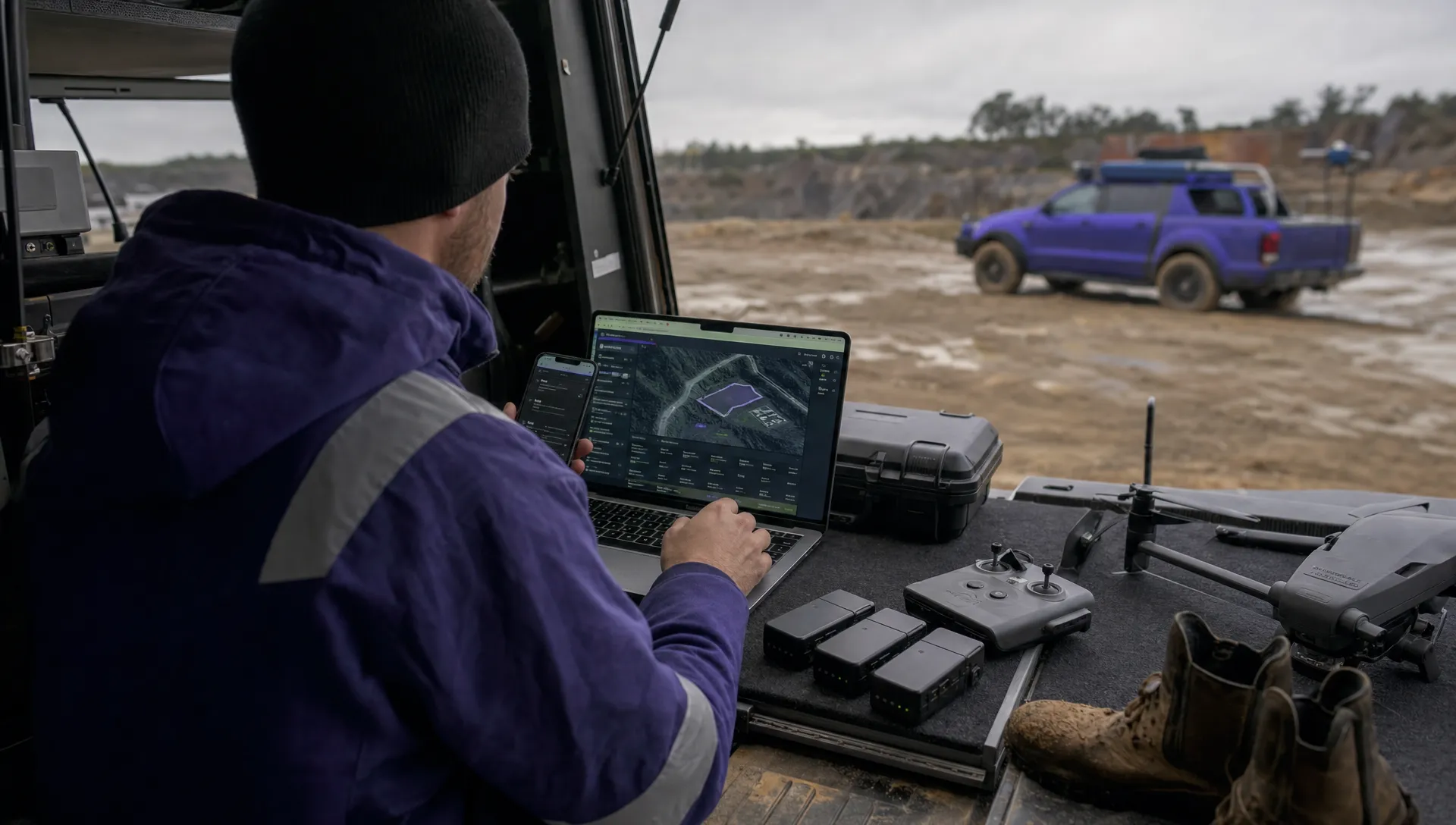 Drone Operating Rules for Managing Contractors and Employees →
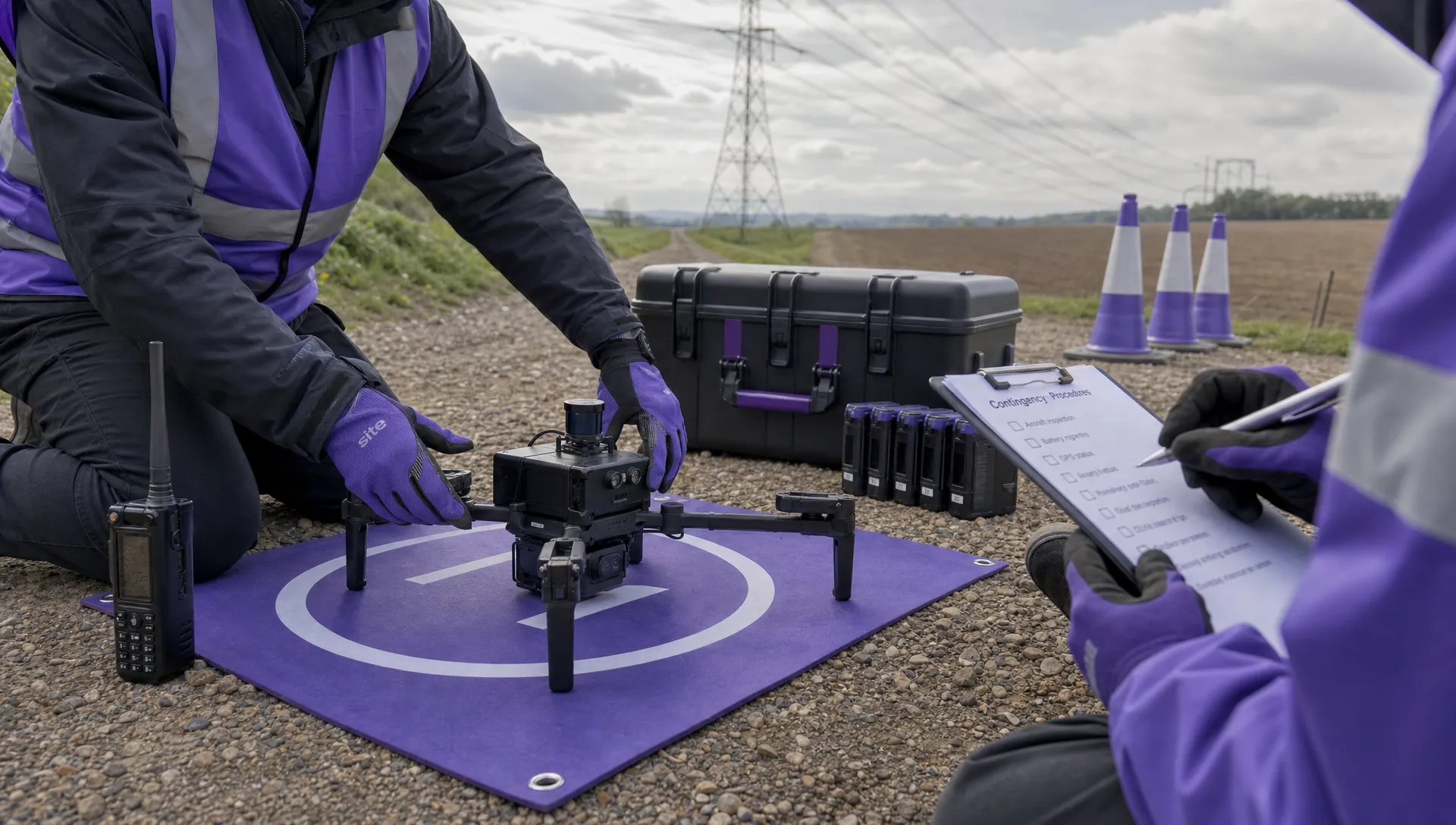 BVLOS Drone Requirements for Building a Safety Case →
 Drone Pilot Test Mistakes That Cost Candidates Marks →
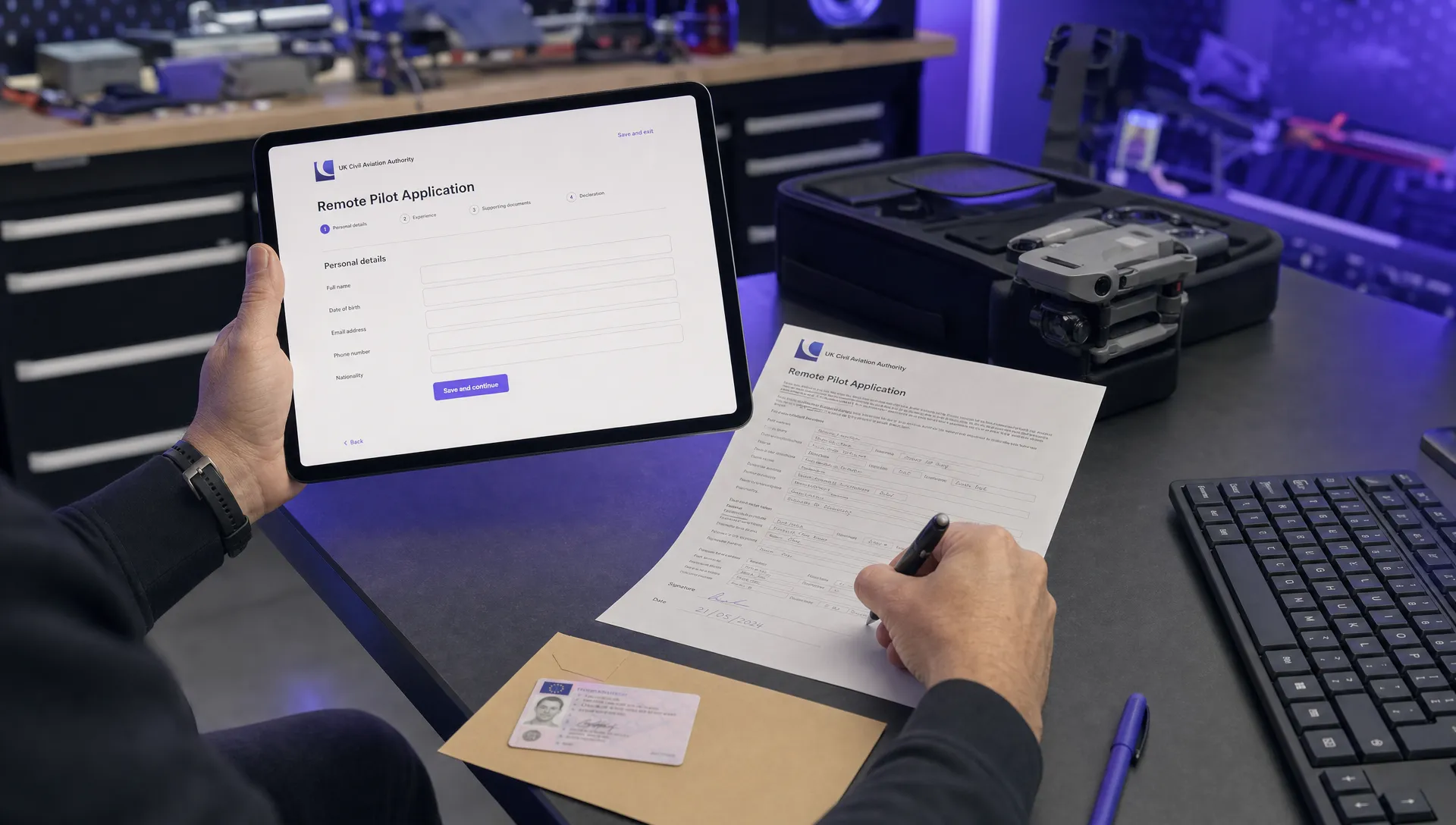 FAA 107 License vs Part 107 Certificate: What’s the Difference? →
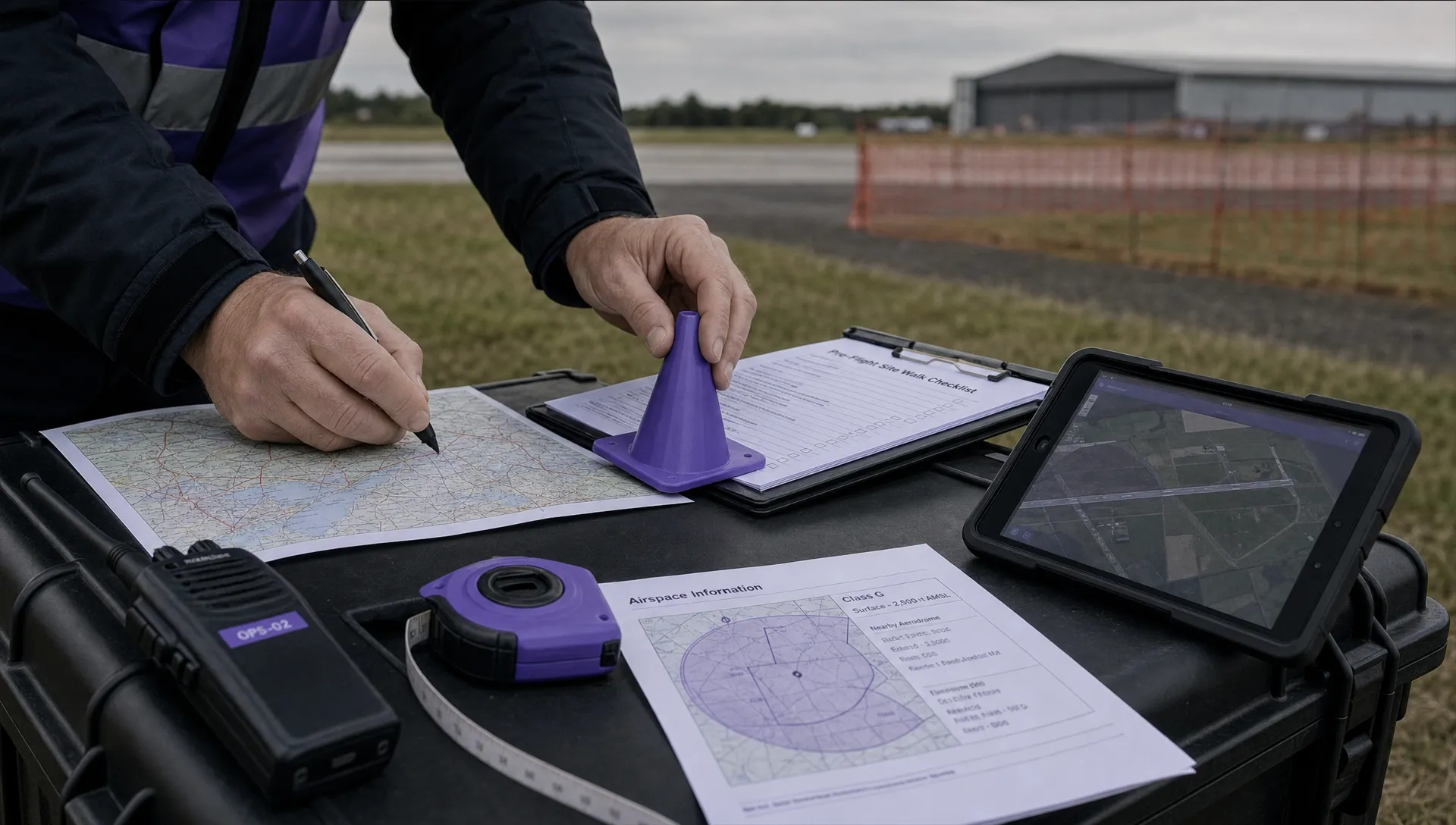 Drone Airport Rules: A Field Checklist for Site Assessments →
 FAA Part 107 Record-Keeping Rules for Commercial Teams →
 How to Review a DJI Flight Log After an Unexpected Event →