
How to Download and Read a DJI Flight Log
DJI flight logs are often the fastest way to understand what really happened during a flight. If a client asks for evidence, a battery warning appears, an aircraft behaves unexpectedly, or your team needs to review pilot performance, the flight log is where you start.
This guide walks through the practical DJI flight log download options for phones, tablets, DJI controllers and aircraft data files. It also explains how to read the most useful fields without getting lost in telemetry that does not matter for day-to-day operations.
What a DJI flight log actually is
A DJI flight log is a recorded data file created by the DJI app, controller or aircraft during a flight. It normally includes a time-stamped record of position, altitude, speed, battery condition, control inputs, flight mode changes, warnings and other events.
For most operators, the app flight record is the most useful file. It is usually a small .txt file with a name similar to DJIFlightRecordYYYY-MM-DD[time].txt. Despite the .txt extension, it is not designed to be read like a plain text document. You normally view it inside the DJI app or upload it to a compatible flight log viewer.
There are also deeper aircraft data files, often known as DAT files. These can be useful for incident analysis, warranty cases or technical support, but they are not always easy to interpret and may be encrypted or model-dependent.
| Log type | Where it usually comes from | Best used for | Typical difficulty |
|---|---|---|---|
| App flight record | DJI Fly, DJI GO 4, DJI Pilot or DJI Pilot 2 | Routine review, route replay, warnings, battery and signal checks | Low to medium |
| Controller record | DJI smart controllers or enterprise controllers | Flights completed without a phone or tablet | Medium |
| Aircraft DAT file | Aircraft internal storage, usually accessed with DJI Assistant 2 | Incident investigation, manufacturer support and deeper diagnostics | Medium to high |
Want to look inside your own flight records? The Dronedesk DJI Log Viewer reads
DJIFlightRecordfiles straight in your browser, including the encrypted logs from recent aircraft that older free viewers cannot open. You get the flight path on a map, full telemetry, every warning the aircraft raised, and a PDF report you can keep. No account needed, and your log is not stored on our servers.
For commercial operators, a flight log is not just a curiosity. It can support your operational record, maintenance decisions, internal safety review, client reporting and incident investigation. It should sit alongside your job notes, risk assessment, checklists, permissions and pilot observations.
Before you start: identify where the flight was recorded
The right download method depends on the device and app used for the flight. A Mini flown with DJI Fly on a phone will not store logs in the same place as an enterprise aircraft flown with DJI Pilot 2 on a dedicated controller.
Start by answering three simple questions. Which DJI app was used? Was the aircraft flown with a phone, tablet or built-in controller? Do you need the normal app flight record, or do you specifically need a DAT file for a technical investigation?
If you are not sure, open the DJI app first and check the flight history or Flight Data Centre. If the flight appears there, you usually have an app flight record available on that device, or at least available to sync from the DJI account used for the flight.
| Flight setup | Most likely place to look first | Notes |
|---|---|---|
| DJI Fly on iPhone or iPad | DJI Fly app files via Finder or iTunes file sharing | Look for FlightRecords or FlightRecord folders |
| DJI Fly on Android phone or tablet | Android storage, often Android/data/dji.go.v5/files/FlightRecord or DJI/dji.go.v5/FlightRecord | Newer Android versions may restrict direct access from the phone |
| DJI GO 4 on Android | DJI/dji.go.v4/FlightRecord | Common for older Mavic, Phantom and Inspire workflows |
| DJI RC, DJI RC 2 or DJI RC Pro | Controller internal storage, then search for DJIFlightRecord files | Connect by USB-C and choose file transfer if prompted |
| DJI Pilot 2 enterprise controller | Controller storage, often a DJI or Android data folder associated with DJI Pilot 2 | Folder names vary by controller and firmware |
| Aircraft internal data | DJI Assistant 2 log export | Use the Assistant 2 version that supports your aircraft model |
Folder names can change with app versions, Android versions and controller firmware. If the expected folder is not there, search the device storage for DJIFlightRecord or FlightRecord rather than assuming the log is missing.
DJI flight log download: the practical methods
There are several ways to download a DJI flight log. Use the simplest method that gives you the file you need, then keep an untouched copy before uploading it to any viewer or sharing it with a client, insurer or manufacturer.
Method 1: Download logs from DJI Fly or DJI GO 4 on iPhone or iPad
On iOS and iPadOS, app files are normally accessed through Finder on a Mac or iTunes on Windows and older macOS versions.
Connect the iPhone or iPad to your computer with a trusted cable. Open Finder or iTunes, select the device, then open the file sharing area. Choose the DJI app used for the flight, such as DJI Fly or DJI GO 4. Look for a folder named FlightRecords, FlightRecord or similar, then save the folder to your computer.
Once downloaded, sort by date and identify the flight you need. DJI log filenames usually include the date and time, but always cross-check against the takeoff time shown in the DJI app, your job sheet or your camera file timestamps.
Method 2: Download logs from DJI Fly or DJI GO 4 on Android
Android devices are usually more direct, but newer Android versions can make the Android/data folder harder to browse from the device itself.
Connect the phone or tablet to a computer with USB. Select file transfer mode on the device if prompted. Then browse internal storage and look for the relevant DJI folder. DJI Fly logs are often found under dji.go.v5, while DJI GO 4 logs are often found under dji.go.v4.
If the computer cannot see the folder, try a different USB mode, unlock the device, approve the computer, or use the device search function for DJIFlightRecord. Avoid moving files out of the original folder until you have copied them safely.
Method 3: Download logs from a DJI controller with a built-in screen
Controllers such as DJI RC, DJI RC 2, DJI RC Pro and enterprise controllers store flight records on the controller because the app runs directly on that device.
Power on the controller, connect it to your computer with USB-C, then choose file transfer if the controller asks for a USB mode. Browse the controller storage and look for DJI app folders or search for DJIFlightRecord. Copy the relevant logs to a secure project folder on your computer.
Some enterprise controllers also allow file browsing directly on the controller. This can be useful in the field, but for investigation work it is better to copy the original files to a computer and preserve them unchanged.
Method 4: Sync flight records through your DJI account
DJI apps have historically allowed flight records to be synced through a DJI account. This can help if a flight was logged on one device and you need to view it on another device signed in to the same account.
Use cloud sync carefully. It is convenient for viewing history, but it is not a substitute for your own operational records. It may also be subject to account settings, app version, regional availability and data governance rules within your organisation.
If you work in emergency services, utilities, defence-adjacent work or sensitive infrastructure, check your internal data policy before syncing logs or uploading them to any third-party tool.
Method 5: Export aircraft DAT files with DJI Assistant 2
If you need deeper aircraft logs, use the correct version of DJI Assistant 2 from the DJI Download Centre. Install the Assistant 2 version that supports your aircraft, connect the aircraft to your computer, power it on and look for log export or flight data options.
DAT files can be large and may not be human-readable. In many cases they are most useful when requested by DJI support or when analysed with specialist tools. Do not rely on DAT files alone for routine compliance evidence, because they can be harder to interpret and share than app flight records.
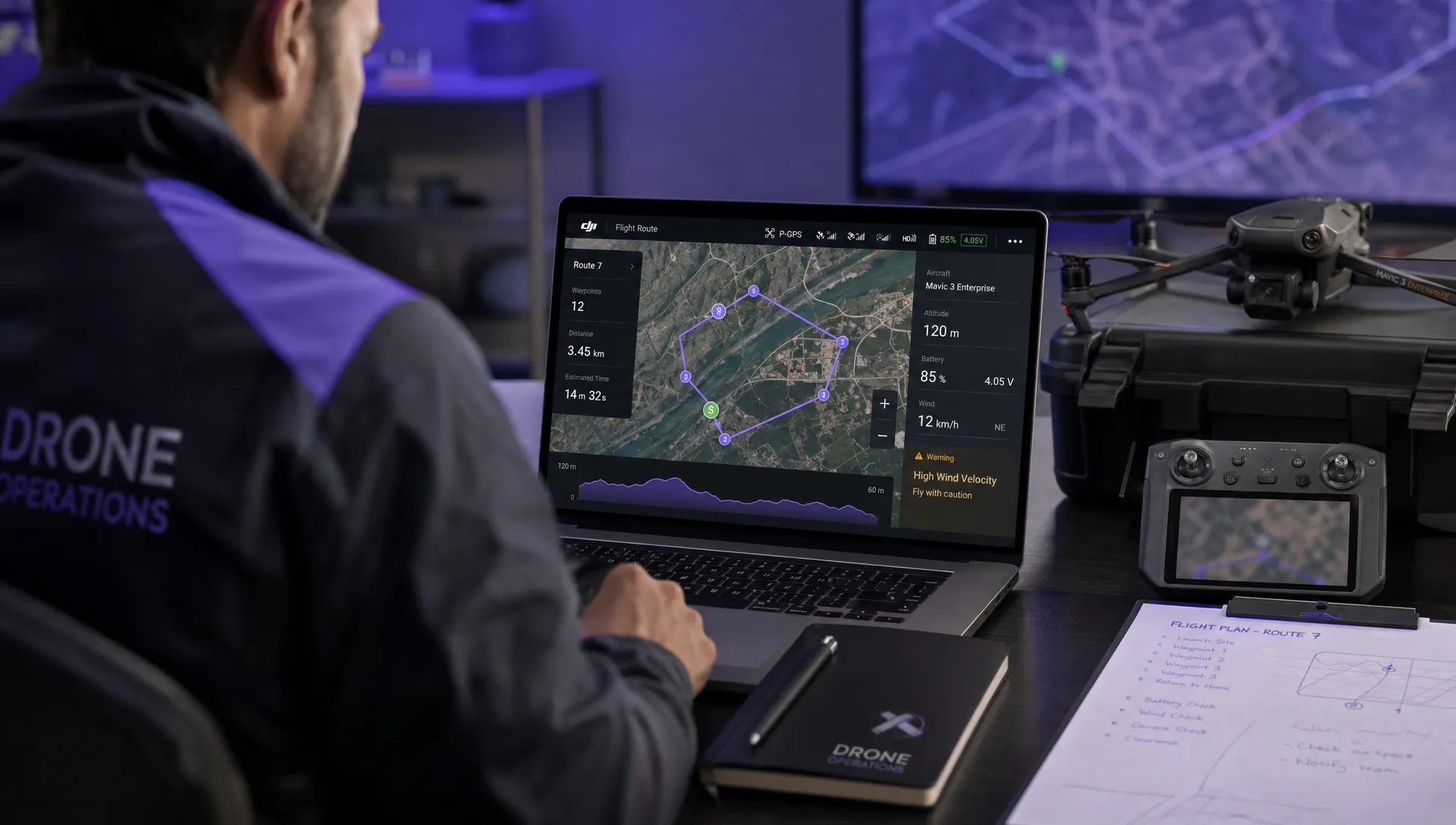
How to read a DJI flight log
Once you have the log, your first goal is not to inspect every data point. Your goal is to reconstruct the flight clearly enough to answer practical questions. Where did the aircraft go? What warnings appeared? Did battery, GPS, compass, signal or pilot inputs contribute to the outcome?
Want to look inside your own flight records? The Dronedesk DJI Log Viewer reads
DJIFlightRecordfiles straight in your browser, including the encrypted logs from recent aircraft that older free viewers cannot open. You get the flight path on a map, full telemetry, every warning the aircraft raised, and a PDF report you can keep. No account needed, and your log is not stored on our servers.
Start with the DJI app replay
The quickest first pass is usually the DJI app itself. Open the flight history or Flight Data Centre, select the flight and replay it on the map. Note the takeoff point, route, maximum distance, maximum height, warnings and landing point.
This view is often enough for a routine post-flight check. It is also useful for discussing a job with a pilot because it is visual and easy to understand. However, the app replay may not expose all the fields you need for a detailed incident review.
Use a flight log viewer for deeper analysis
For more detail, upload a copy of the app flight record to a compatible viewer. Common options include Dronedesk's own Logviewer, PhantomHelp DJI Flight Log Viewer and tools such as CsvView for supported file types.
Before uploading, consider the sensitivity of the data. A flight log may contain precise coordinates, client locations, infrastructure details, pilot behaviour and operational timings. If the job is sensitive, confirm that the tool and process meet your organisation's data handling requirements.
Build a simple flight timeline
A useful log review usually follows the sequence of the flight rather than jumping between fields. Begin with takeoff, then review climb-out, transit, task area, return, approach and landing. Mark any warning or mode change at the time it occurred.
For an incident or near miss, align the log with other evidence. Use the aircraft media timestamps, controller screen recordings, observer notes, weather history, NOTAMs, client reports and pilot recollection. The log is powerful, but it is one source of evidence, not the whole story.
| Field or event | What it helps you understand | Common mistake to avoid |
|---|---|---|
| Takeoff time and home point | Whether the correct site and flight are being reviewed | Mixing up flights from the same day |
| Height or altitude | Vertical profile and possible height exceedance | Assuming DJI height is always above mean sea level rather than relative to takeoff |
| Distance from home | Separation from the takeoff point and return margin | Ignoring terrain, obstacles and observer position |
| Battery percentage and voltage | Battery health, load and remaining margin | Looking only at percentage and ignoring voltage sag or warnings |
| GNSS satellites and positioning mode | Quality of positioning and possible drift risk | Assuming a map track is perfect when positioning quality was poor |
| Compass, IMU and sensor warnings | Possible navigation or stability contributors | Treating warnings as minor without checking timing |
| RC signal and transmission warnings | Link quality and possible control issues | Blaming signal loss without checking antenna orientation and environment |
| Flight mode changes | Pilot intent and aircraft behaviour | Missing changes to Sport, Cine, ATTI or RTH modes |
| Stick inputs | What the pilot commanded at key moments | Judging inputs without considering latency, stress or obstruction |
| RTH events | Whether return-to-home triggered, cancelled or completed | Not checking RTH height, obstacle context and battery state |
Pay special attention to altitude and height
DJI logs commonly report height relative to the takeoff point. That is not the same as height above the ground at every point of the route, and it is not the same as altitude above mean sea level.
This matters in hilly terrain, near structures, around cranes, or when working from elevated takeoff points. If you need to assess legal height, obstacle clearance or survey accuracy, combine the log with site elevation data and your planned flight profile.
Read warnings in context
A warning message is important, but timing is everything. A brief wind warning during a safe return may carry a different meaning from repeated high wind warnings during a low-battery transit away from the home point.
Look for clusters. Battery warning plus increased motor load plus strong wind plus slow ground speed tells a more useful story than any single alert on its own. Likewise, compass warnings near metal structures should be compared with takeoff location, hand launch procedure, nearby vehicles and any subsequent mode changes.
Compare the log with the plan
A professional review asks whether the flight matched the plan. Did the aircraft remain inside the operating area? Did the route match the intended task? Were takeoff and landing locations suitable? Were observers placed where they could support the flight?
If the log shows a deviation, treat it as a learning opportunity. Was the risk assessment realistic? Were site hazards missed? Did the pilot have to adapt because of people, vehicles, livestock, emergency activity or unexpected airspace constraints? If your pre-flight process needs tightening, this guide to building a drone flight risk assessment that works is a useful companion to log review.
Turning DJI logs into operational records
A DJI log file is valuable, but it is not the same as a complete flight record. For commercial operations, you usually need a clear operational trail that explains the job, client, site, crew, aircraft, battery, risk controls, permissions, checklists, flight outcome and any follow-up actions.
A practical post-flight record might include the flight date and time, aircraft and controller used, pilot and observers, takeoff and landing location, battery IDs, weather notes, brief description of the task, any warnings from the DJI log, defects or maintenance actions, and where the original DJI log file is stored.
This is where a structured operations system helps. Dronedesk is designed as an all-in-one drone operations management platform with features including client management, fleet management, team management, airspace intelligence, proximity intelligence, flight planning, flight logging, data reporting, configurable checklists and risk assessments. You can see the current feature set on the Dronedesk features page.
The key point is to avoid leaving crucial evidence scattered across phones, controllers, email threads and spreadsheets. A DJI log tells you what the aircraft recorded. Your operational record should explain what the operation was, why decisions were made and what actions followed.
For growing teams, this becomes even more important. Multiple pilots, aircraft, batteries, clients and sites create a record-keeping burden that quickly outgrows ad hoc folders. If that sounds familiar, the drone fleet management guide covers the wider systems and processes needed as operations scale.
Troubleshooting common DJI flight log download problems
If you cannot find the file, first confirm that you are looking on the device that actually ran the DJI app during the flight. A controller with a built-in screen will not normally write its logs to your phone, and a phone used with one DJI account may not show flights from another account unless records were synced.
If Android storage appears empty, connect to a computer rather than relying on the phone's file browser. Some Android versions restrict access to Android/data from on-device file managers. Also make sure the device is unlocked and set to file transfer mode.
If the file viewer rejects the log, check that you uploaded the app flight record rather than a DAT file or a zipped folder. New DJI aircraft and app versions can also create logs that older viewers do not yet parse correctly. Try another trusted viewer or update the tool.
If the timestamps look wrong, check time zones. Logs, camera files, controller screenshots and written notes may use different local or UTC references. For incident work, create a single timeline and note which time basis you are using.
If a DAT file is unreadable, that may be normal. Some DJI DAT data is encrypted or requires DJI support tools. In that situation, preserve the file, document the export process and contact DJI or your approved support channel.
Frequently Asked Questions
Where are DJI flight logs stored? DJI flight logs are stored on the device that ran the DJI app, such as a phone, tablet or built-in controller. Common folders include DJI Fly or DJI GO 4 FlightRecord folders, but exact paths vary by app, controller, Android version and firmware.
Can I open a DJIFlightRecord .txt file in a normal text editor? You can try, but it will not usually be useful. DJI app flight records use a structured format that is best viewed in the DJI app or a compatible flight log viewer.
What is the difference between a DJI TXT log and a DAT log? The TXT app flight record is usually the best file for routine review because it contains route, telemetry, warnings and flight events in a format many viewers can process. DAT files are deeper aircraft or device logs used more often for technical analysis and support.
Can I use a DJI flight log as proof for a client or insurer? It can support your evidence, but it should not be your only record. Keep the original file, export readable summaries where appropriate and link the log to the job plan, risk assessment, pilot notes, weather information and any incident report.
Is it safe to upload DJI flight logs to third-party analysis tools? It depends on the sensitivity of the operation and the tool's data handling. Flight logs can contain precise location and operational data, so check your organisation's policy before uploading logs from sensitive sites or public safety missions.
Make flight logs part of a cleaner operations workflow
Downloading and reading a DJI flight log is useful. Building it into a repeatable post-flight process is even better.
If your operation needs a clearer way to manage clients, aircraft, teams, planning, checklists, risk assessments, flight logging and reporting, Dronedesk brings those core admin workflows into one platform. Use DJI logs for the technical record, then keep the operational story organised, searchable and ready when you need it.
 How to Evaluate a Free Drone Logbook Before Using It →
 FAA Part 107 Test: How to Master Airspace Questions →
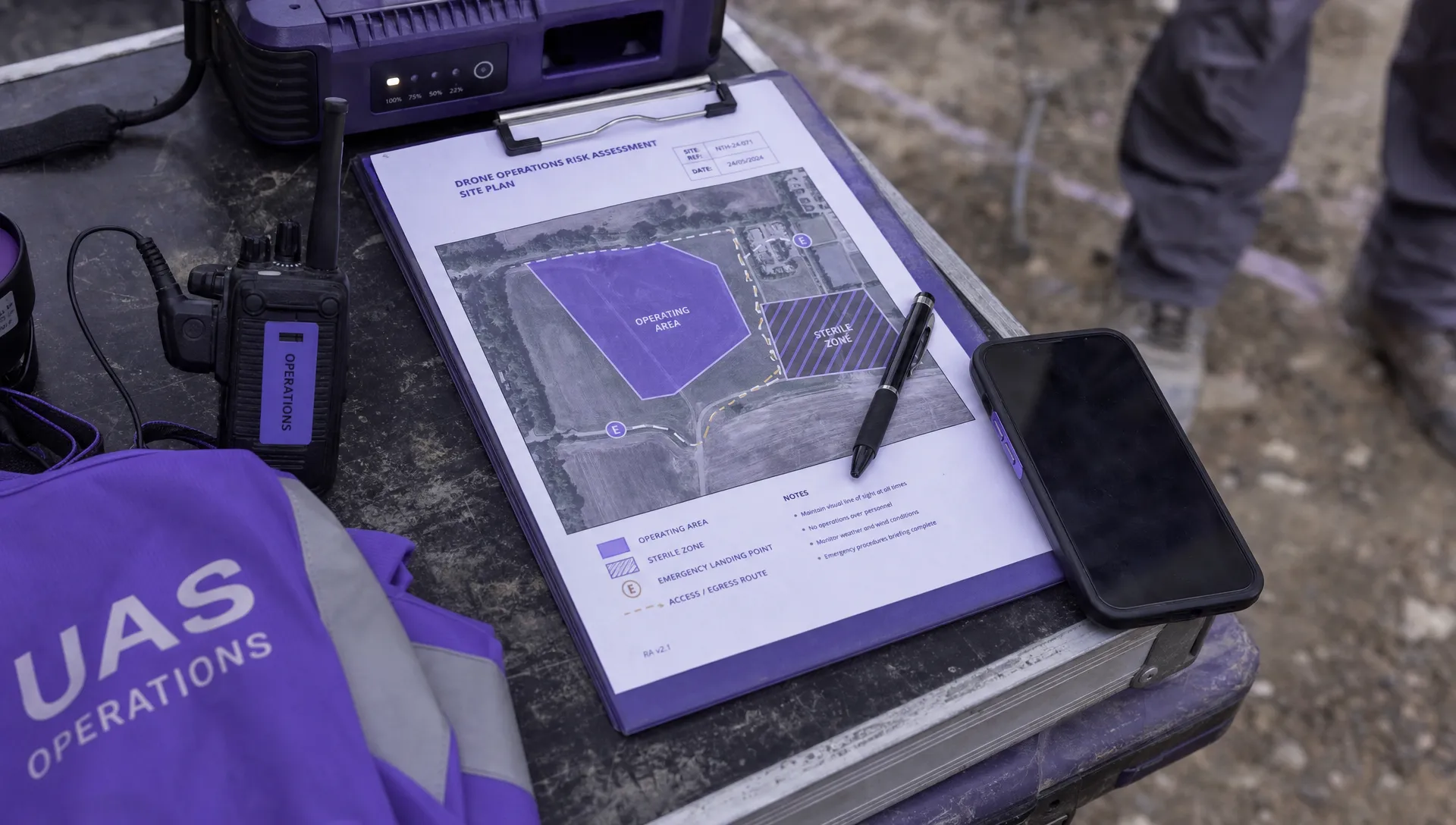 Drone Risk Assessment Controls That Work in the Field →
 FAA Drone License Costs Beyond the Knowledge Test →
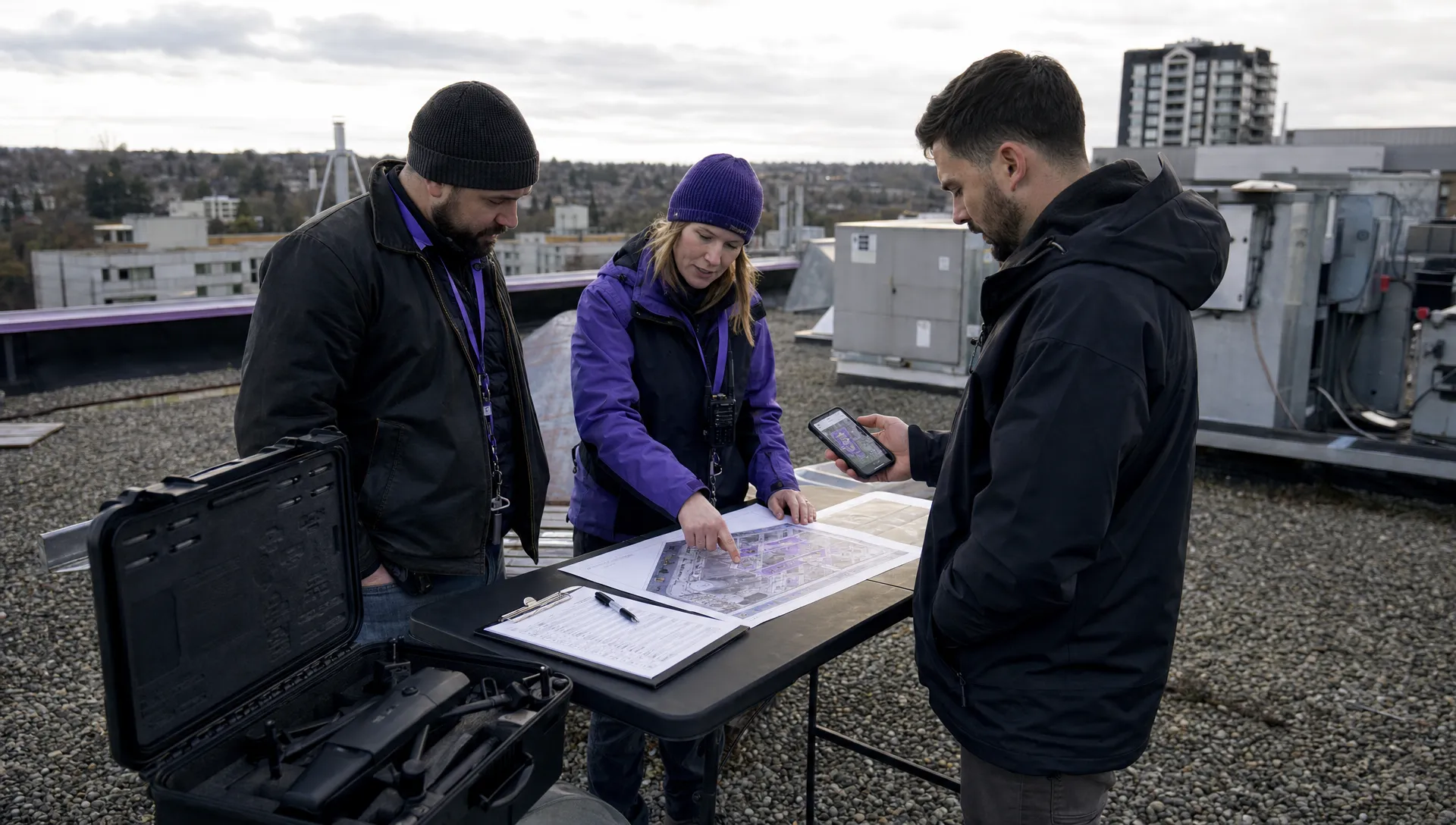 Drone Part 107 Operations: When a Waiver May Be Needed →
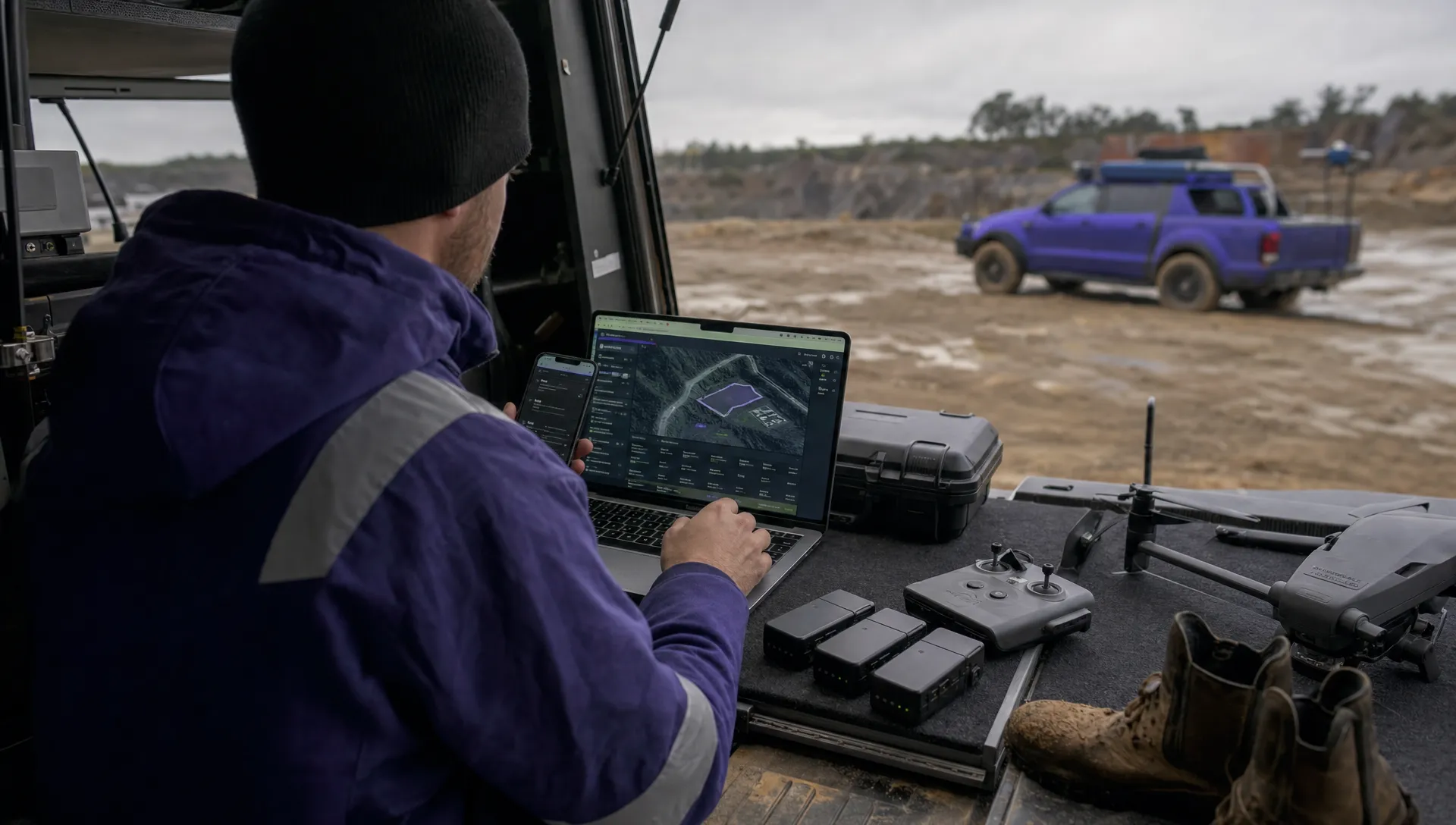 Drone Operating Rules for Managing Contractors and Employees →
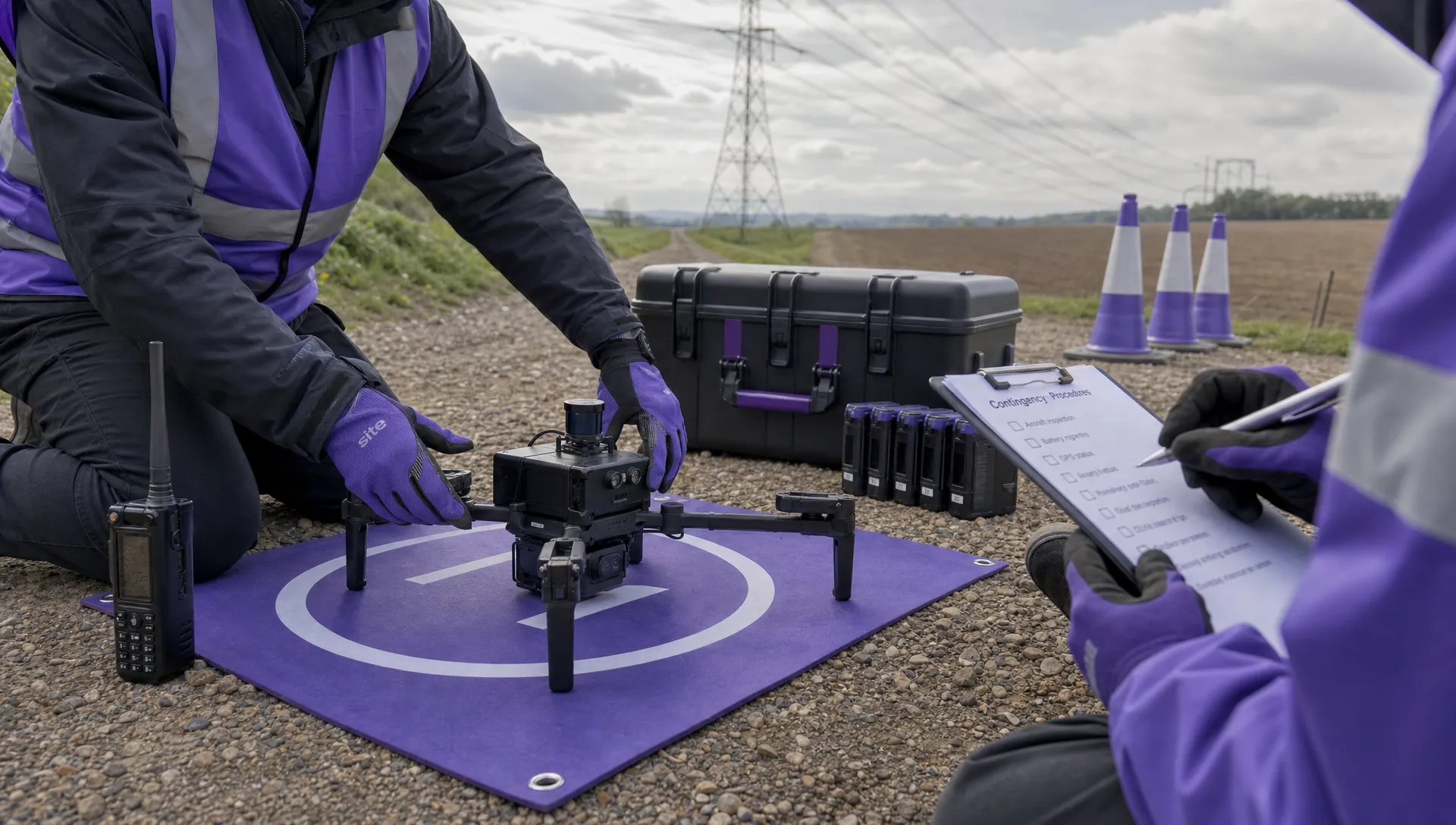 BVLOS Drone Requirements for Building a Safety Case →
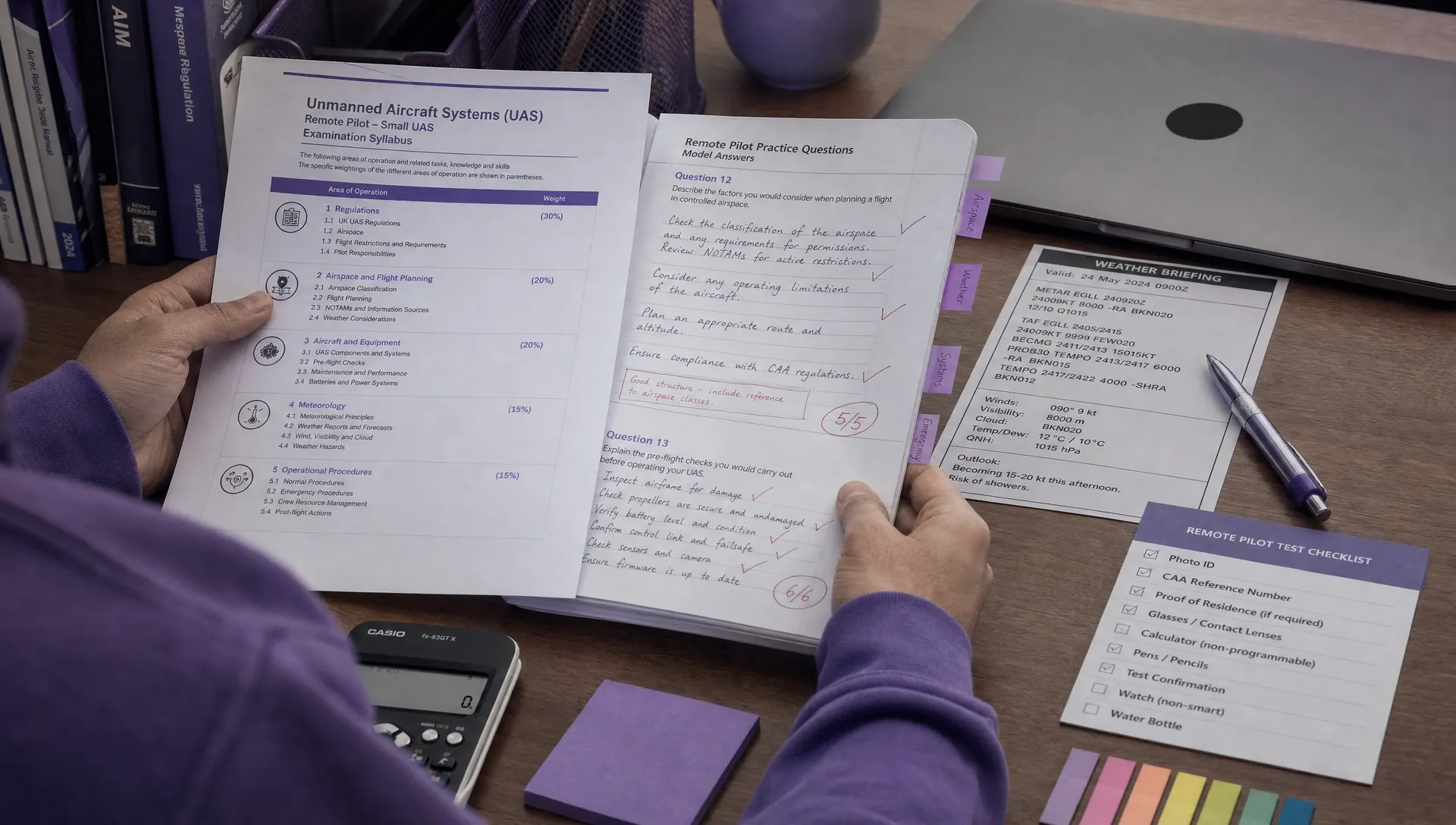 Drone Pilot Test Mistakes That Cost Candidates Marks →
 FAA 107 License vs Part 107 Certificate: What’s the Difference? →
 Drone Airport Rules: A Field Checklist for Site Assessments →